Sync Data into Boost.spaceA platform that centralizes and synchronizes company data from internal and external sources, offering a suite of modules and addons for project management, CRM, data visualization, and more. Has many features to optimize your workflow!: AI MappingMapping links the modules in your scenario. When you map an item, you connected the data retrieved by one module to another module to perform the desired action. For example, you can map the email address and subject lines from the Email > Watch emails module to Google Sheets > Add a row and create a spreadsheet of email addresses...
When syncing data from external tools into Boost.space, the most time-consuming part is usually field mapping. Normally, each incoming field must be mapped manually to a column in your Boost.space table.
AI Mapping simplifies this process by automatically analyzing incoming data and preparing the mapping structure for you. Instead of connecting fields one by one, the system intelligently identifies the data structureWhen you create a data store, you need to create a data structure that formats your data store in Boost.space Integrator. Think of the data store as a spreadsheet and the data structure as the headers. The data structure defines the kind of data (i.e. text, numeric, etc.) that the data store records. You can view and manage your data... and assigns it to the appropriate custom fieldsA feature in Boost.space that allows administrators to define and manage additional data fields within each module, tailoring the system to specific organizational needs..
This significantly speeds up integrations and reduces the risk of configuration errorsService is unavailable due to a failure, a service responds with unexpected data or the validation of input data fails..
What is AI Mapping?
AI Mapping is a scenarioA specific connection between applications in which data can be transferred. Two types of scenarios: active/inactive. type that automatically processes incoming data from external tools (such as CRMs, e-commerce platforms, or spreadsheets) and maps it into the correct custom fields in Boost.space.
Instead of manually configuring each field, AI analyzes the incoming data, recognizes its structure, and assigns values to the appropriate columns.
If some fields do not yet exist, the system can also suggest creating new custom fields, including a recommended field name and field type (such as Text or Number).
To simplify setup, the mapping interface also provides:
- visible field groups in the dropdown
- an Add custom fieldA feature in Boost.space that allows administrators to define and manage additional data fields within each module, tailoring the system to specific organizational needs. button in each group
- automatic suggestions for unmapped fields
This allows usersCan use the system on a limited basis based on the rights assigned by the admin. to quickly create and map fields during setup, making integrations faster and easier to configure.
How to Sync Data Using AI Mapping
Follow these steps to connect an external tool and import data using AI Mapping.
1. Open Your Destination SpaceIn Boost.space, a space is a subunit within a module that helps organize and categorize data, ensuring clarity even with large volumes. For example, within the Contacts module, you might have spaces like "Client Database" or "Supplier Database." Access to each space is restricted to users who have created it or have been granted access.
First, navigate to the modulea module is an application or tool designed to handle specific business functions, such as CRM, project management, or inventory. The system's modular architecture allows you to activate only the modules you need, enabling customization and scalability as your business requirements evolve. and space where you want your incoming data to be stored.
Then open Connect View and click Add New Data source.
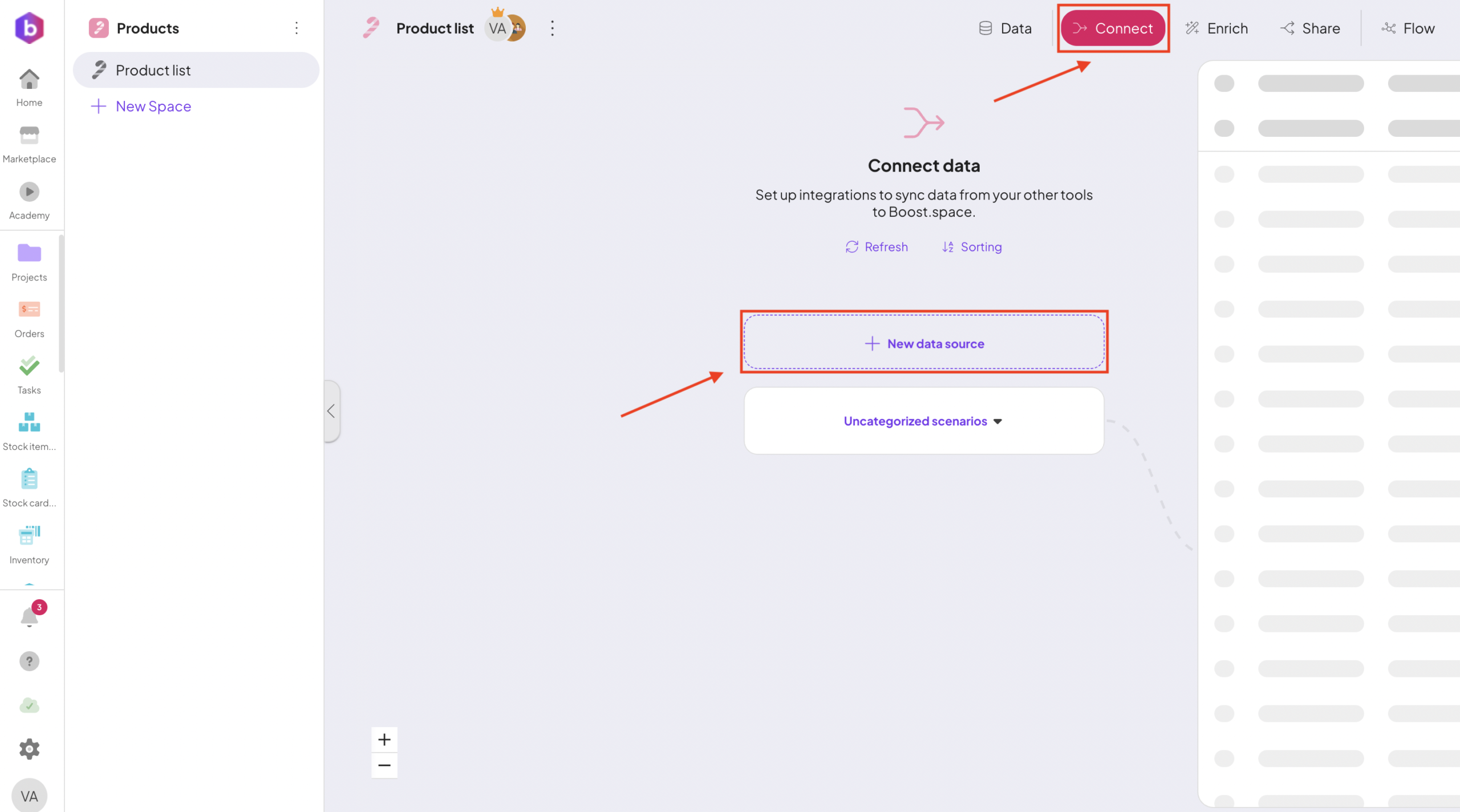
This will start the process of creating a new integration.
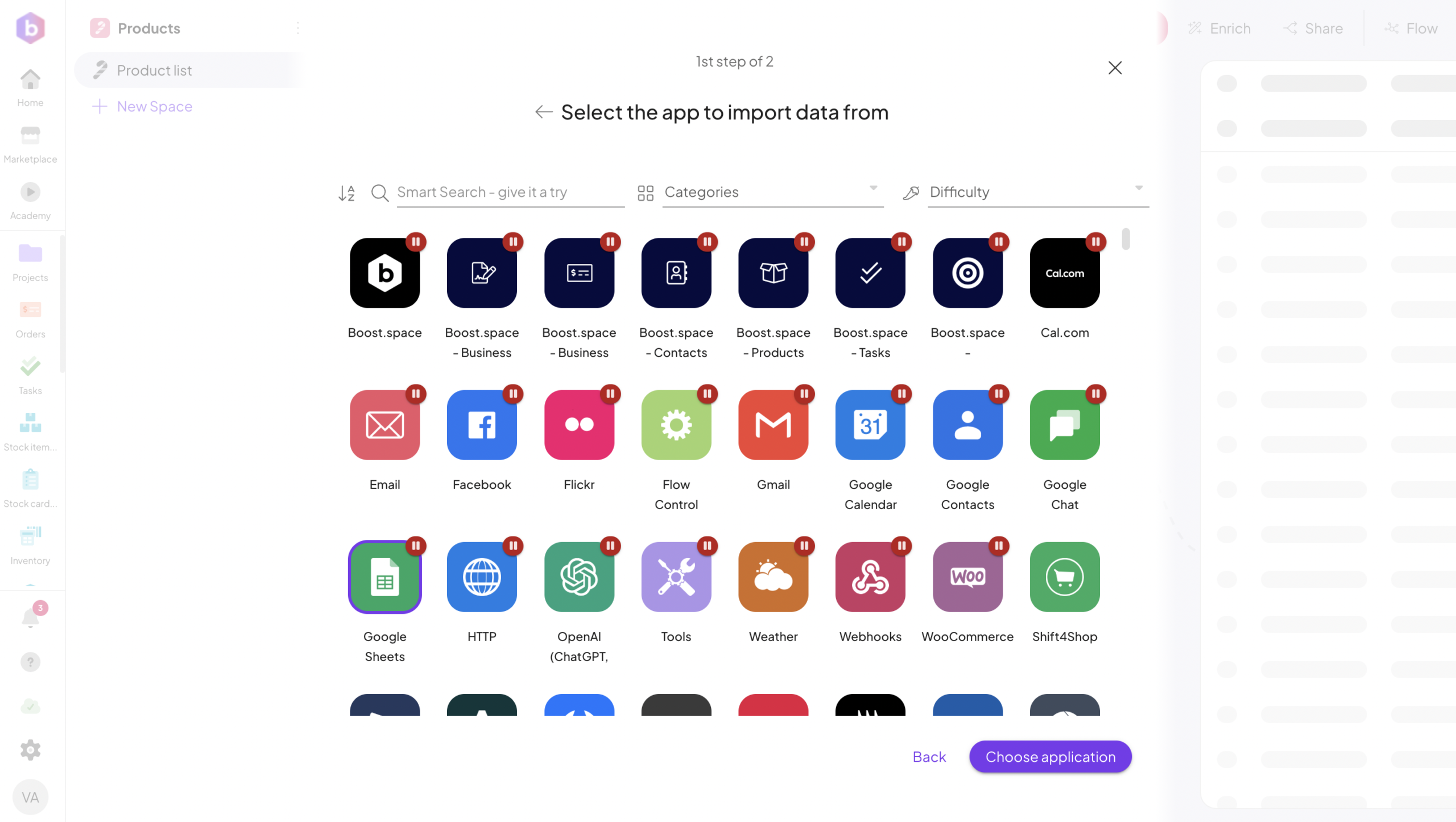
2. Select the Source Tool
Choose the tool you want to sync data from.
3. Choose the AI Mapping Scenario
In the Scenario Type step, select AI Mapping.
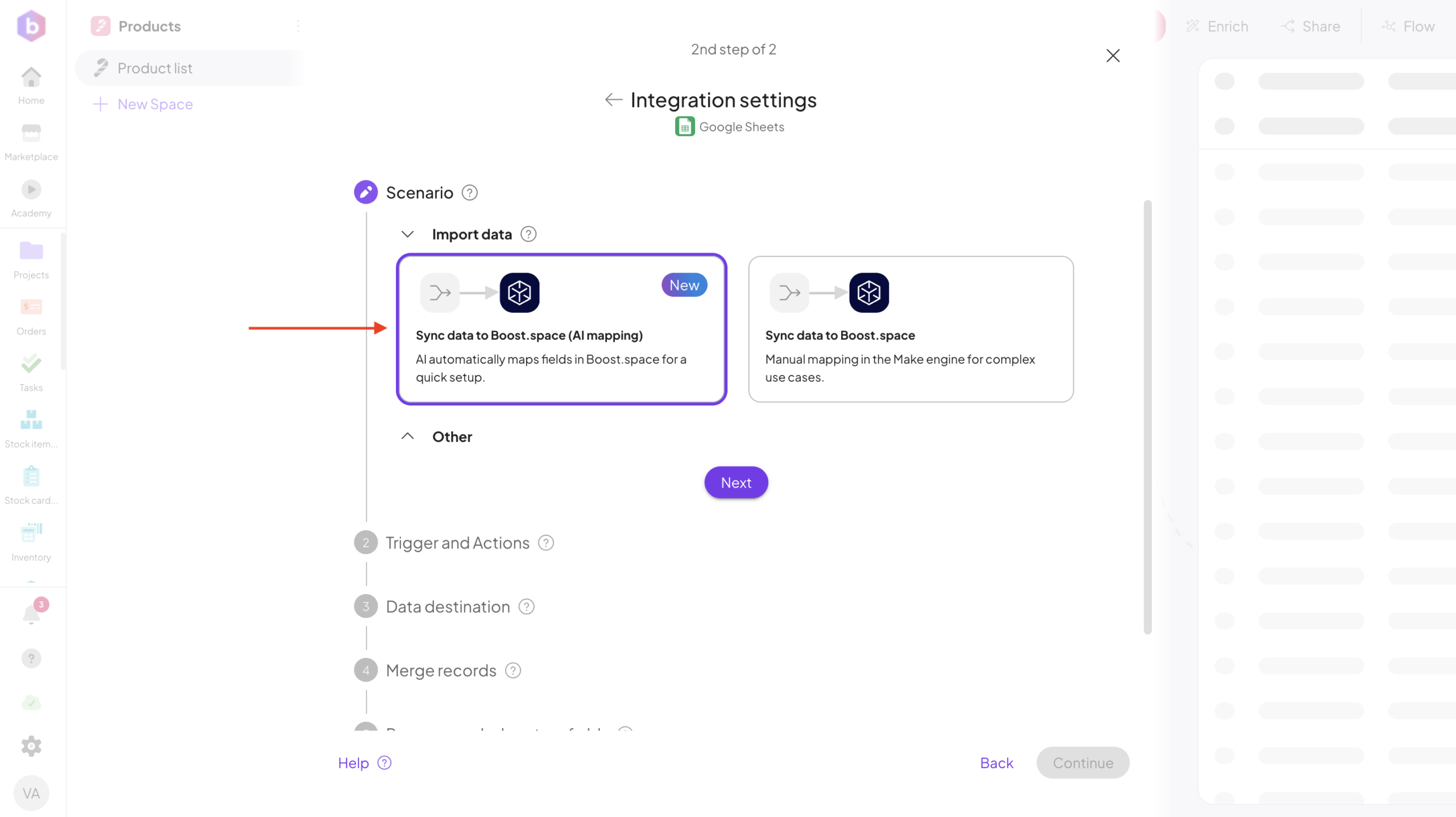
Instead of manually building the mapping structure, this scenario automatically prepares the mapping using AI.
4. Configure the TriggerThe initial event that starts a scenario. It can be an action, a scheduled time, or a custom event, and is essential to define at the beginning of each scenario.
You will now see the TriggersThe initial event that starts a scenario. It can be an action, a scheduled time, or a custom event, and is essential to define at the beginning of each scenario. and Actions configuration.
The recommended trigger is is already picked up.
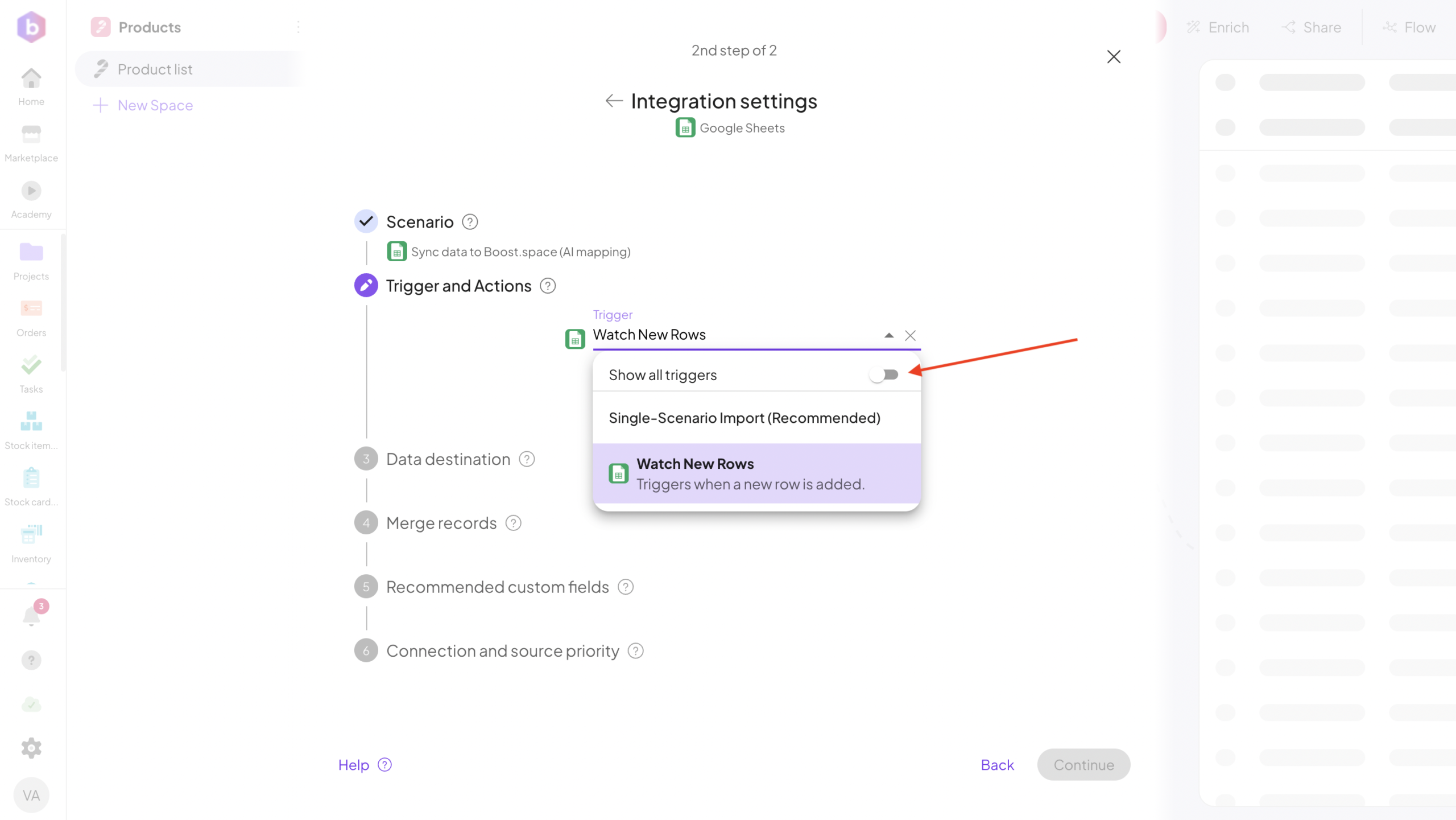
You can change the trigger if needed, but in most cases the default setting works well.
5. Confirm the Data Destination
Next, configure the Data Destination. Here you simply confirm the exact Boost.space space where the synced recordsIn Boost.space, a record is a single data entry within a module, like a row in a database. For example, a contact in the Contacts module or a task in the Tasks module. will be stored.
6. Set the Key FieldIn Boost.space, the Key Field is a designated field that uniquely identifies records within a space. It is essential for data consolidation, as it determines how data from various sources is merged into a single record. For instance, selecting 'email' as the Key Field ensures that any incoming data with the same email address updates the existing record rather than... (Optional)
In the Key Field – Merge Records section, you can choose a field used to detect duplicate records.
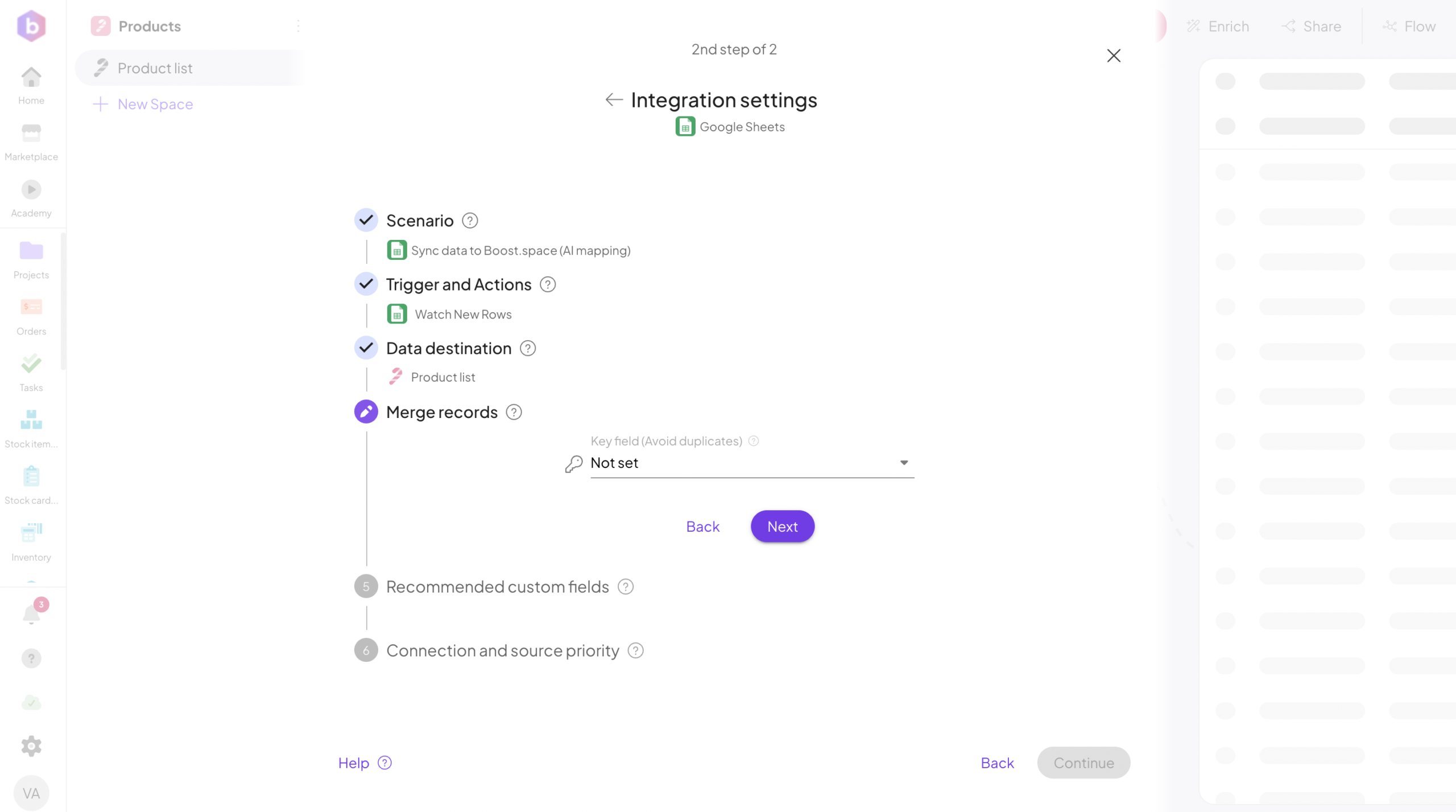
If a matching recordIn Boost.space, a record is a single data entry within a module, like a row in a database. For example, a contact in the Contacts module or a task in the Tasks module. already exists, Boost.space will merge the data instead of creating duplicates.
7. Review Custom Fields
Next, you will see the Custom Fields configuration.
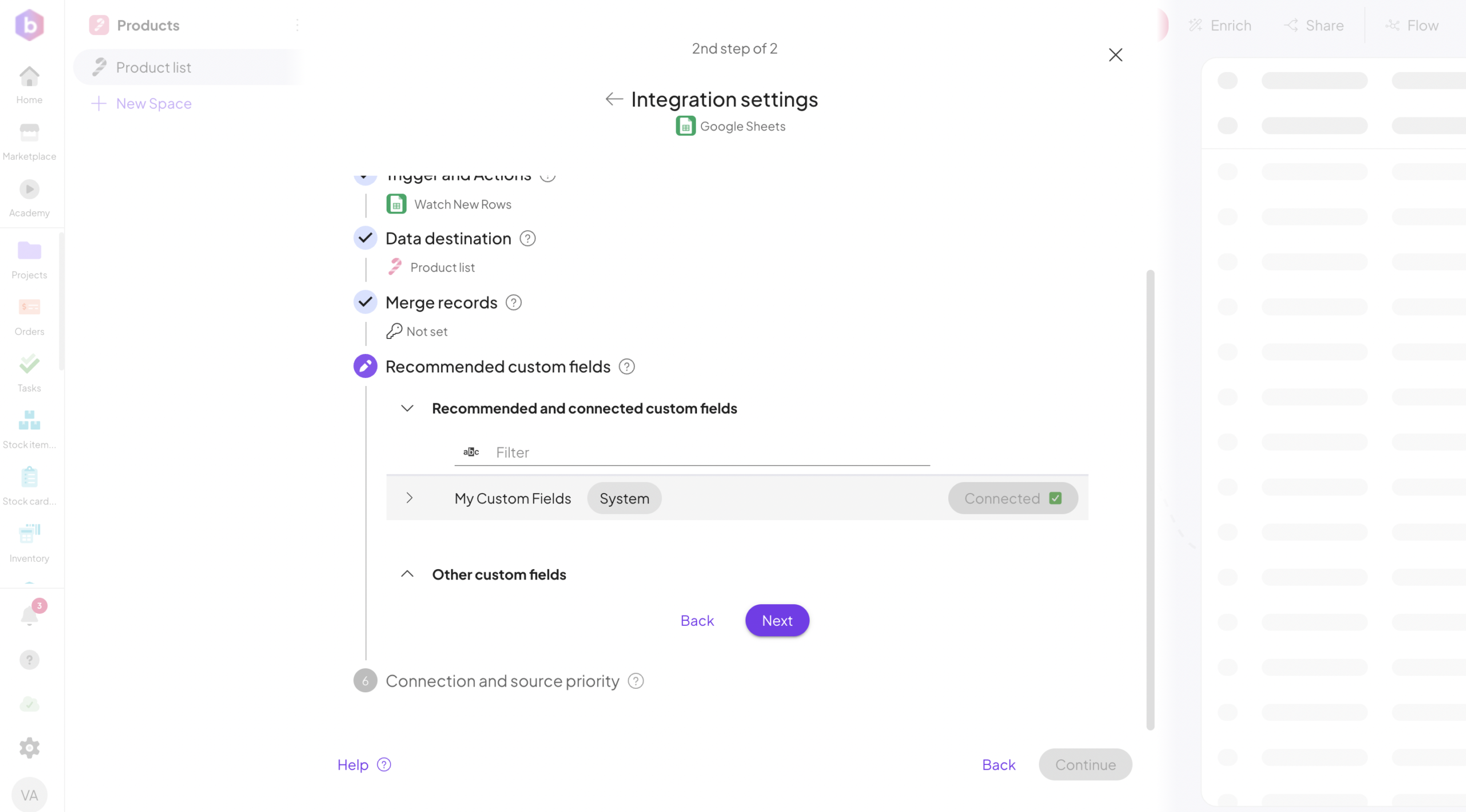
Here you can:
- Use recommended fields
- Connect existing fields
- Create new custom fields
This is also where AI will later suggest fields for unmapped data.
8. Generate the API Key
Once the integration is created, an API key is automatically generated.
You can also configure:
- Priority (Low, Medium, High etc.)
- Permissions
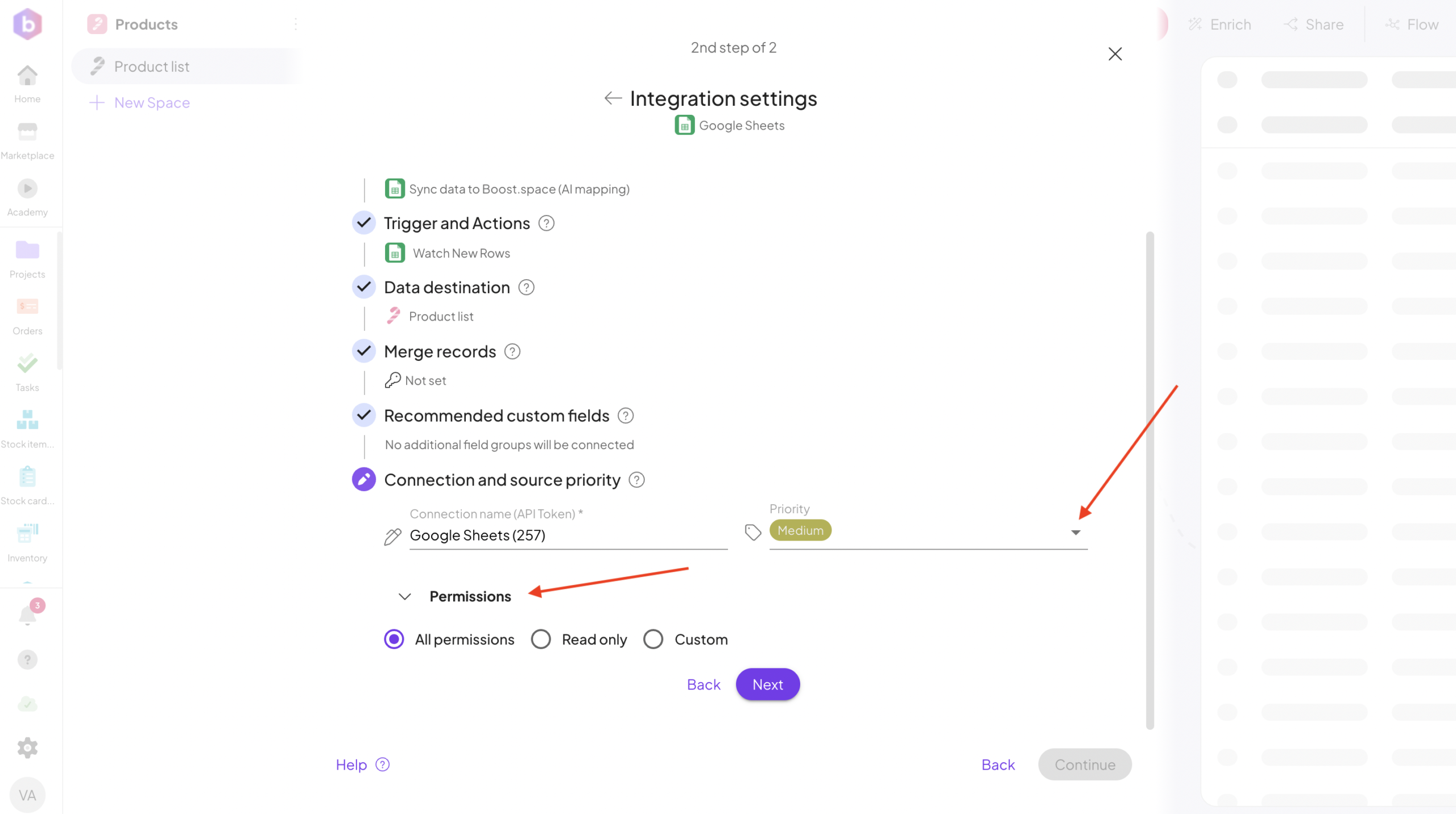
After configuring these options, click Continue.
9. Review the Scenario
You will now see the prepared scenario containing two modulesa module is an application or tool designed to handle specific business functions, such as CRM, project management, or inventory. The system's modular architecture allows you to activate only the modules you need, enabling customization and scalability as your business requirements evolve.:
- Boost.space module – receives and stores the data
- Source tool module – sends the data (for example, Google Sheets)
Source Tool Module
Open the source module (for example, Google Sheets).
Select the required parameters:
- Spreadsheet ID
- Sheet name
You can also adjust the record processing limit.
For example, increasing the limit from 2 to 100 allows the scenario to process up to 100 records per run.
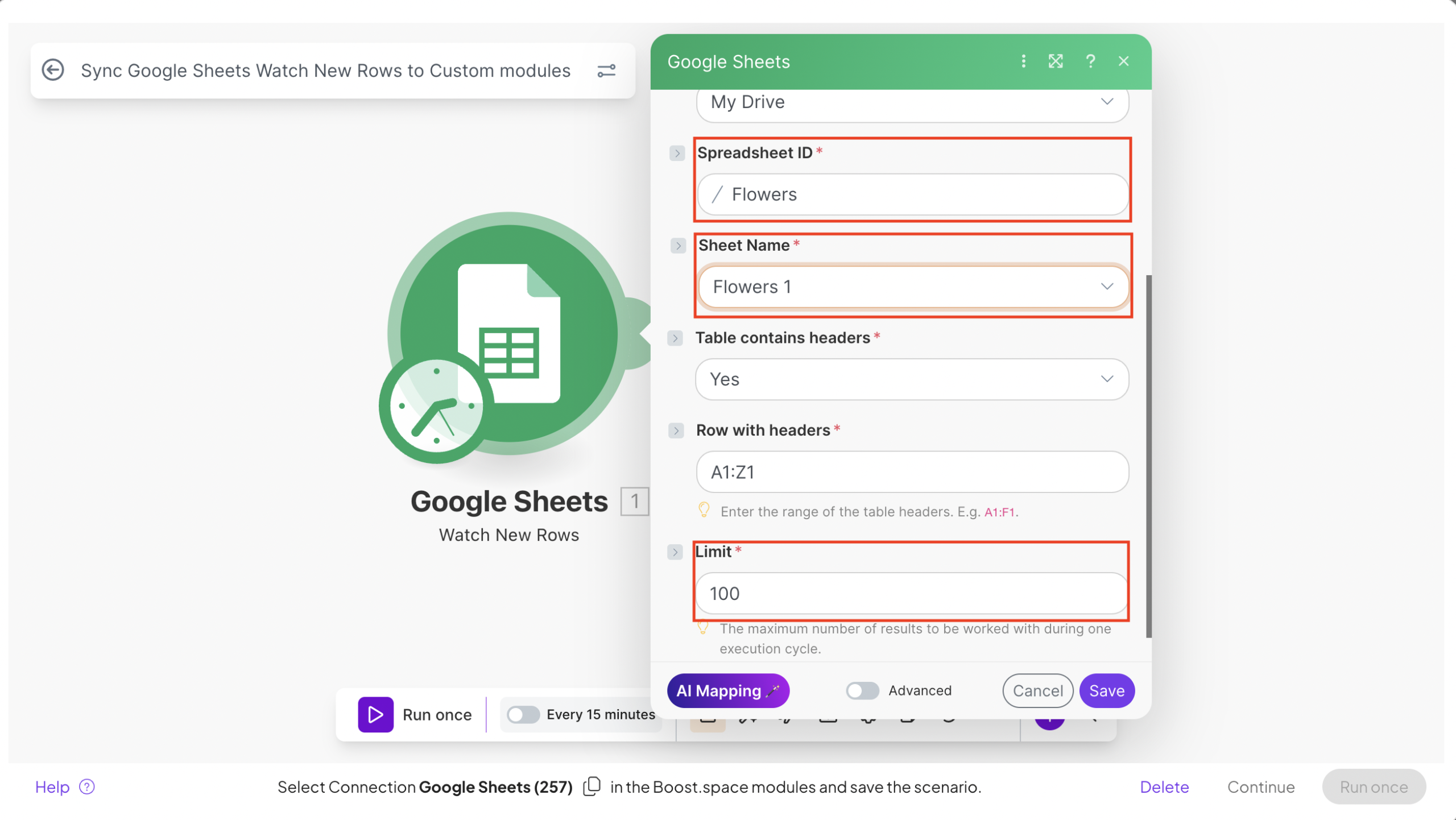
Click Save.
Choose where to start: If you want to sync all existing records from the source tool, select: All.
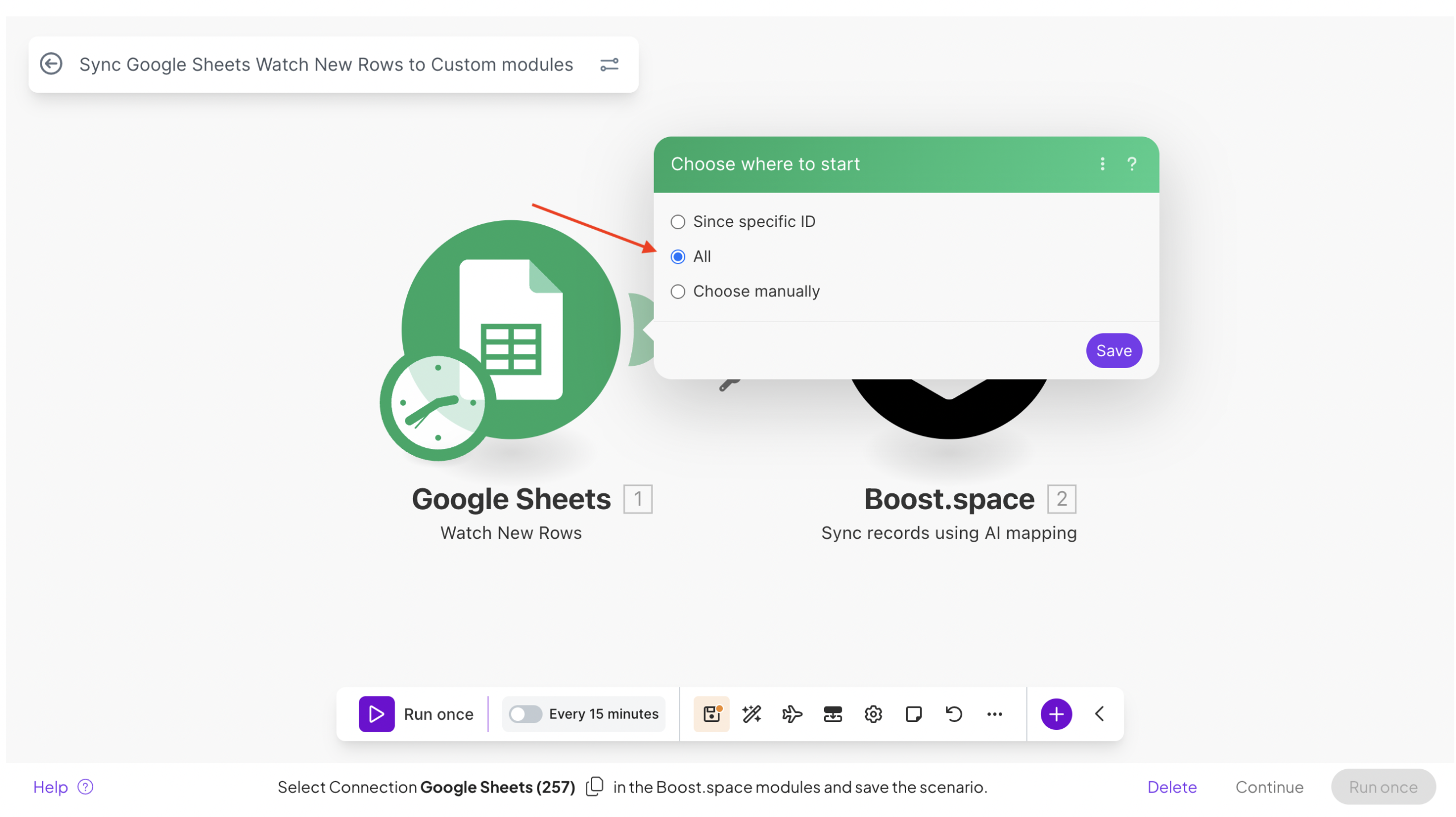
Then click Save.
10. Run the Scenario
The scenario is now ready.
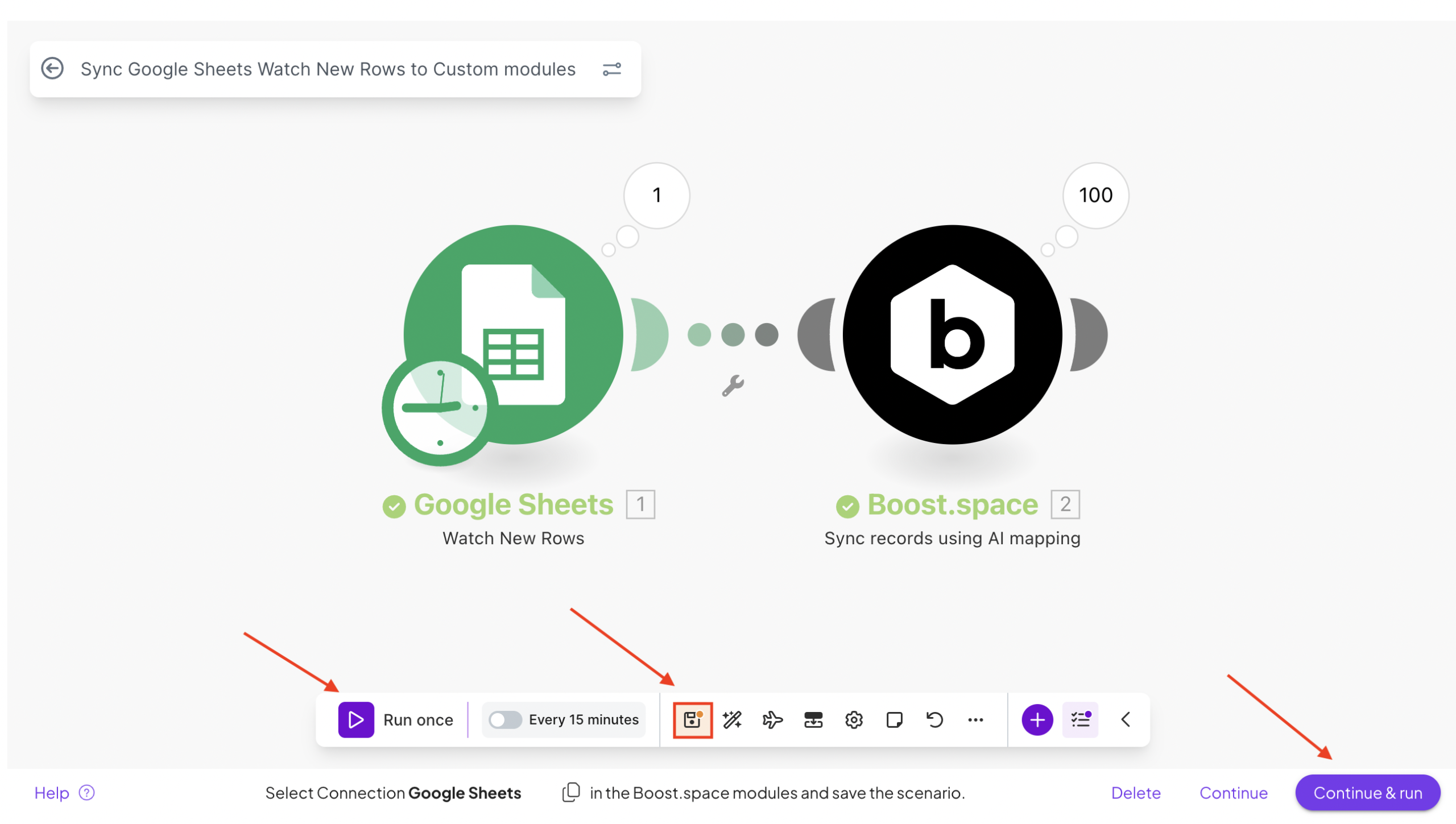
Click Run once to start the initial synchronization.
Boost.space will begin importing data from the source tool.
Before finishing, save the scenario and click Continue and Run.
11. Use AI FieldAI field is enhanced with artificial intelligence, providing smarter insights and automated functionalities to optimize data processing and decision-making. Suggestions
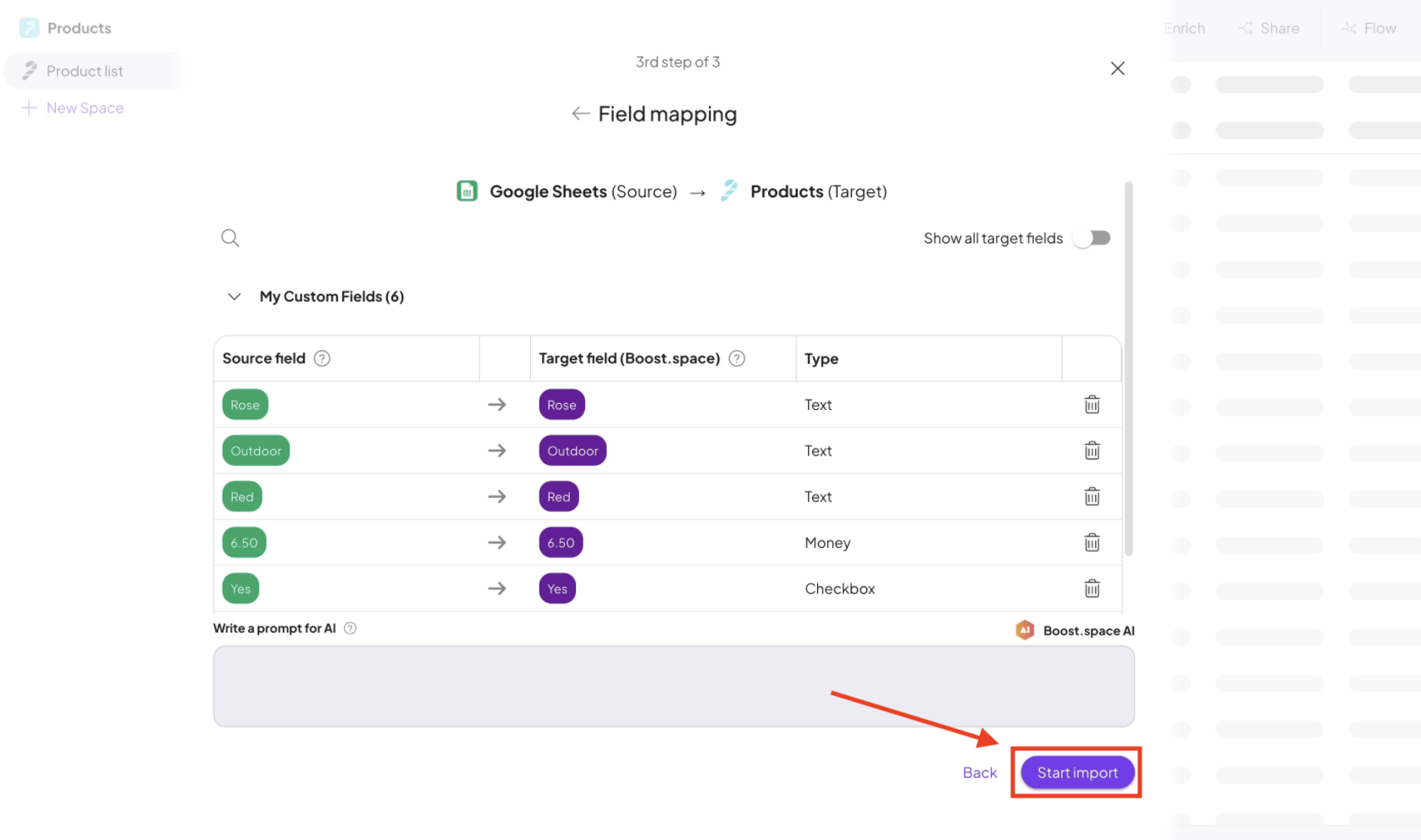
A Field Mapping window appears.
This is where AI Mapping provides the most value.
For any fields that are not yet mapped, the system automatically suggests creating new custom fields.
Each suggestion includes:
- Field name
- Field type (Short text, Number, etc.)
To quickly generate the mapping, click: Suggest target fields.
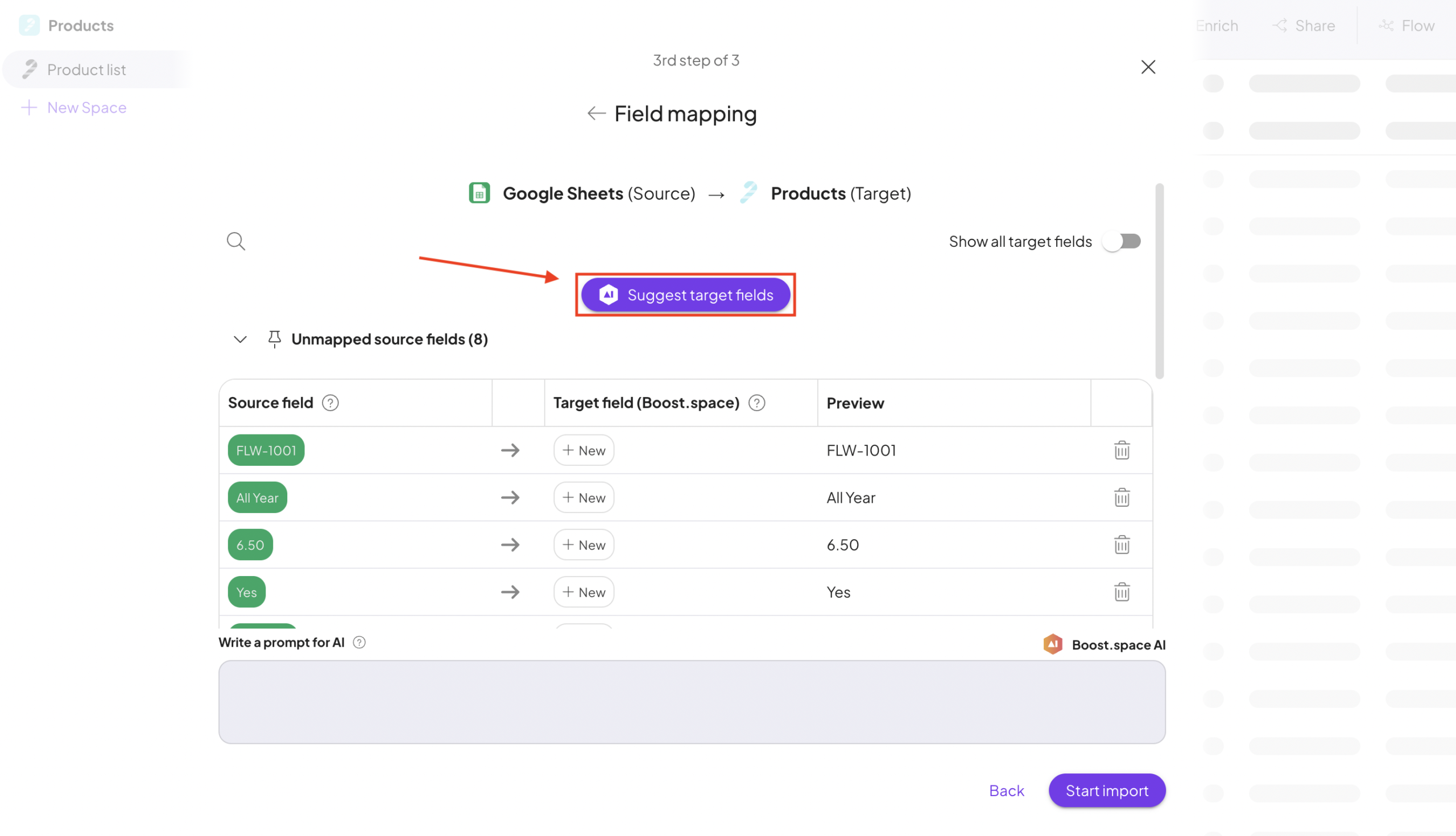
The system analyzes the source data and prepares the best matching field structure.
Review the suggestions and click Apply.
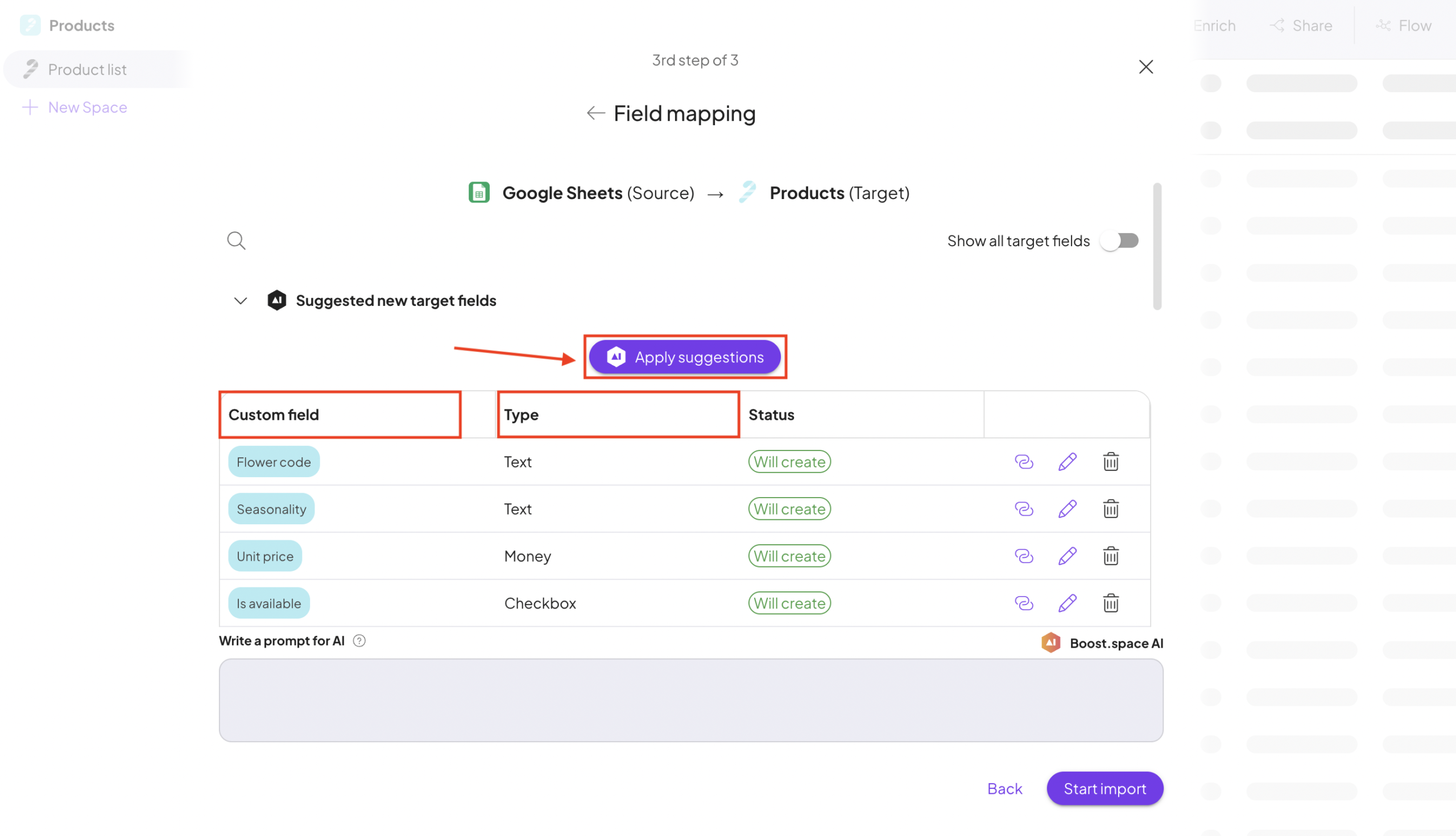
AI will process the mapping and prepare the final configuration.
12. Import the Data
Once the mapping is complete, click Start Import.
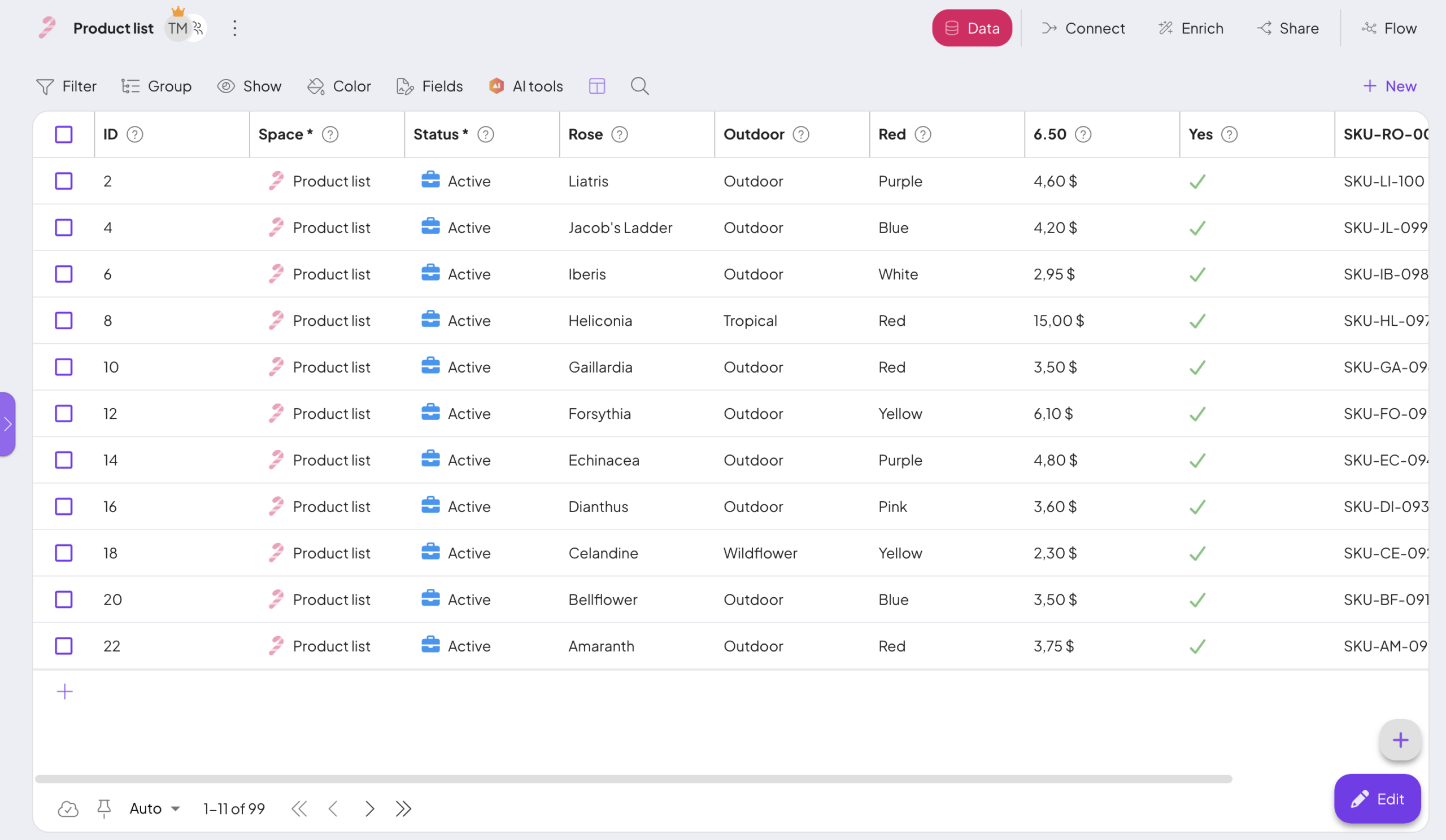
When you return to your module in Boost.space, you will see the imported records — including any newly created custom fields generated by AI.
AI Mapping simplifies the process of connecting external tools to Boost.space.
Instead of manually mapping every field, the system automatically:
- analyzes incoming data
- suggests appropriate custom fields
- prepares the mapping structure
This makes integrations faster, easier, and significantly more reliable, especially when working with large datasets or unfamiliar data structuresWhen you create a data store, you need to create a data structure that formats your data store in Boost.space Integrator. Think of the data store as a spreadsheet and the data structure as the headers. The data structure defines the kind of data (i.e. text, numeric, etc.) that the data store records. You can view and manage your data....
If you encounter any problems during the process, please contact us at [email protected].