- Contact module
- Trigers
- Actions
- Update
- Get
- Record
- Contacts File Upload Status
- Contact file
- Contacts CustomInfo List
- Contacts Custom Info
- Contacts Connected Label List
- Contacts Connected Label
- Contacts Connected File List
- Contact's Address List
- Contacts Address
- Contact List
- Contact Groups Statistics
- Contact Group List
- Contact by Remote ID
- Contact
- Connectible Labels
- Address List
- Disconect
- Delete
- Create
- Connect
- Approve customer
- Upload a file to contact
- Synchronize remote Record
- Make an API call
Contact module
The Contact Modulea module is an application or tool designed to handle specific business functions, such as CRM, project management, or inventory. The system's modular architecture allows you to activate only the modules you need, enabling customization and scalability as your business requirements evolve. serves as the central hub for managing personal and corporate identities within your system. The data flow between Boost.spaceA platform that centralizes and synchronizes company data from internal and external sources, offering a suite of modules and addons for project management, CRM, data visualization, and more. Has many features to optimize your workflow! and your integrated third-party applications, allowing for real-time monitoring, automated updates, and complex relationship mappingMapping links the modules in your scenario. When you map an item, you connected the data retrieved by one module to another module to perform the desired action. For example, you can map the email address and subject lines from the Email > Watch emails module to Google Sheets > Add a row and create a spreadsheet of email addresses....
Trigers
Watch:
Contact and Address (updated, deleted, CUD, created) have the same mapping.
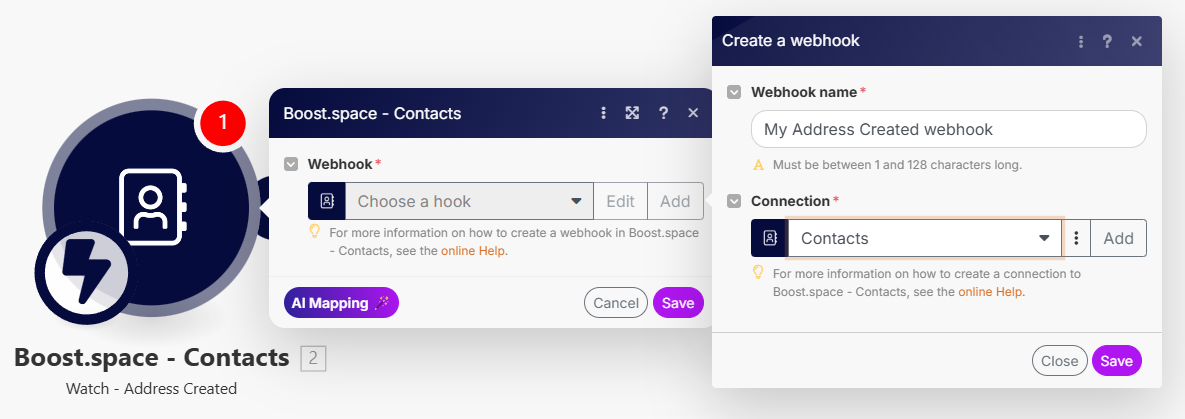
| Create a webhookA webhook is a way for an app to send real-time information to a specific URL in response to certain events or triggers. | By clicking on Add you will be directed to creation of your webhook. |
| Webhook name | Give your webhook a name. |
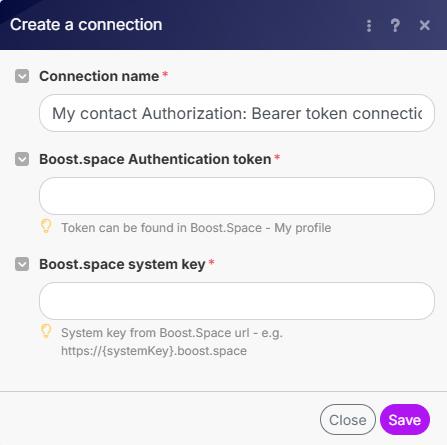
| ConnectionUnique, active service acces point to a network. There are different types of connections (API key, Oauth…). | By clicking on add you will be directed to creating your connection using System key and API key. |
Actions
Update
Contact´s file
| Connection | By clicking on add you will be directed to creating your connection using System key and API key.
|
| Contact ID | Here, you put the ID of the contact you want to upload your file to. |
Contact´s CustomInfo
| Connection | By clicking on add you will be directed to creating your connection using System key and API key. |
| Contact ID | Here, you put the ID of the contact you want to upload your file to. |
| Custom Info ID | Paste here your Custom Info ID from your system. |
Contact Group
| Connection | By clicking on add you will be directed to creating your connection using System key and API key. |
| Contact ID | Here, you put the ID of the contact you want to upload your file to. |
Contact
| Connection | By clicking on add you will be directed to creating your connection using System key and API key. |
| Select spaceIn Boost.space, a space is a subunit within a module that helps organize and categorize data, ensuring clarity even with large volumes. For example, within the Contacts module, you might have spaces like "Client Database" or "Supplier Database." Access to each space is restricted to users who have created it or have been granted access. | Choose the specific space from your system that you want to map. |
| Contact ID | Here, you put the ID of the contact you want to upload your file to. |
Get
Record
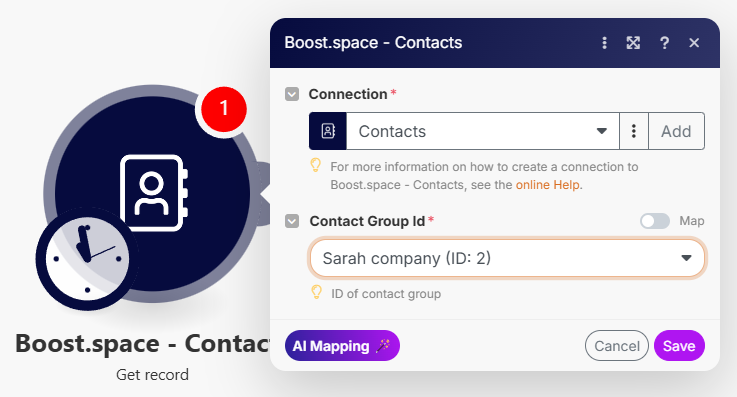
| Connection | By clicking on add you will be directed to creating your connection using System key and API key. |
| Contact group ID | Enter the Contact Group ID from your system. |
Contacts File Upload Status
| Connection | By clicking on add you will be directed to creating your connection using System key and API key. |
| Contact ID | Here, you put the ID of the contact you want to upload your file to. |
| Resumable IDentifier | Select or map Resumable IDentifier to check if the part is uploaded. |
Contact file
| Connection | By clicking on add you will be directed to creating your connection using System key and API key. |
| Contact ID | Here, you put the ID of the contact you want to upload your file to. |
| File ID | ID of the file that you want to get. |
Contacts CustomInfo List
| Connection | By clicking on add you will be directed to creating your connection using System key and API key. |
| Contact ID | Here, you put the ID of the contact you want to upload your file to. |
Contacts Custom Info
| Connection | By clicking on add you will be directed to creating your connection using System key and API key. |
| Contact ID | Here, you put the ID of the contact you want to upload your file to. |
| Custom Info ID | Paste here your Custom Info ID from your system. |
Contacts Connected Label List
| Connection | By clicking on add you will be directed to creating your connection using System key and API key. |
| Contact ID | Here, you put the ID of the contact you want to upload your file to. |
Contacts Connected Label
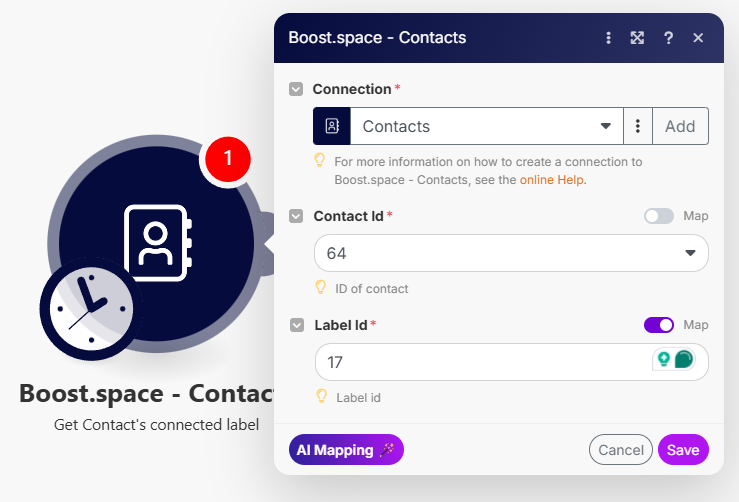
| Connection | By clicking on add you will be directed to creating your connection using System key and API key. |
| Contact ID | Here, you put the ID of the contact you want to upload your file to. |
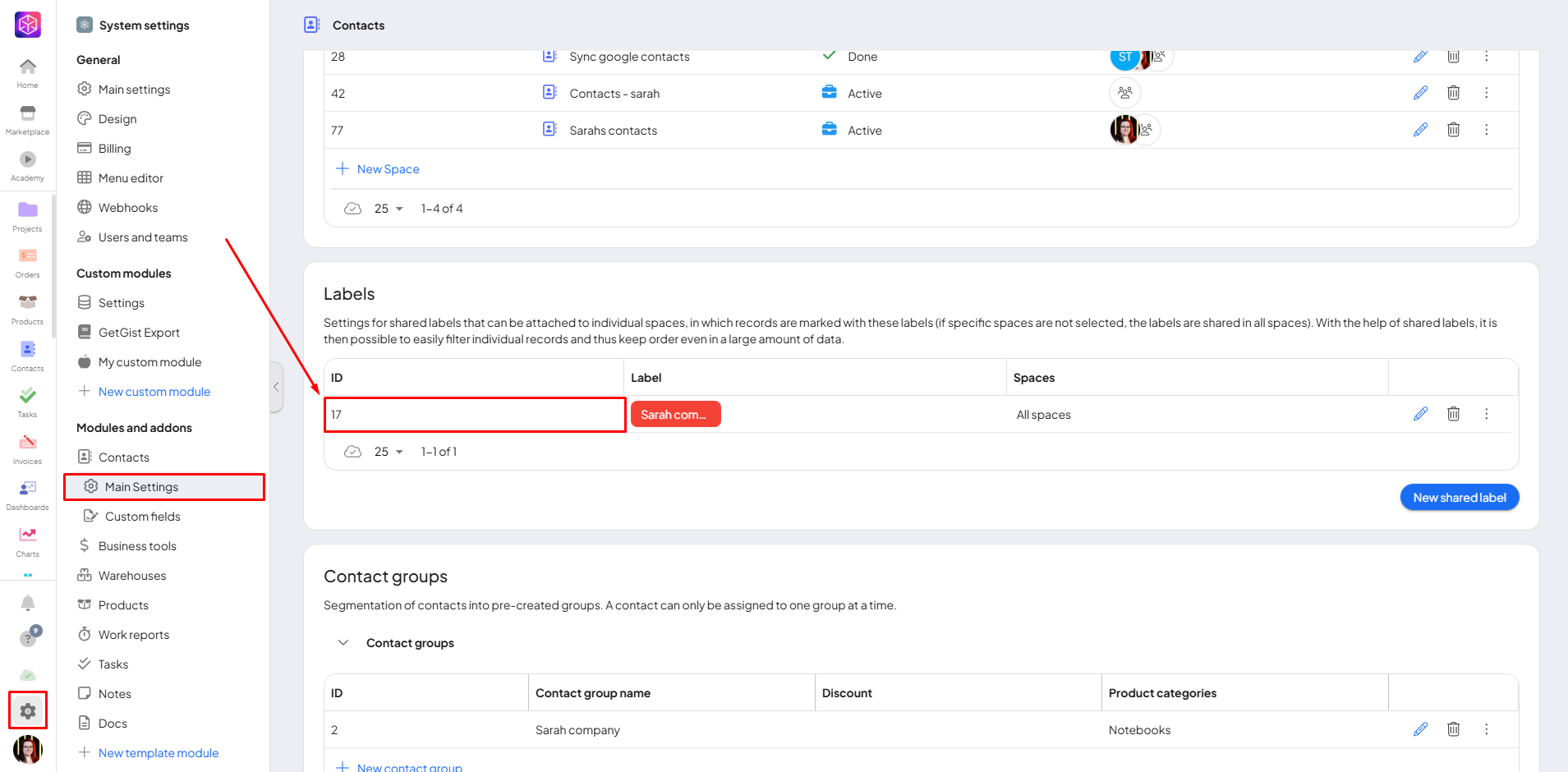
| LabelIn Boost.space, a label is a tag that can be added to items within a module. It's a flexible tool used to categorize and organize data, making it easier to customize workflows and processes. ID | Select the Label ID from your system. |
Contacts Connected File List
| Connection | By clicking on add you will be directed to creating your connection using System key and API key. |
| Contact ID | Here, you put the ID of the contact you want to upload your file to. |
Contact’s Address List
| Connection | By clicking on add you will be directed to creating your connection using System key and API key. |
| Contact ID | Here, you put the ID of the contact you want to upload your file to. |
Contacts Address
| Connection | By clicking on add you will be directed to creating your connection using System key and API key. |
| Contact ID | Here, you put the ID of the contact you want to upload your file to. |
| Address ID | ID of the address from your system. |
Contact List
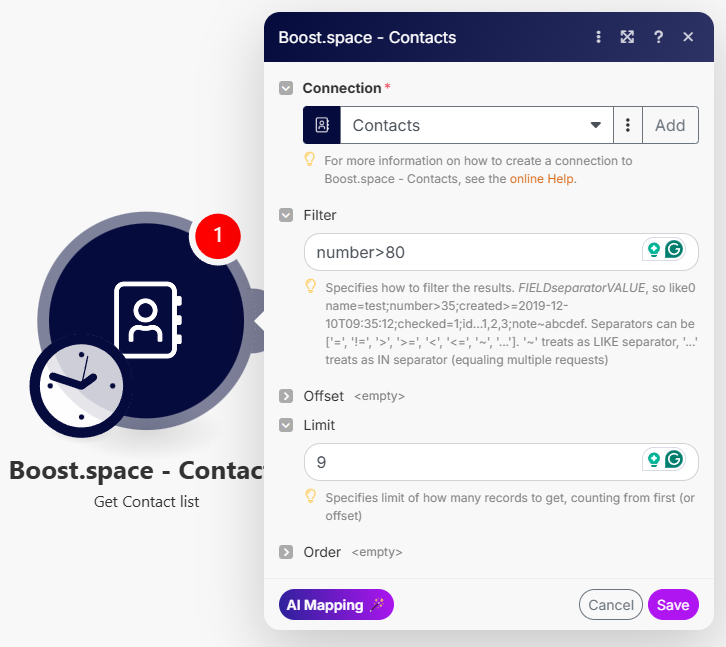
| Connection | By clicking on add you will be directed to creating your connection using System key and API key. |
| Filter | Here you can filter the data from your contacts. |
| Limit | The number of recordsIn Boost.space, a record is a single data entry within a module, like a row in a database. For example, a contact in the Contacts module or a task in the Tasks module. that will be loaded. |
Contact Groups Statistics
| Connection | By clicking on add you will be directed to creating your connection using System key and API key. |
| Contact Group ID | Enter the Contact Group ID from your system. |
Contact Group List
| Connection | By clicking on add you will be directed to creating your connection using System key and API key. |
| Filter | Here you can filter the data from your contacts. |
| Limit | The number of records that will be loaded. |
Contact by Remote ID
| Connection | By clicking on add you will be directed to creating your connection using System key and API key. |
| Remote ID | ID from remote application (3rd party tools). |
| Remote application | Name of the remote application (3rd party tool). |
Contact
| Connection | By clicking on add you will be directed to creating your connection using System key and API key. |
| Contact ID | Here, you put the ID of the contact you want to upload your file to. |
Connectible Labels
| Connection | By clicking on add you will be directed to creating your connection using System key and API key. |
| Contact ID | Here, you put the ID of the contact you want to upload your file to. |
Address List
| Connection | By clicking on add you will be directed to creating your connection using System key and API key. |
| Search | Parameters to search the address list in your system. |
Disconect
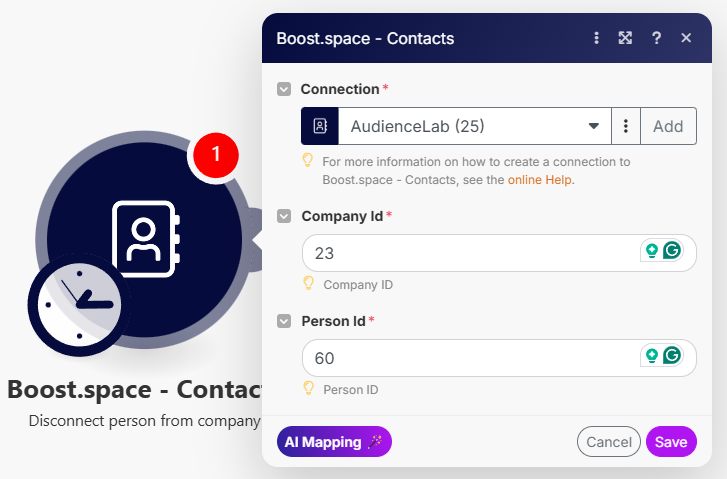
A person from the company
| Connection | By clicking on add you will be directed to creating your connection using System key and API key. |
| Person ID | System ID of the person that you want to connect to the company. |
| Company ID | System ID of the company that you want the person to connect to. |
Label from contact
| Connection | By clicking on add you will be directed to creating your connection using System key and API key. |
| Contact ID | Here, you put the ID of the contact you want to upload your file to. |
| Label ID | Select the Label ID from your system. |
and Delete CustomInfo from the Contact
| Connection | By clicking on add you will be directed to creating your connection using System key and API key. |
| Contact ID | Here, you put the ID of the contact you want to upload your file to |
| Custom Info ID | Paste here your Custom Info ID from your system. |
Address from Contact
| Connection | By clicking on add you will be directed to creating your connection using System key and API key. |
| Contact ID | Here, you put the ID of the contact you want to upload your file to. |
| Address ID | ID of the address from your system. |
Delete
Contacts file
| Connection | By clicking on add you will be directed to creating your connection using System key and API key. |
| Contact ID | Here, you put the ID of the contact you want to upload your file to. |
| File ID | ID of the file that you want to get. |
Contact Group
| Connection | By clicking on add you will be directed to creating your connection using System key and API key. |
| Contact group ID | Enter the Contact Group ID from your system. |
Contact
| Connection | By clicking on add you will be directed to creating your connection using System key and API key. |
| Contact ID | Here, you put the ID of the contact you want to upload your file to. |
Create
Contact Group
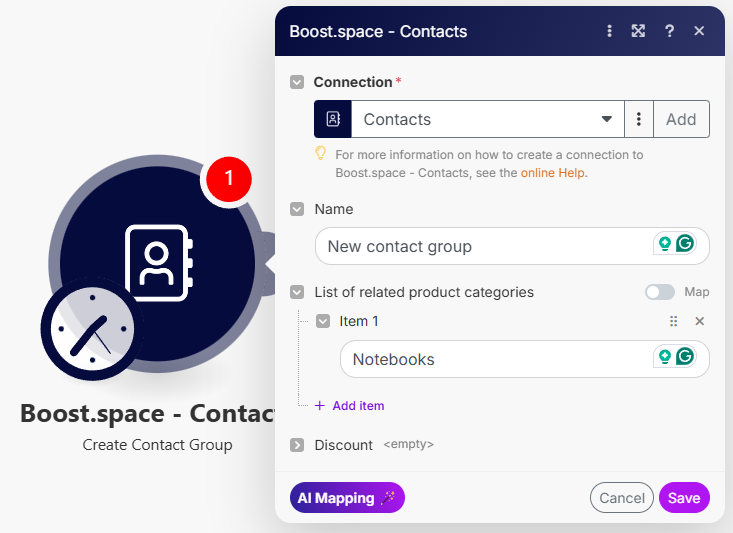
| Connection | By clicking on add you will be directed to creating your connection using System key and API key. |
| Name | Name of the contact group. |
| List of related product categories | List of product categories that you want to relate to the contact group. |
Contact
| Connection | By clicking on add you will be directed to creating your connection using System key and API key. |
| Select space | Choose the specific space from your system that you want to map. |
| Contact surname (or company name) | Surname of the contact or name of the company. |
and Connect CustomInfo to the Contact
| Connection | By clicking on add you will be directed to creating your connection using System key and API key. |
| Contact ID | Here, you put the ID of the contact you want to upload your file to. |
Address
| Connection | By clicking on add you will be directed to creating your connection using System key and API key. |
Connect
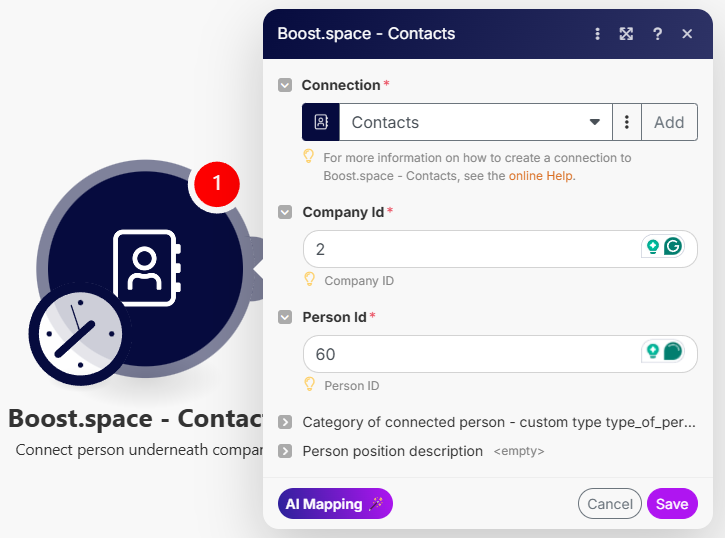
Person underneath the Company
| Connection | By clicking on add you will be directed to creating your connection using System key and API key. |
| Company ID | System ID of the company that you want the person to connect to. |
| Person ID | System ID of the person that you want to connect to the company. |
Label to Contact
| Connection | By clicking on add you will be directed to creating your connection using System key and API key. |
| Contact ID | Here, you put the ID of the contact you want to upload your file to. |
| Label ID | Select the Label ID from your system. |
Address to Contact
| Connection | By clicking on add you will be directed to creating your connection using System key and API key. |
| Contact ID | Here, you put the ID of the contact you want to upload your file to. |
| Address ID | ID of the address from your system. |
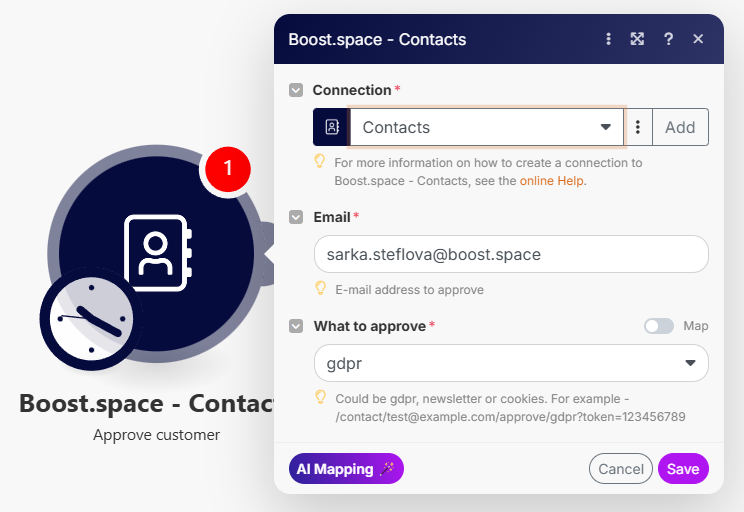
Approve customer
| Connection | By clicking on add you will be directed to creating your connection using System key and API key. |
| Email address to approve. | |
| What to approve | Select or map what you want to approve. |
Upload a file to contact
| Connection | By clicking on add you will be directed to creating your connection using System key and API key. |
| Contact ID | Here, you put the ID of the contact you want to upload your file to. |
| Resumable filename | Select or map the Resumable filename to check if the part is uploaded. |
| File Contents | Stream of data of the file. |
Synchronize remote Record
| Connection | By clicking on add you will be directed to creating your connection using System key and API key. |
| Select space | Choose the specific space from your system that you want to map. |
| Remote ID | ID from remote application (3rd party tools). |
| Contact´s surname (or company name) | Surname of the contact or name of the company. |
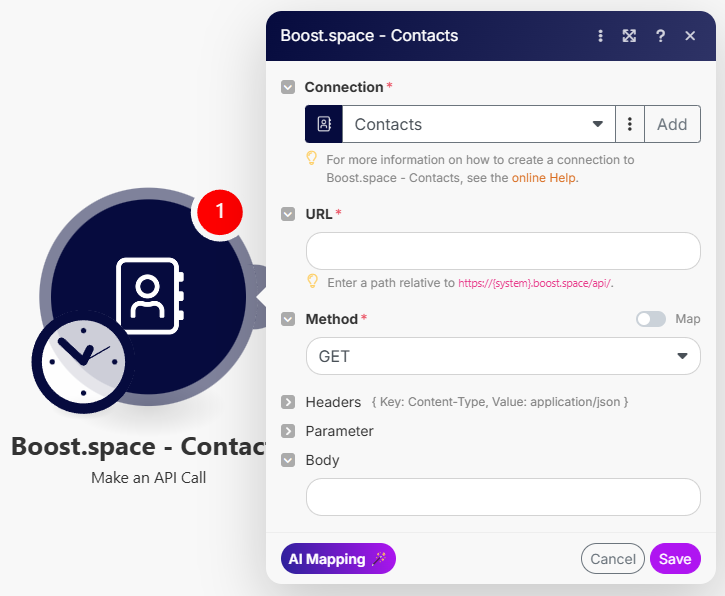
Make an API call
| Connection | By clicking on add you will be directed to creating your connection using System key and API key. |
| URL | URL to perform the API call to. |
| Method | Select a method for the API call. |
If you need any further help with additional mapping, please don’t hesitate to contact us at [email protected].