Notes allow you to share information about a scenarioA specific connection between applications in which data can be transferred. Two types of scenarios: active/inactive. with your team. You can use notes to document and communicate essential details to other Boost.spaceA platform that centralizes and synchronizes company data from internal and external sources, offering a suite of modules and addons for project management, CRM, data visualization, and more. Has many features to optimize your workflow! IntegratorPart of the Boost.space system, where you can create your connections and automate your processes. usersCan use the system on a limited basis based on the rights assigned by the admin..
The following sections describe how to create notes in a scenario, how to inspect and view them, and how to manage notes.
You can attach a note to any modulea module is an application or tool designed to handle specific business functions, such as CRM, project management, or inventory. The system's modular architecture allows you to activate only the modules you need, enabling customization and scalability as your business requirements evolve. or any route in the scenario. Each module or route can have one note. can contain up to 200 notes, and each note has a 10,000-character limit.
![[Note]](https://docs.boost.space/wp-content/themes/bsdocs/docs-parser/HTML/css/image/note.png) |
Note |
|---|---|
| When you use a lot of formatting, like emojis and links, you might reach the note length limit faster than with no formatting. Boost.space Integrator stores your notes in HTML format, which uses extra characters to set formatting. |
To add a note:
- Right-click the module or the route to which you want to add the note.
- Select Add a note.
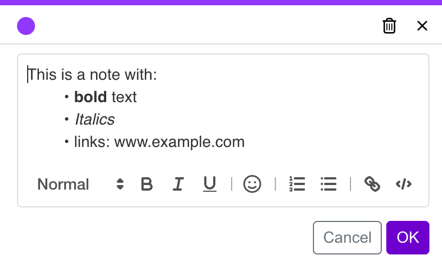
- Write your note in the text field. Use the quick formatting tools to add formatting, links, and emojis to your note.
- Click OK.
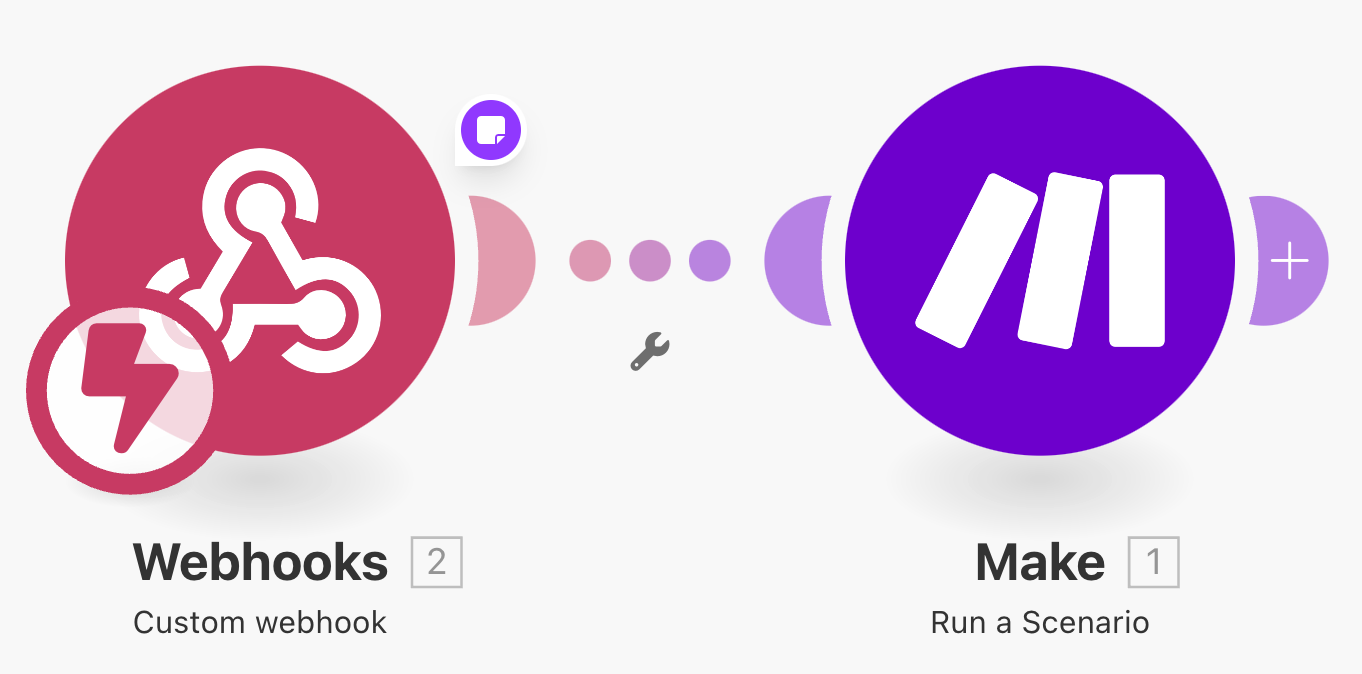
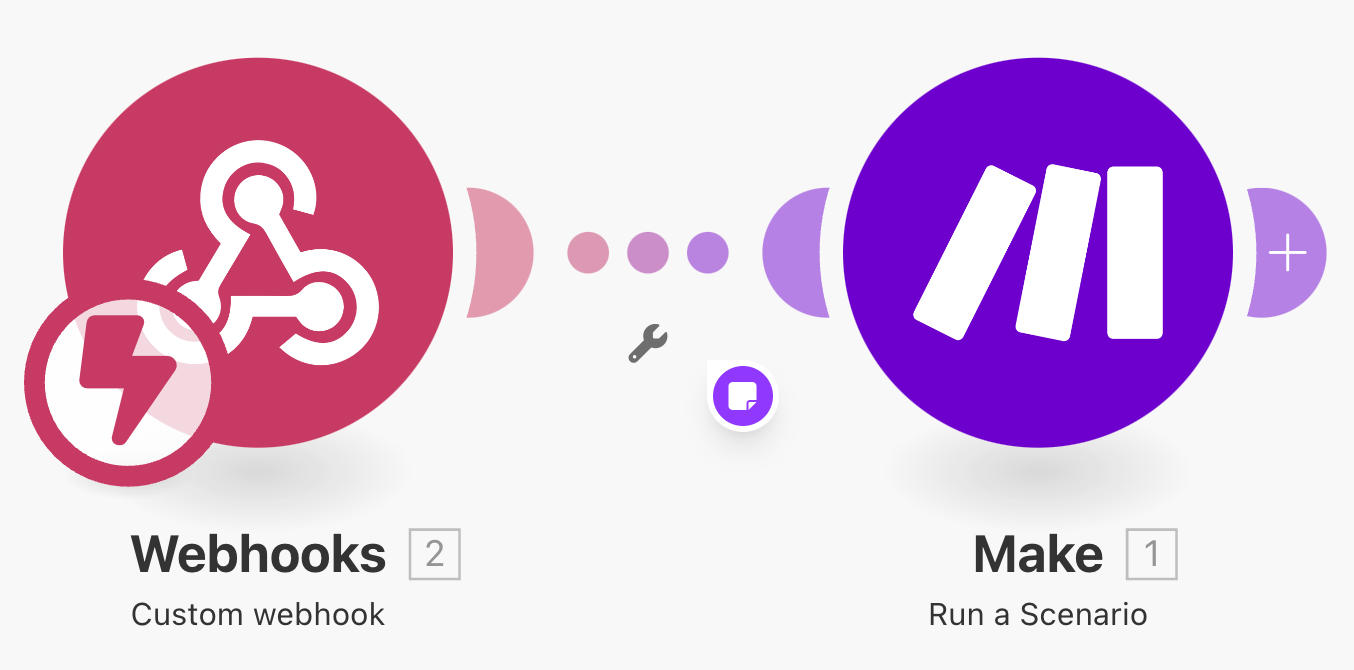
In your scenario, there are several ways to view notes:
- Hover over the note marker in the scenario editor to see the note preview.
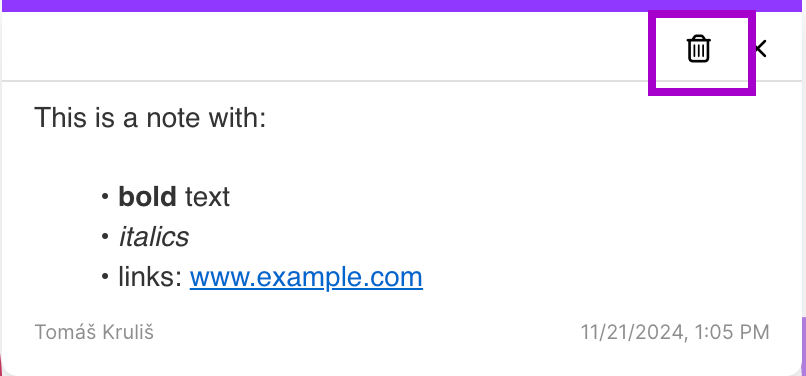
- Click once on the note to see its entire content. If the note is lengthy, you can scroll through it.
Note Double-click the note to switch to editing mode. - Click the sticky note icon in the scenario toolbar to open the note panel. This panel shows previews of all notes in the scenario.
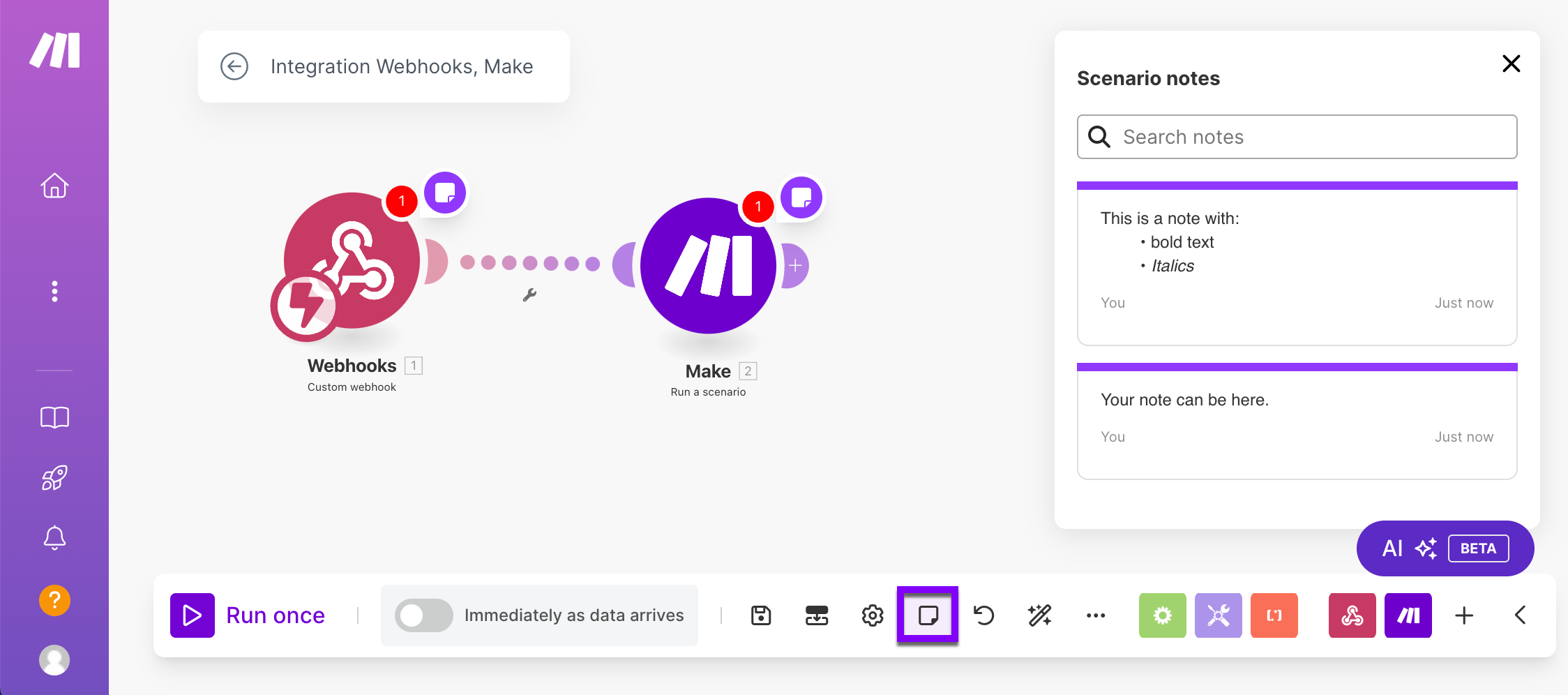
In the scenario editor, click the note twice to start editing a note. When you finish, click the OK button to save your changes.
Close the note or click Cancel to discard your changes.
![[Warning]](https://docs.boost.space/wp-content/themes/bsdocs/docs-parser/HTML/css/image/warning.png)