How to Use the “Make an API Call” Module in Boost.space Integrator
Prerequisite: API documentation
To ensure the simplest possible use of the Boost.spaceA platform that centralizes and synchronizes company data from internal and external sources, offering a suite of modules and addons for project management, CRM, data visualization, and more. Has many features to optimize your workflow! IntegratorPart of the Boost.space system, where you can create your connections and automate your processes., we have created and pre-configured numerous Boost.space modulesa module is an application or tool designed to handle specific business functions, such as CRM, project management, or inventory. The system's modular architecture allows you to activate only the modules you need, enabling customization and scalability as your business requirements evolve.. However, each userCan use the system on a limited basis based on the rights assigned by the admin. has specific requirements, and if you find that a particular request is not preset in our modules, you can use the “Make an API Call” modulea module is an application or tool designed to handle specific business functions, such as CRM, project management, or inventory. The system's modular architecture allows you to activate only the modules you need, enabling customization and scalability as your business requirements evolve. to configure your request manually.
You can search for this specific module on this page.
This module allows you to define your own API requests, giving you more flexibility and control over the data being processed. Additionally, by customizing the request parameters, you can prevent certain errors—specifically the “module timeout” error—by controlling how much data is processed in a single scenarioA specific connection between applications in which data can be transferred. Two types of scenarios: active/inactive. run.
Example: Using the “Make an API Call” Module with Contacts
Let’s go through a practical example using the Contacts moduleOne of the modules of the Boost.space system. In this module, you can easily manage your business contacts.. However, you can follow the same steps for any module you need.
Step 1
- Open the Integrator and choose the module with the “Make an API Call” functionFunctions you can use in Boost.space Integrator - create, update, delete, get, search..
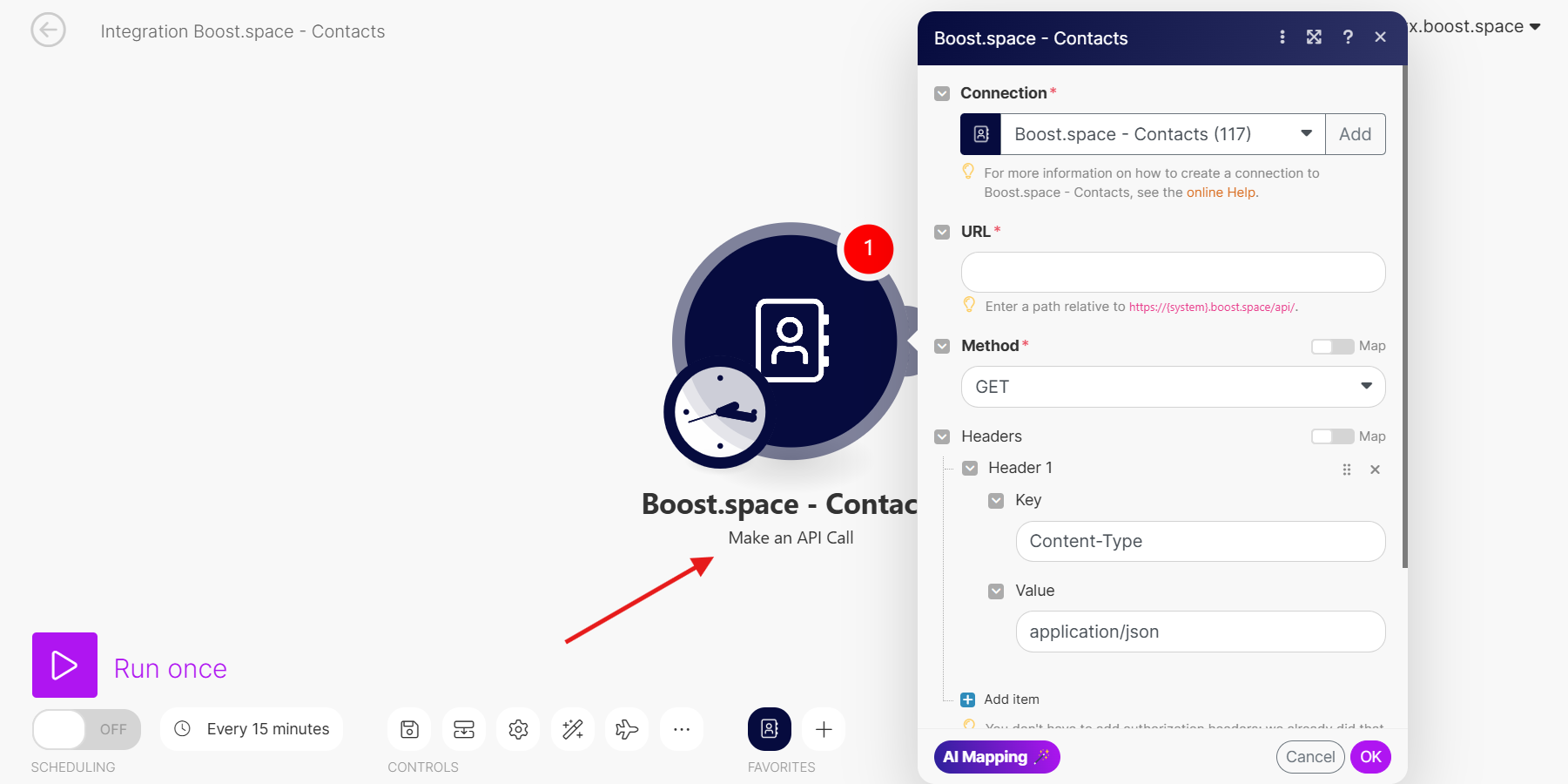
Step 2
- Open the Boost.space API documentation.
- Locate the module you want to work with (in this case, Contacts).
- Identify the action you want to perform (e.g., get, post, delete).
- Determine the HTTP method required for this action. In this example, we use the GET method.
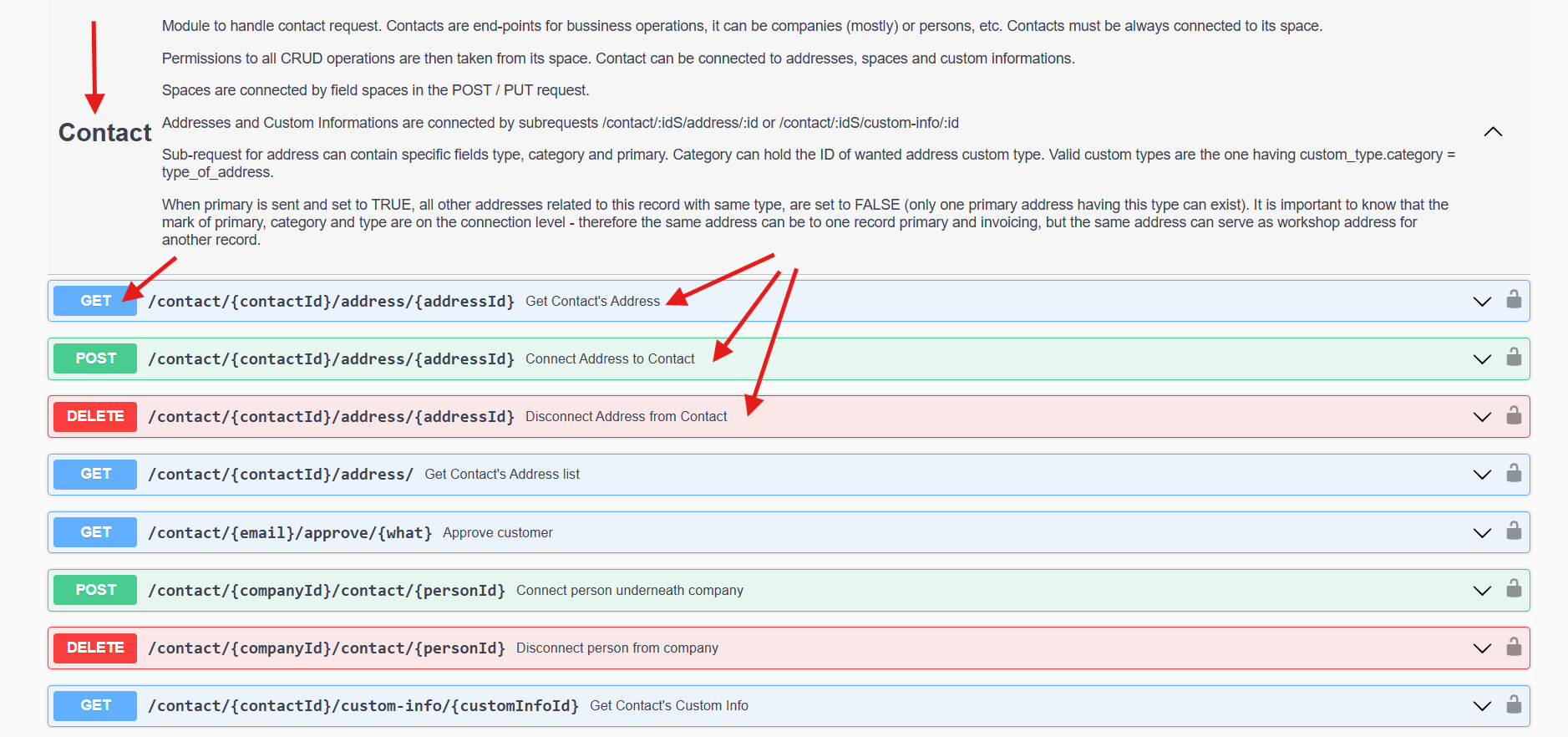
Step 3
- In the Integrator, fill in the following fields:
- ConnectionUnique, active service acces point to a network. There are different types of connections (API key, Oauth…).: Select the connection from which data will be retrieved.
- URL: Enter the endpoint for the module (in this case, contact).
- Method: Select the appropriate method (GET in our example).

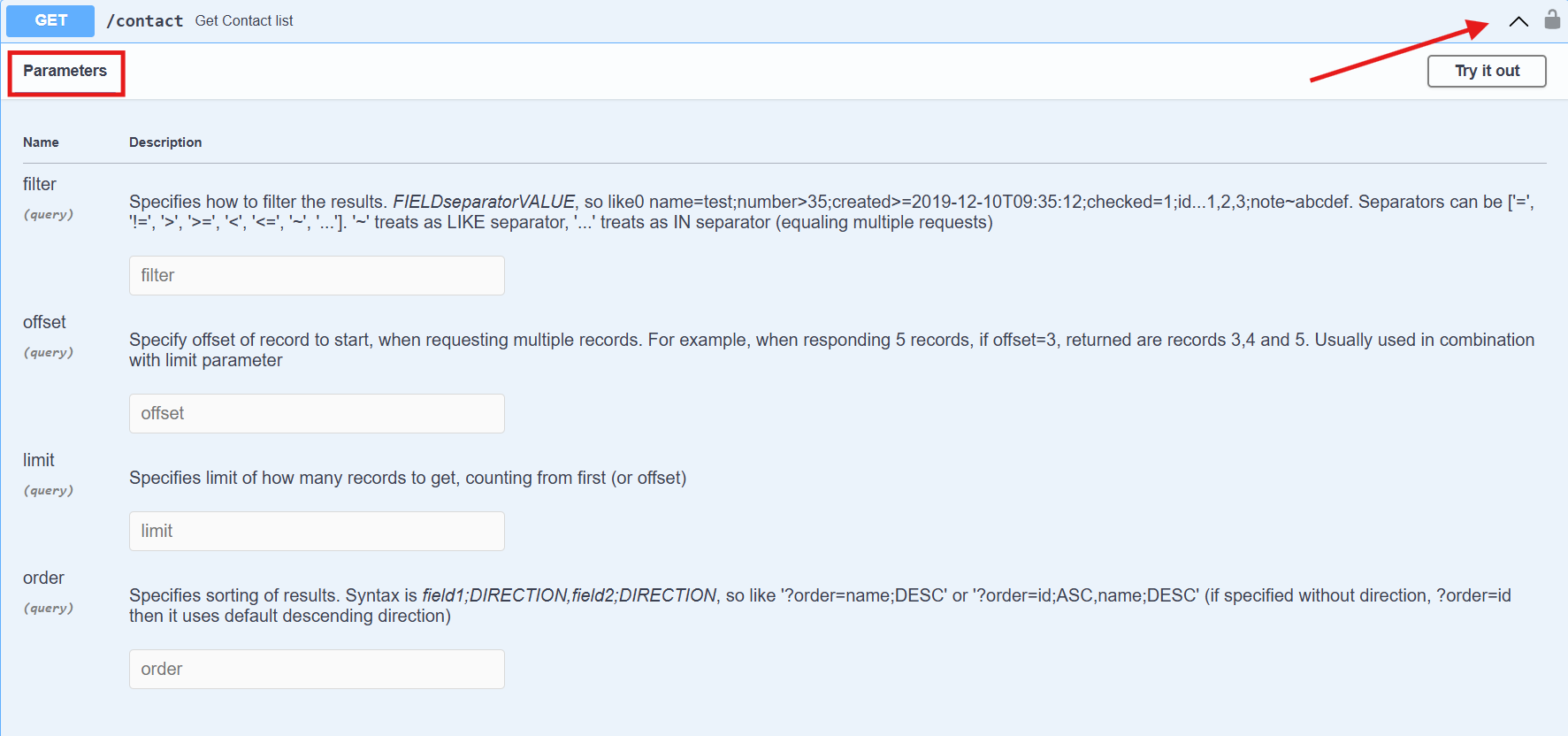
Step 4
- Review the available parameters in the API documentation.
- Expand the relevant section to see which parameters can be used.
- In this example, we can use parameters such as
filter,offset,limit, andorder.
Step 5
The limit parameter controls how many recordsIn Boost.space, a record is a single data entry within a module, like a row in a database. For example, a contact in the Contacts module or a task in the Tasks module. are retrieved in a single request. It is useful for managing data loads and ensuring efficient API calls, especially when working with large datasets. By setting a limit, you define the maximum number of records that the request should return.
- Open the parameter settings in the Integrator.
- Click “Add item” to add a new parameter.
- In the “Key” field, enter
limit. - In the “Value” field, enter the number of itemsItems are rows in records (order/request/invoice/purchase...) you want to retrieve in a single operationOperations are tasks in integration scenarios, similar to "operations" in Make.com. Each action, like reading or updating a record, counts as one operation. They’re essential for data syncing between apps and reset monthly. Going over the limit pauses syncing until you add more or upgrade your plan. (e.g., 10). You can adjust this number based on your needs.
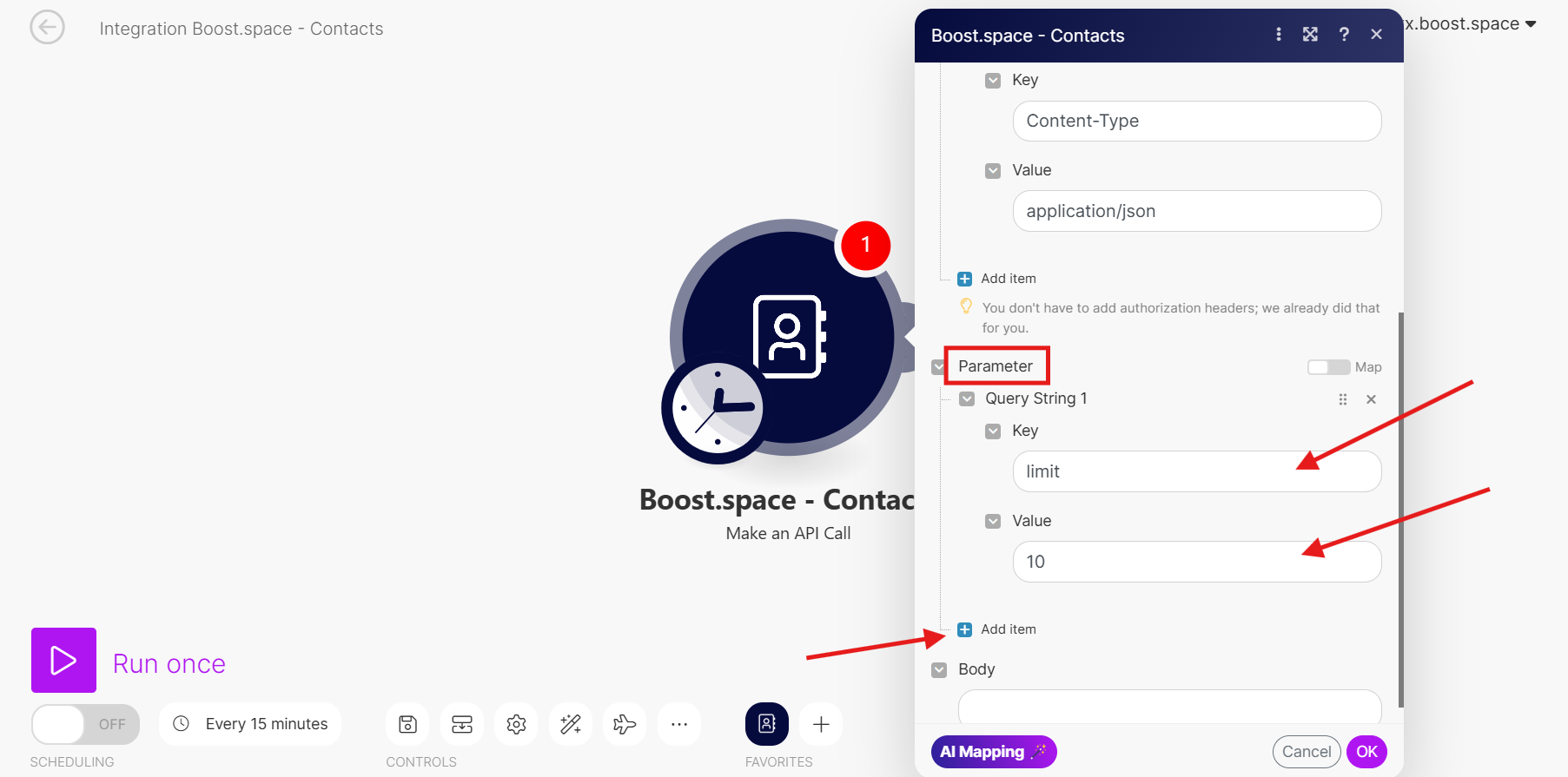
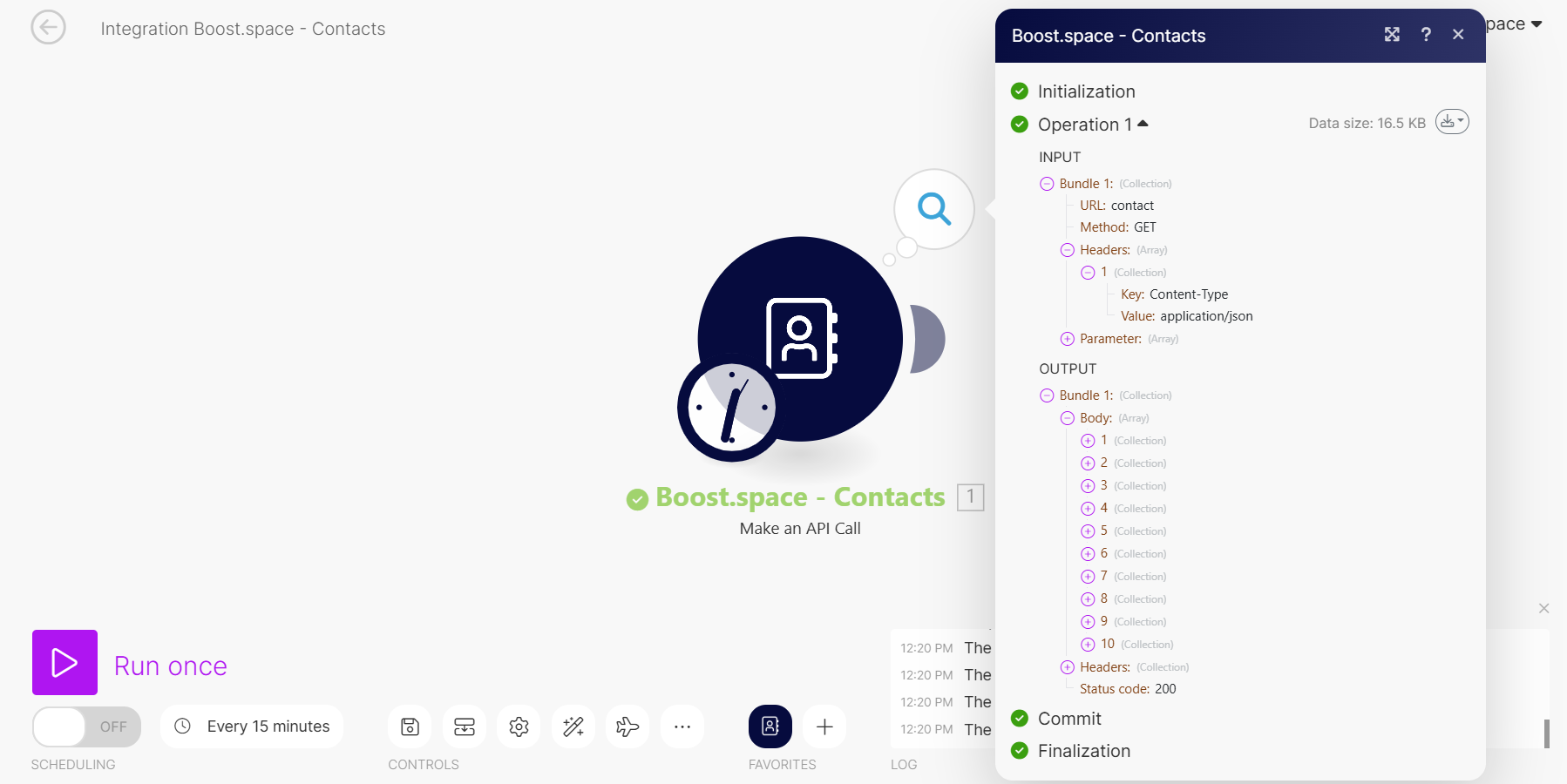
- Run the scenario to see the results. If successful, the statusIn Boost.space, statuses are indicators assigned to records within modules to represent their current state or progress. They can be system-defined, such as "Active" or "Done," or custom-created to fit specific workflows. Statuses help track and manage tasks, projects, and processes efficiently. code should be 200.
Step 6
The offset parameter is useful when you need to process large amounts of data in multiple requests. It specifies the starting point from which records should be retrieved. For example, if you retrieve 10 items in one request and want to get the next batch, you set offset to 10 to skip the first set of results.
- Open the parameter settings in the Integrator.
- Click “Add item” to add a new parameter.
- In the “Key” field, enter
offset. - In the “Value” field, enter the number of records to skip before starting the retrieval. For example, setting
offsetto 10 means the API call will return results starting from the 11th recordIn Boost.space, a record is a single data entry within a module, like a row in a database. For example, a contact in the Contacts module or a task in the Tasks module..
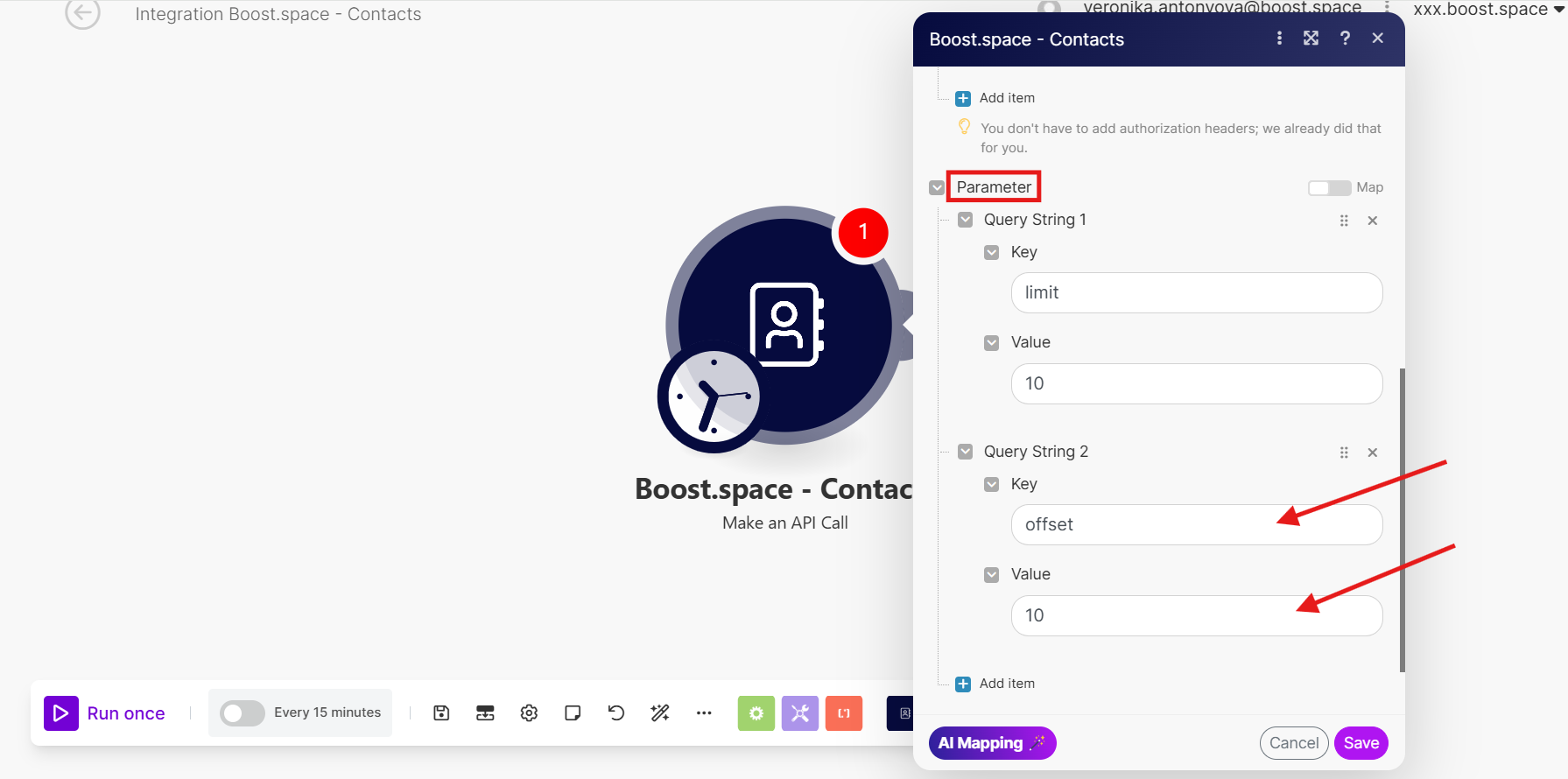
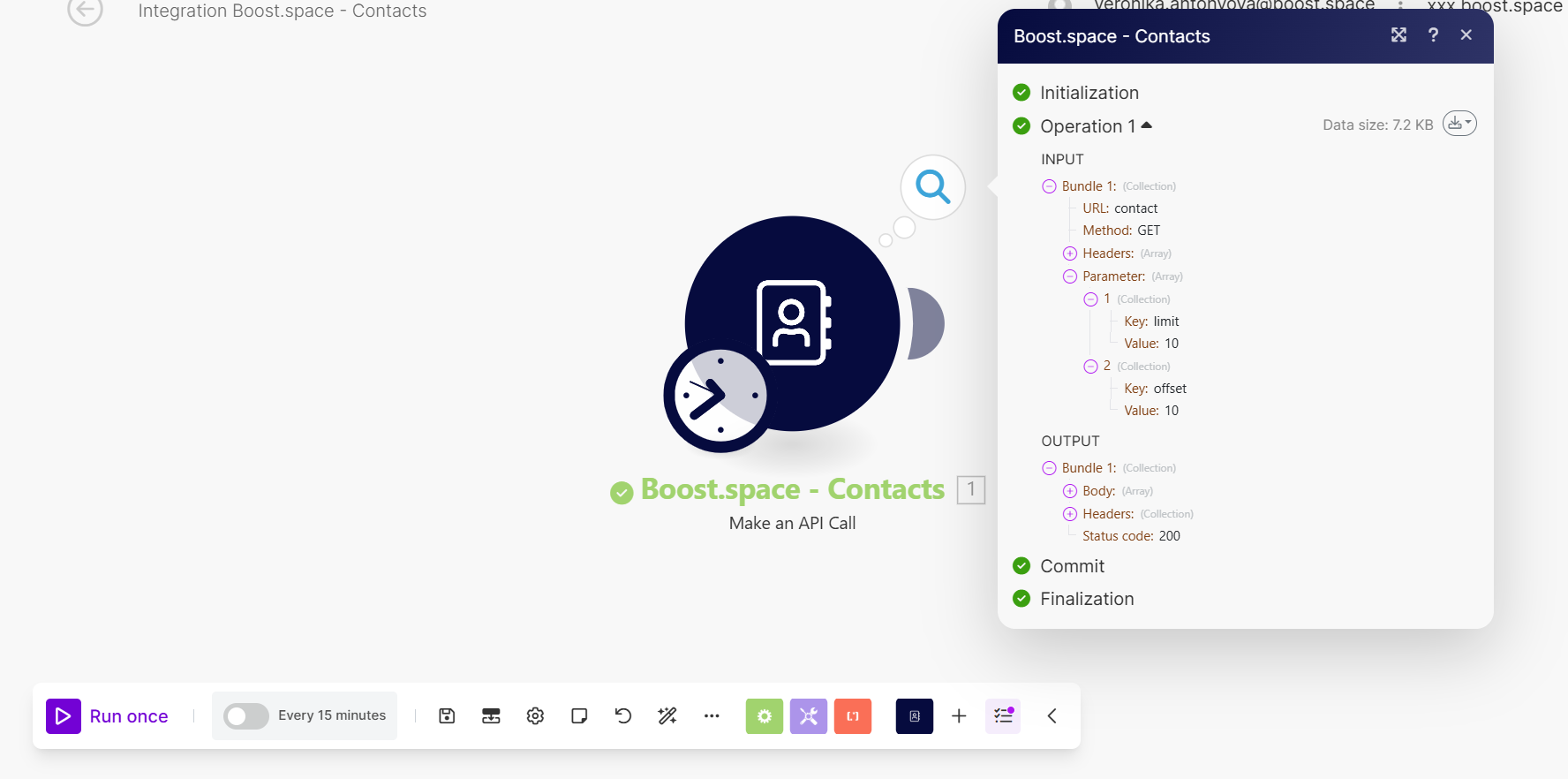
5. Run the scenario again to verify that the defined parameters are correctly applied.
By following these steps, you can configure custom API calls within the Boost.space Integrator, ensuring optimal performance and flexibility for your integration needs.