Filtering in Boost.space Integrator
What is Filtering
Filtering in Boost.spaceA platform that centralizes and synchronizes company data from internal and external sources, offering a suite of modules and addons for project management, CRM, data visualization, and more. Has many features to optimize your workflow! IntegratorPart of the Boost.space system, where you can create your connections and automate your processes. is a powerful tool designed to help usersCan use the system on a limited basis based on the rights assigned by the admin. sift through large amounts of data. Instead of manually searching through entire datasets, the filter tool allows you to automatically locate only the specific data you need. The filtering is done using the GET request. This functionFunctions you can use in Boost.space Integrator - create, update, delete, get, search. works like a search that pulls out data from a specified source based on predefined parameters.
There are some things that you need to know before you start filtering:
a) You cannot filter fields that are arrays.
b) You can filter by basic fields or by custom fieldsA feature in Boost.space that allows administrators to define and manage additional data fields within each module, tailoring the system to specific organizational needs. or by SpaceIn Boost.space, a space is a subunit within a module that helps organize and categorize data, ensuring clarity even with large volumes. For example, within the Contacts module, you might have spaces like "Client Database" or "Supplier Database." Access to each space is restricted to users who have created it or have been granted access. ID.
c) You can enter a command to filter by a note that is directly below the filter field.
d) Please be aware that field names are case-sensitive. For instance, “spaceid” (all lowercase) will not work; you must use “spaceId” with a capital “I”. This format, where each new word begins with a capital letter, is standard for filtering.
How Filtering works
In Boost.space Integrator, filtering is done through the use of comparison and search operators. These operators help define the criteria for selecting the desired data, ensuring that only the relevant information is returned.
Types of Operators
Boost.space Integrator provides two categories of operators: comparison operators and search operators.
a) Comparison Operators
These operators are used to compare values within the dataset. They define how one value should relate to another and include:
=: Equal to.!=: Not equal to.>: Greater than.>=: Greater than or equal to.<: Less than.<=: Less than or equal to.
b) Search Operators
~(LIKE): Allows for searching based on patterns. For example, you can search for data that contains a specific keyword or pattern.~%: The field contains any value~%BS%: The field contains the specific value “BS” (case-sensitive)~: The field is not populated (empty)
…(IN): Searches for values within a specified list. This is useful when you need to retrieve data that matches any one of several values.&(AND): Allows searching based on multiple criterias.- The old separator
;is still supported for backward compatibility, but ideally should not be used.
- The old separator
|(OR): Allows searching based on one or other criterias.- Conditions can be prioritized using parentheses.
Examples of Filtering
Here are some examples demonstrating how to use filtering in Boost.space Integrator:
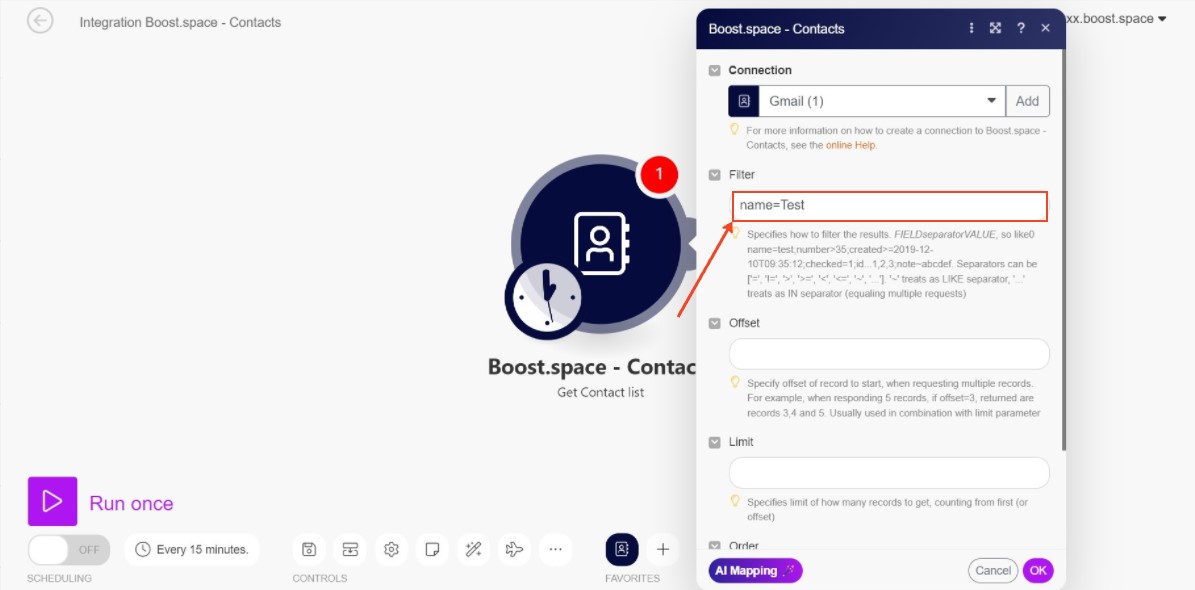
- Filtering by Field (as shown in the screenshot below):To search for a specific value in a field, you can use a simple filter like
name=Test. This filter retrieves all entries where the “name” field has the value “Test”. - Filtering by Custom FieldA feature in Boost.space that allows administrators to define and manage additional data fields within each module, tailoring the system to specific organizational needs.: Boost.space Integrator now supports filtering by custom fields, which is a new feature. For example:
customField.xy=Test. This allows you to search for entries where a custom field namedxyhas the value “Test”. Newly, it is not necessary to use thecustomField.prefix. The following will also work:xy=Test.
- If the custom field is named
test-xy, both of these forms are valid:customField.test-xytest-xy
Note: However, if there is a collision with a system field (for example, firstName in contacts), the filter will always apply to the system field by default.
In that case, you must explicitly reference the custom field with the prefix: customField.firstName
A combination of special characters, such as in customField.xyz-_CustomField, will not pass filtering. The key rule is that two special characters cannot be used consecutively. For example, customField.muj-custom_xyz is allowed because it avoids this issue.
- Filtering by Space ID:You can also filter based on space IDs, which act as identifiers in Boost.space Integrator. For instance,
spaceId>3will retrieve all entries associated with space IDs greater than 3.Note:spaceIdcan be used as a filter only for modulesa module is an application or tool designed to handle specific business functions, such as CRM, project management, or inventory. The system's modular architecture allows you to activate only the modules you need, enabling customization and scalability as your business requirements evolve. that have a single space. If a modulea module is an application or tool designed to handle specific business functions, such as CRM, project management, or inventory. The system's modular architecture allows you to activate only the modules you need, enabling customization and scalability as your business requirements evolve. has multiple spacesIn Boost.space, a space is a subunit within a module that helps organize and categorize data, ensuring clarity even with large volumes. For example, within the Contacts module, you might have spaces like "Client Database" or "Supplier Database." Access to each space is restricted to users who have created it or have been granted access., usespaceas the filter instead. - Filtering with Multiple Conditions:When you need to apply multiple filters at once, you can separate them using semicolons. For example, if you’re looking for a recordIn Boost.space, a record is a single data entry within a module, like a row in a database. For example, a contact in the Contacts module or a task in the Tasks module. where the
nameis “Test”, theageis greater than 15, and the custom fieldcityis “Berlin”, you would write:name=Test;age>15;customField.city=Berlin
Step-by-step guide for Filtering
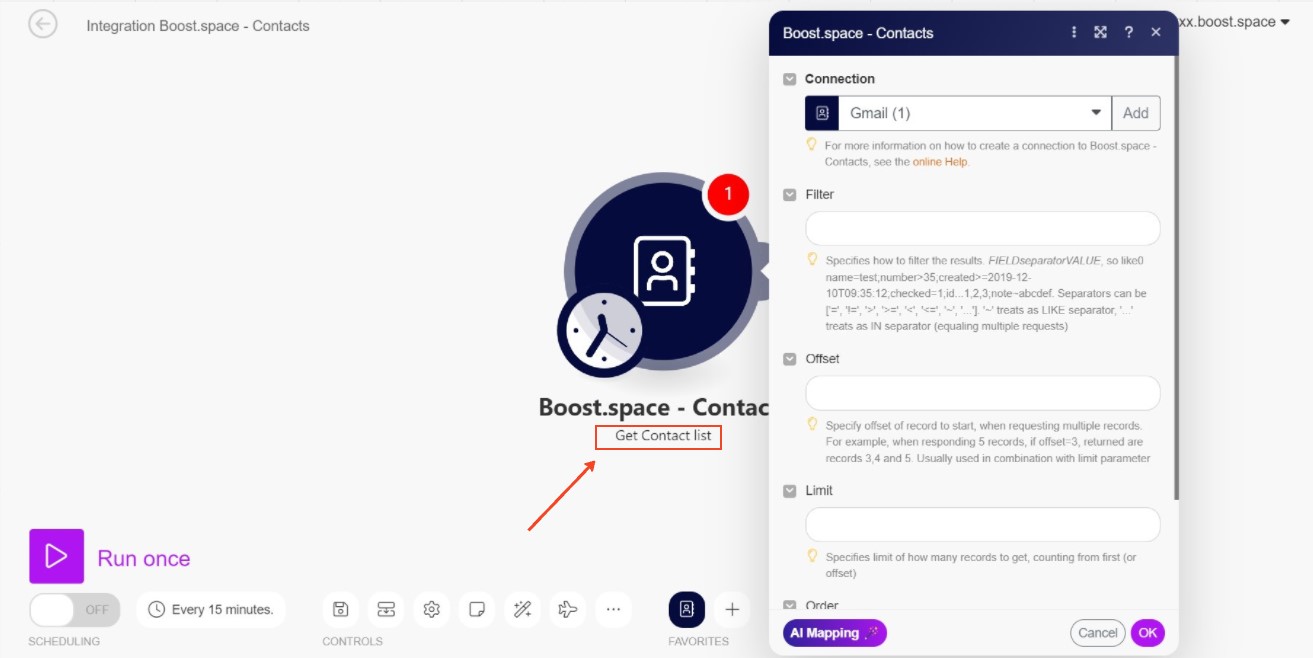
- Choose the module you want to filter in (we are using the Contact module in this case) and use the function “Get Contact list“.
Hint: You can use any Module You want.
- Then choose a scenarioA specific connection between applications in which data can be transferred. Two types of scenarios: active/inactive. and set what you want to filter your contacts by. In this case, we want to search for a contact by name. As you can see on the screen – you can filter by all the selected fields or add your custom fields in the system. You can learn how to create a custom field in this article.
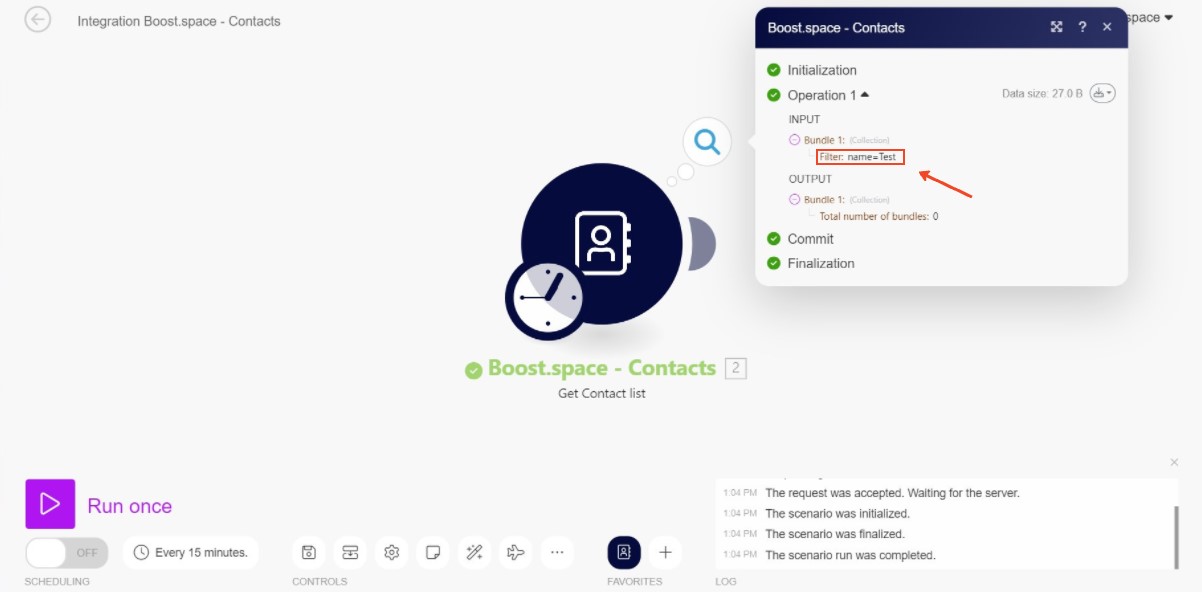
- Now you can just click on the run scenario and after clicking on the details you can see the filtered data.
Congratulations! Now you understand how to use the filtering feature in Boost.space Integrator. Now you understand how to use the filtering feature in Boost.space Integrator. Whether you need to filter by basic fields, custom fields, or space IDs, Boost.space provides a flexible and efficient way to access only the data you need.