For each modulea module is an application or tool designed to handle specific business functions, such as CRM, project management, or inventory. The system's modular architecture allows you to activate only the modules you need, enabling customization and scalability as your business requirements evolve. in your scenarioA specific connection between applications in which data can be transferred. Two types of scenarios: active/inactive., you need to configure its settings – the fields you see when you click on the module. These fields define the data you want to receive or send to an application, the information you want to pass between modulesa module is an application or tool designed to handle specific business functions, such as CRM, project management, or inventory. The system's modular architecture allows you to activate only the modules you need, enabling customization and scalability as your business requirements evolve., and specific details regarding what actions each module should take.
For example, the Dropbox modules require you to specify the target folder for uploading files. For the Email modules, you need to enter the email address to which emails should be sent. Every setting is unique for each module.
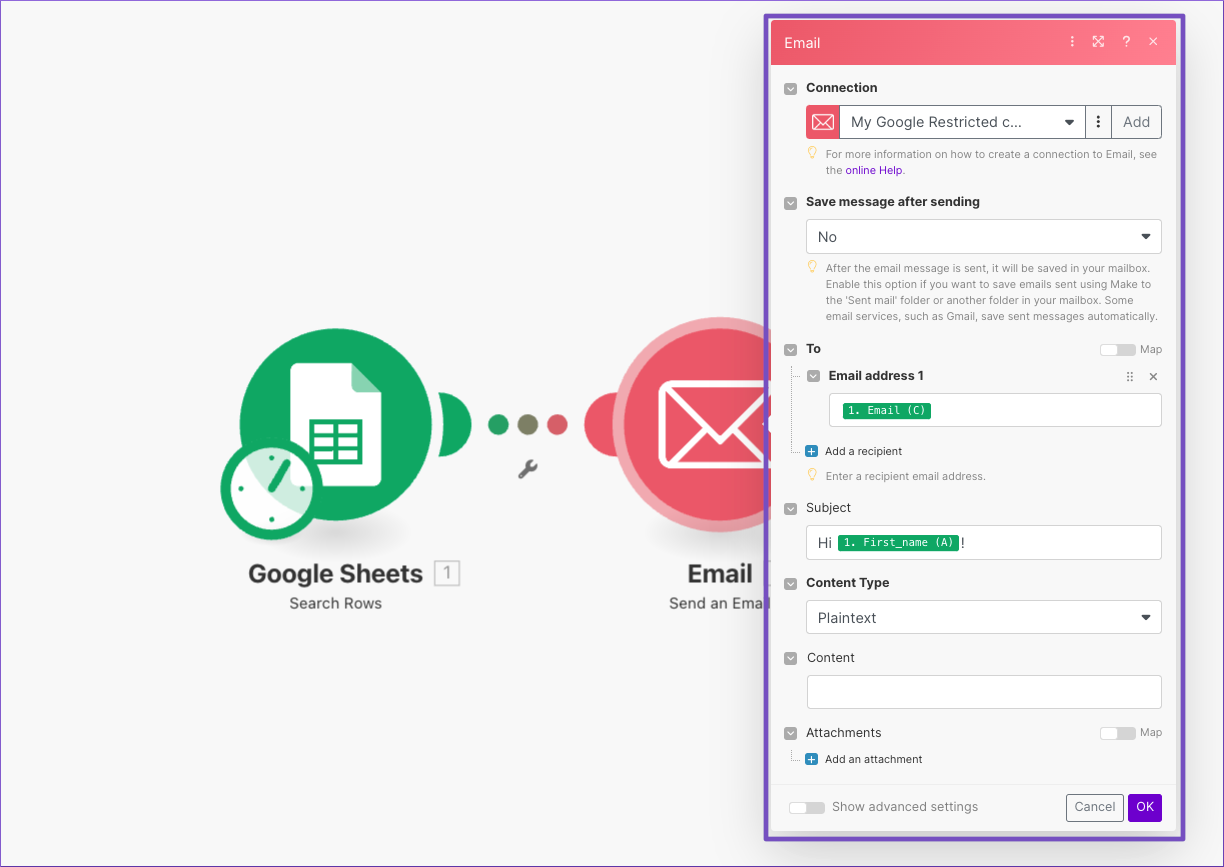 |
The module settings open automatically when you add a new module to your scenario. You can also open or re-open the module settings in the Scenario editor by clicking on the module.
In almost every app’s module settings, you will find connectionUnique, active service acces point to a network. There are different types of connections (API key, Oauth…). settings. This is where you create a connection to your userCan use the system on a limited basis based on the rights assigned by the admin. account for the given app, and is the first step when adding a new module to your scenario. Some fields you might see in the connection settings include Username, Password, API Key, or Client Credentials. For more information and instructions on how to create a connection to any of your accounts see Connecting to services.
Some fields in the module settings are required, while others are optional. You can identify which fields are required by their name written in bold. If you try to save your module settings without filling in a required field, you will receive an errorService is unavailable due to a failure, a service responds with unexpected data or the validation of input data fails..Your scenario cannot run unless all required fields are filled in.
In each field, you can either type the appropriate text into the field or fill it in by mapping an item from another module in your scenario.
![[Tip]](https://docs.boost.space/wp-content/themes/bsdocs/docs-parser/HTML/css/image/tip.png) |
Tip |
|---|---|
| For some parameters (mostly arrays with several fields that Boost.spaceA platform that centralizes and synchronizes company data from internal and external sources, offering a suite of modules and addons for project management, CRM, data visualization, and more. Has many features to optimize your workflow! IntegratorPart of the Boost.space system, where you can create your connections and automate your processes. retrieves depending upon the selected connection) you can see a Map toggle. Switching on the Map toggle brings up a text field where you can map items from the preceding modules. |
When you open the module settings, you will see all of the module’s standard fields. These include the most frequently used fields for the module, and are typically the default itemsItems are rows in records (order/request/invoice/purchase...) you see when going to the website of the service you are using. Standard fields can be both optional and required.
Some modules also include advanced fields that can be found in the module’s advanced settings. These fields include more complex items that may require specific technical knowledge to use. To open the advanced settings, switch on the Show advanced settings toggle.
Each field in the module settings accepts a specific data type, signifying what format of information you can enter or map into the field. This can be text, date, number, etc. You can identify a field’s data type by hovering over the name of the field. For more information, see Item data types.