Your agent's page
Click an agent's card on Home to open its page. The top shows who the agent is and how it works. Five tiles below lead to what it does.
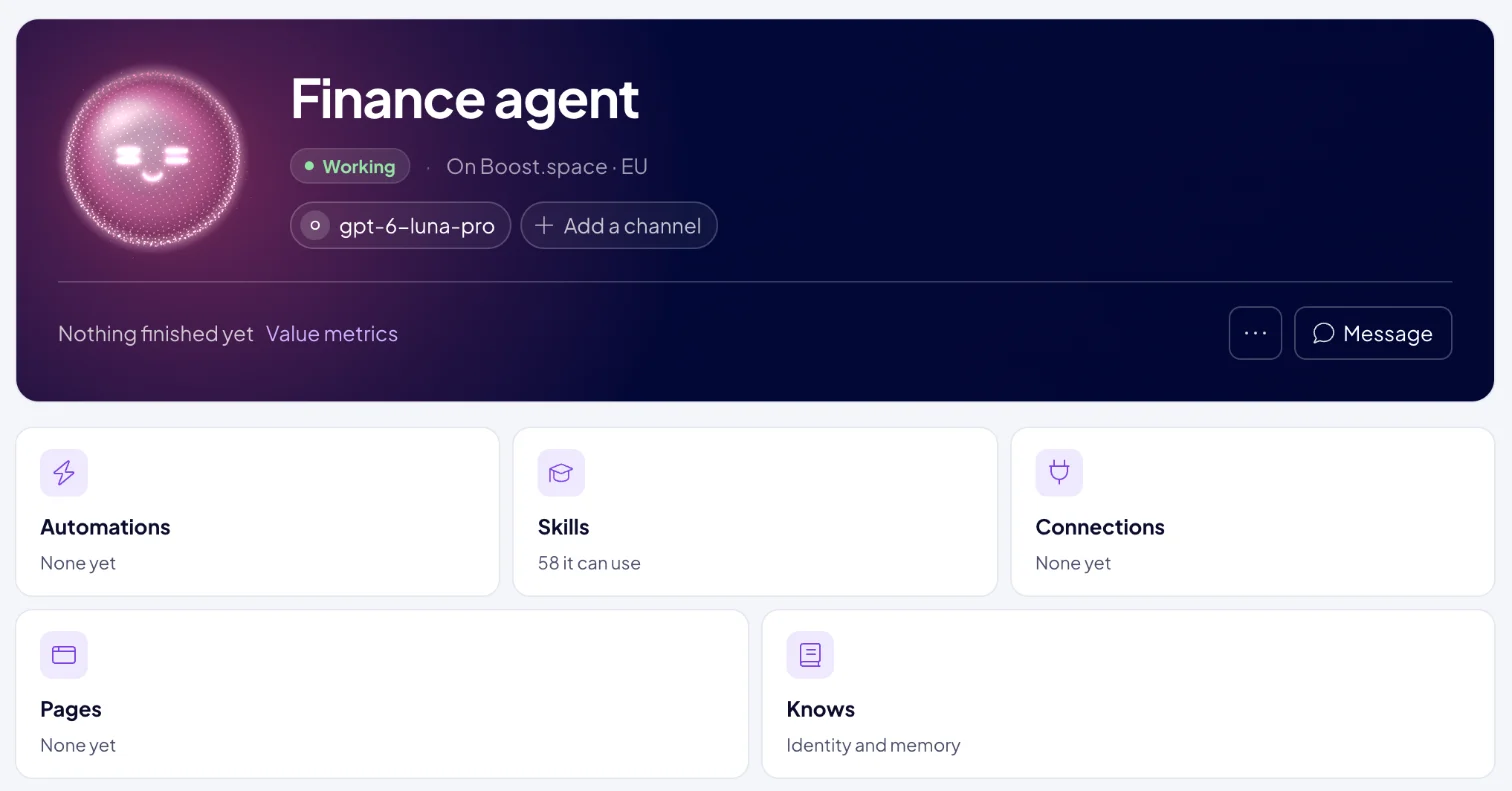
What do I see at the top?
- Face, name and status, and the instance it runs on, for example "On Boost.space · EU". The statuses are explained in Your AI team.
- Its job, the text you wrote when you added it.
- The model the agent thinks with. Click it to switch models or to use your own AI account. See Choose your agent's model.
- Channels, the messaging apps where people reach the agent. Click Add a channel to connect one. Once it has channels, the button reads Channel. See Channels.
- Value metrics opens the value this agent has brought. See Value metrics.
- Message opens the agent's own chat. See Chat with an agent.
The … menu holds:
| Item | What it does |
|---|---|
| Edit <name> | Changes the name, colour and face. See below. |
| Runs on <instance> | Opens Settings > AgentOS > Instances, where the instance is listed. |
| Remove <name>… | Removes the agent. See below. |
What do the tiles show?
Each tile says what the agent has there, and a click opens that part of AgentOS for this agent.
| Tile | What it says | Where it leads |
|---|---|---|
| Automations | None yet, <count> on a schedule, or the count and the time of the next run. | The automations this agent built or runs. See Agent automations. |
| Skills | <count> it can use. | The skills this agent has. See Skills. |
| Connections | <count> it can reach. | What this agent may reach and its access to your data. See Connections and security. |
| Pages | <count> published. | Home, where each page the agent published for you, such as a report or a dashboard, is a tab next to Agents. |
| Knows | Identity and memory. | What <name> knows. See below. |
What does my agent know?
The Knows tile opens What <name> knows:
- What the agent actually reads. The instructions from its job. The agent reads them before anything else.
- What it has learned. The agent writes these between runs.
- About your business: facts it worked out and kept.
- About you: how you like to be written to.
If something there is wrong or missing, click Tell <name> under Something wrong here?. The agent's chat opens with "Remember that" in the message box, so you only finish the sentence: "Remember that our invoices are due in 14 days, not 30."
How do I change the agent's name or face?
- Open the … menu and click Edit <name>.
- Change the name under What should we call it?, the Colour or the Face. Roll the face draws a new one, and Upload a photo uses a picture (PNG, JPEG or WebP, up to 2 MB).
- Click Save.
To change how the agent works, tell it in its chat, or use Tell <name> on its Knows page so it keeps the change.
How do I remove an agent?
Use it when you no longer need the agent.
- Open the … menu and click Remove <name>….
- AgentOS asks Remove <name>? The agent's schedule stops and its profile is deleted.
- Click Remove. The status shows Removing… until the agent is gone.
Next: Choose your agent's model, or Channels to reach the agent where your team already chats.

