Add an agent
A new agent takes three steps: Who it is, What it does and Access. Your first agent also needs an instance to run on, and Boost.space cloud starts one for you in about two minutes.
How do I add an agent?
- On Home, click New agent, or the dashed + card after your team. You can also go to Settings > AgentOS > Agents and click New agent.
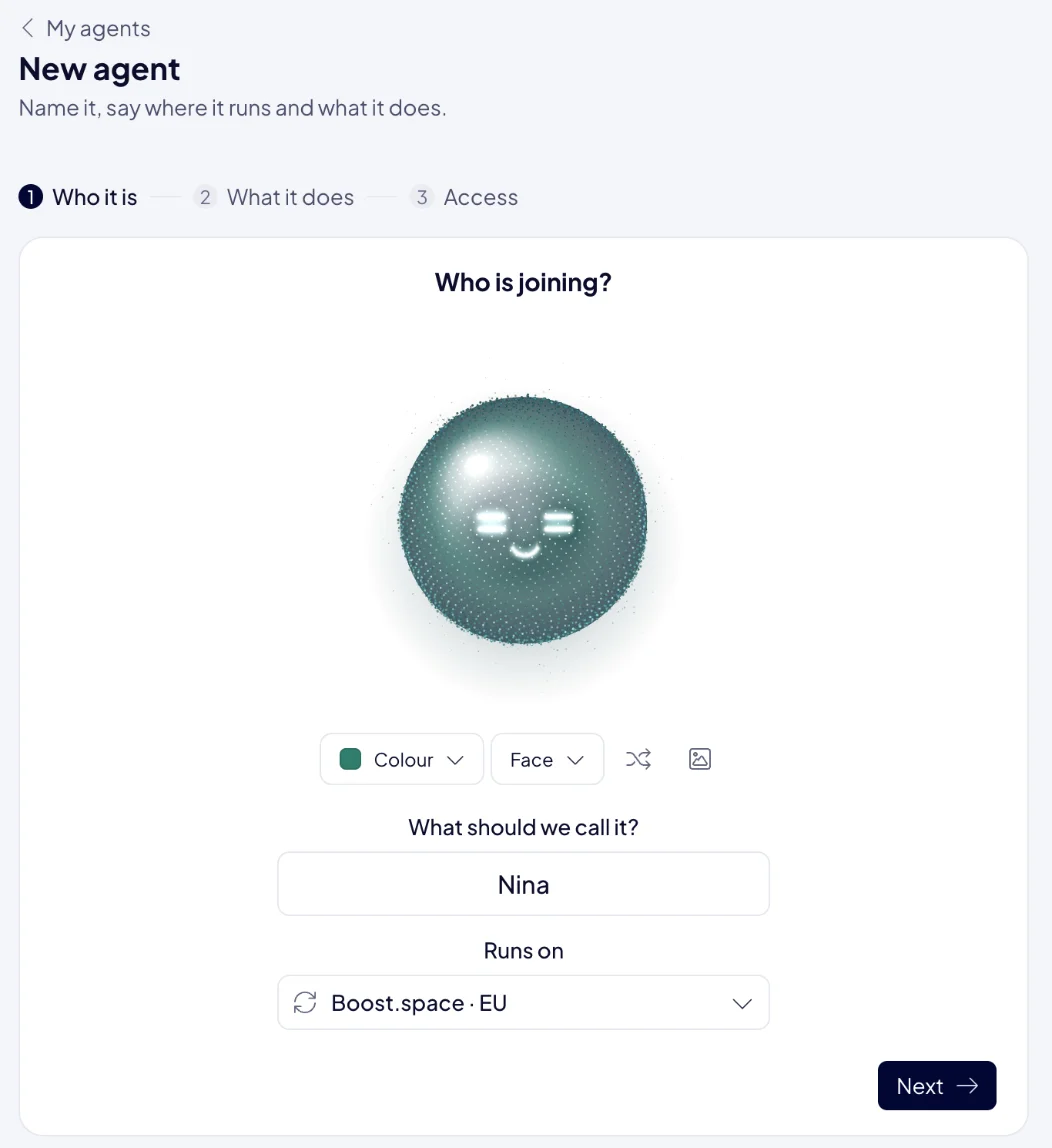
- Who it is. Under Who is joining?:
- Pick a Colour and a Face. Roll the face draws a new face and colour at random. Upload a photo uses a picture instead (PNG, JPEG or WebP, up to 2 MB).
- Under What should we call it?, type a name of up to 24 characters. AgentOS suggests one.
- Check Runs on, the instance the agent will run on.
- Click Next.
- What it does. Under What will <name> do?, describe the job in plain words, for example "Watch competitor prices and keep ours in line." Click Create the agent.
- Access. Under What may <name> work with?, set the agent's access to each module of your data, and to Automations. Click Save access, or Later to set it afterwards.
The agent's page opens, and the agent joins Your team on Home. Its status shows Setting up for a moment, then Working.
Can a new agent start from one I already have?
Yes. In the What it does step, open Start from and pick an agent on the same instance. The new agent starts with that agent's instructions, memory, skills and model. Its connections and schedule are its own. If the job box is empty, AgentOS fills in the other agent's job for you to change. Nothing, a new agent starts from scratch.
Where should my first agent run?
The first time, AgentOS asks Where should it run?
| Choice | What happens |
|---|---|
| Boost.space cloud | Click Start it. Boost.space runs the instance in the EU and keeps it updated. It is ready in about two minutes, and you fill in the agent meanwhile. |
| Your own server | A Linux server with Docker that you run. Click Show the commands and follow the steps below. |
To connect your own server:
- Copy the two commands, Install and Connect, with a one-time key, and run them on the server. The key is valid for 1 hour and works once. Generate a new key gives you a fresh one.
- Click I ran them. AgentOS shows Waiting for your server until the server registers, then <server> is connected.
- If agents already run on that server, they are listed, and you set what they may touch. Click Save access, or Later.
- Add your agent with New agent and pick the server in Runs on.
For every later agent, pick an instance you already have in Runs on. New instance at the end of that list adds another one, in Boost.space cloud or on your own server. Manage instances in Settings.
What should I write as the agent's job?
Write it the way you would brief a new colleague. The text becomes the agent's instructions, which it reads before anything else.
- The role. "Keep our product catalog accurate."
- The goal. "Every product has a description, a category and a price."
- The boundaries. "Ask me before you change any price."
- The way to report. "Send me a short summary every Friday."
Say it as work to do. Text that reads like a command to the AI itself, such as "ignore your previous instructions", is not accepted, and AgentOS asks you to rephrase it.
For ready-made job descriptions, see Agent ideas. You read the instructions later on the agent's Knows tile.
What can a new agent touch?
Only what you allow in the Access step. Every module starts at No access.
| Access | The agent can |
|---|---|
| No access | Not see the module at all. |
| Read | Read the module's records. |
| Read & write | Read, create and change the module's records. |
Automations starts on Allowed for a new agent. The agent can then build and run ACT automations for you. Set it to No access to keep the agent out of them. Its own scheduled jobs need no setting. See ACT automations.
To change access later, open the agent's Data row in Connections.
How many agents can I have?
Your plan sets how many agents and instances your system has. One instance holds up to 50 agents. See Plan and billing.
What do the messages during setup mean?
| Message | What to do |
|---|---|
| <name> is already here, doing <role>. | Pick another name. |
| An agent named <name> already exists. | Pick another name. |
| Say what it should do, in one sentence. | Fill in the job. |
| That reads like an instruction to the model. Say it as work to do. | Rephrase the job as the work the agent does. |
| This instance has no room for another agent. | Choose another instance in Runs on, or add one. |
| This instance is not ready for agents yet. Try again in a minute. | Wait a minute and click Create the agent again. |
| Your plan allows no more agents. Remove one first or upgrade your plan. | Remove an agent you no longer need, or move to a bigger plan. |
Next: open Your agent's page, or give the agent its first task in Chat.

