Settings
Everything about your system is in Settings, and admins change it. Click your avatar at the foot of the left rail. Then click the cog next to your name, or Settings under System. That menu also takes admins straight to the most used pages.
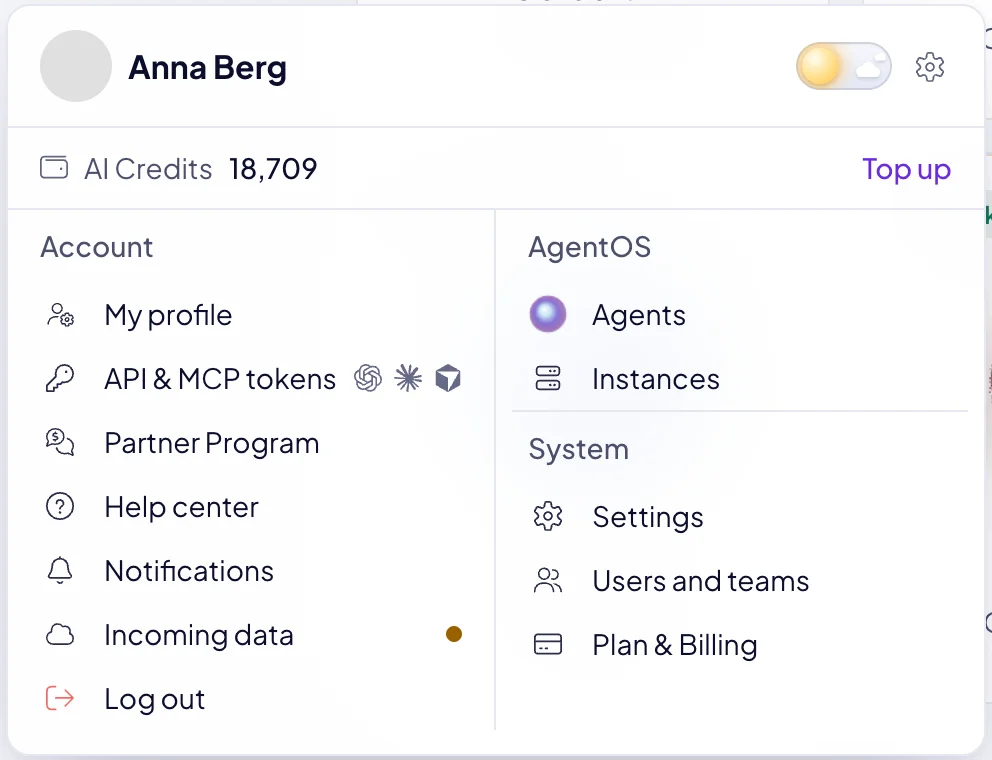
What is in Settings?
| Group | Pages |
|---|---|
| General | Main settings, Design, Users and teams (Users, Invitations, Categories, Teams), Plan & Billing. |
| AgentOS | Agents, Instances. |
| Data | All modules (Modules, Fields, Statuses, Labels, Tables & details, Menu editor), each of your modules by name, and New module. See Data settings. |
Users and teams appears when your plan includes more than one user. Your own profile is not here. It is under your avatar, see Your profile and security.
How do I rename my system?
In Main settings, change the System name and save. It is the name people see in AgentOS, in its menu and in invitations. Your system's address stays as you chose it at setup.
Main settings also holds:
| Setting | What it does |
|---|---|
| Currency (Default) | The main currency of your system. |
| Interface Language (Default) | The language of AgentOS for everyone. Each person can choose their own in My profile. |
| Version | The version your system runs, with a link to its Release notes. |
| Display advanced settings | Shows Performance and communication, with the switch for your own email server, and Cache management. Clear the cache when a settings change does not show even after you reload the page. |
How do I send system emails from our own address?
AgentOS sends its emails, such as invitations, from system@mail.boost.space. To send them from your own address:
- In Main settings, turn on Display advanced settings.
- Under Performance and communication, turn on Show SMTP and system email settings. The System emails and SMTP card appears.
- Fill in your SMTP Host, SMTP Port, Username and Password, the Sender name, the Sender's email and the SMTP Security. Save.
- Click Send test e-mail to check it.
Do not use your own SMTP server returns to the default sender.
How do I put our brand on AgentOS?
Open Design:
| Setting | What it sets |
|---|---|
| Brand color | The color of buttons, links, selection and the left rail lights, for everyone in your system. Preview it in Light and Dark. |
| Logo | Your logo for light and for dark backgrounds, shown while AgentOS loads and on the sign-in page. 200 to 350 px high and 200 to 600 px wide works best. |
| Login background | An image in place of the AgentOS panel on the sign-in, sign-up and welcome screens. Keep the important part in the centre. 1600 × 1600 px works best. |
| Icon and Favicon | Your icon in the browser tab and on phones. Upload a 512 × 512 px image. AgentOS makes the other sizes. |
How do I manage agents and instances?
Agents lists every agent of your system, and New agent adds one. See Add an agent.
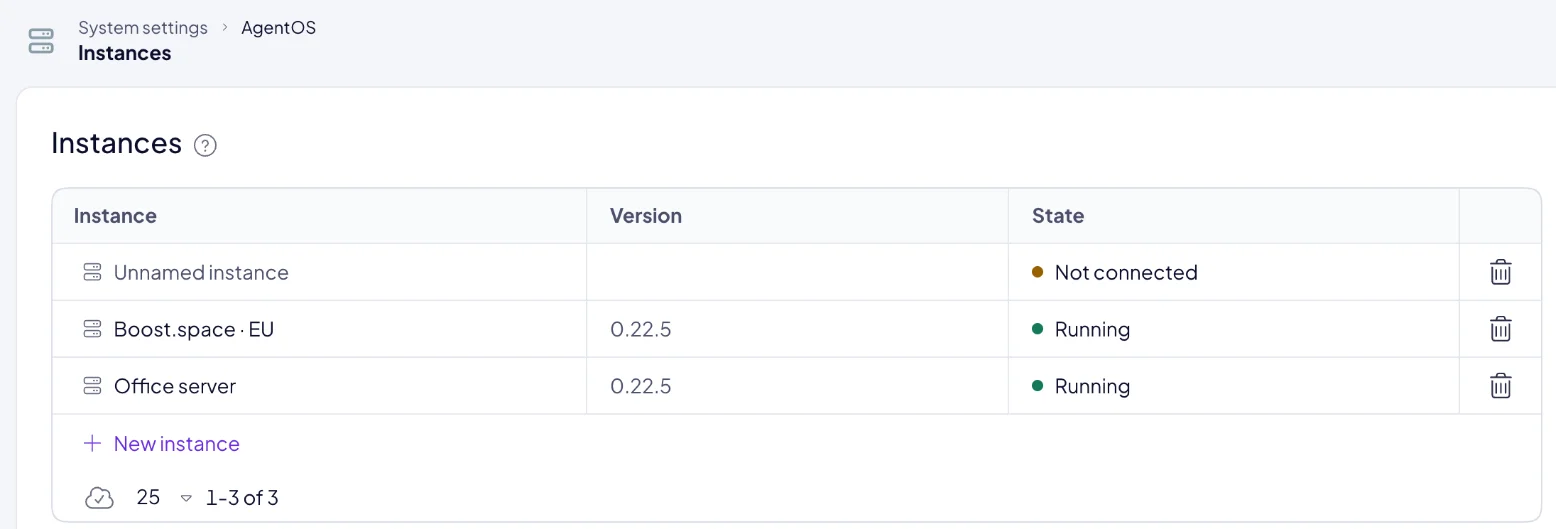
Instances lists the servers your agents run on, with their state:
| State | Meaning |
|---|---|
| Running | The instance is up and its agents can work. |
| Starting · about 2 minutes | A new instance has connected and is starting. |
| Waiting to connect | The instance has not connected yet. Its connection key is still valid. |
| Paused | The instance is paused. |
| Not answering | The instance does not respond. |
| Needs a look | The instance's setup needs a fix. |
| Not connected | The instance never connected, and its connection key has expired. Remove it and add a new instance for a fresh connection command. |
Click an instance for its details: its Version, its Agents, when and by whom it was Added, and its Last signal. When a newer version is out, the Version column shows <version> available.
New instance connects a server of your own. When you no longer need an instance, Remove instance retires it and its keys at once. Its agents are detached, and they work again once you place them on another instance.
The menu under your avatar shows next to Agents and Instances how many you have of what your plan allows. See Plan and billing.
Where are my own settings?
Your profile, password, two-factor authentication and API tokens are under your avatar, in My profile. See Your profile and security.
How AgentOS keeps your system and data safe is in Security and trust.
Next: Data settings, or Users and teams.

