Your data layer
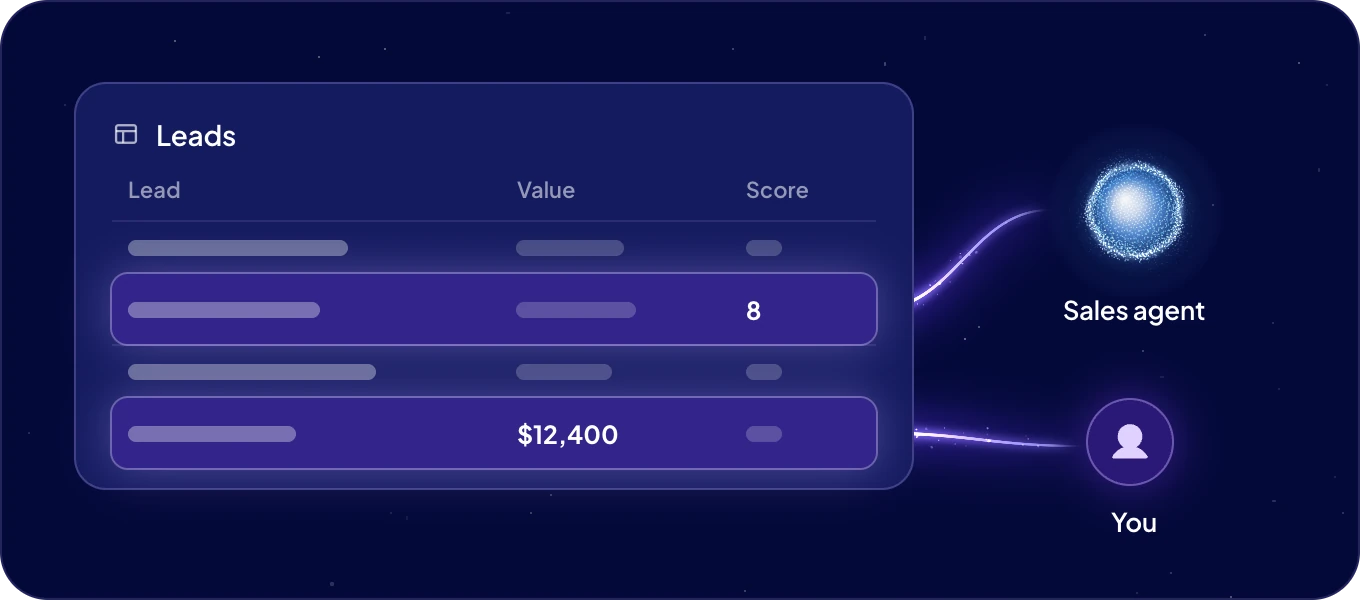
Data in the left rail is your company's shared data. People and agents work on the same records, and every agent sees only the modules you allow. When an agent fills in a product description or updates a deal, your team sees the change in the same table.
How is my data organized?
| Part | What it is | Example |
|---|---|---|
| Module | One kind of data, shown as a table. | Products |
| Space | A group of records inside a module, with its own people. | Summer collection |
| Record | One row of data. | One product |
| Field | One piece of information on a record, with a type. | Price |
| Field group | Related fields that spaces share. | Pricing |
| Status and Labels | Where a record stands, and tags to sort it by. | Active, Bestseller |
| Segment | A saved view of records that admins share with chosen people, loaded on demand. | Products without a price |
Give each kind of data its own module, and use spaces for variations of it. Products and suppliers are two modules. Five product ranges are five spaces in one module.
Where do I find my data?
Click Data in the left rail. It opens your first module with the records of all its spaces. With more than one module, click the module name at the top to switch. Under it, the spaces bar shows All spaces and each space. Where a module has segments, the switch at the start of the bar changes it to Segments.
Click a cell to edit it, or a record's ID or Name to open it. On a wide screen, the split-view button in the toolbar opens the record beside the table, so you keep the overview while you work.
What can agents see?
Each agent sees only the modules you allow, with the access you choose: No access, Read or Read & write. You set it per agent in Connections and security, and you can change it at any time. An agent works with its own access, whoever is talking to it.
Who sets up the data?
| Who | Does |
|---|---|
| Admins | Create and delete modules, field groups, statuses, shared labels and segments, and change the data settings. |
| Owners and managers of a space | Add fields to the space, change its settings and choose its users. |
| Everyone with access | Works with the records, and adds labels from the label picker. |
With no module yet, Data shows Create your first module to admins. Everyone else sees that an admin creates the modules. See Modules.
Your agents can set it up for you too: "Create a Suppliers module with name, country, contact email and payment terms, and link it to Products."
What is in this section?
| Page | For |
|---|---|
| Modules | Creating a module with AI, from a template or from scratch, and changing or deleting it. |
| Fields | The 28 field types, links between modules, lookups, rollups, formulas and field groups. |
| Statuses and labels | Where a record stands, and tags to sort it by. |
| Spaces | Grouping records, sharing them, and the key field against duplicates. |
| Work with records | Adding, opening and changing records, alone or in bulk. |
| Work in the table | Editing in place, sorting, grouping, coloring, duplicates, calculations. |
| Filters | Narrowing the table you are looking at, with the operators for each field type. |
| Segments | Saved views for your team, and fast work with very large modules. |
| AI features | AI that fills, checks, cleans and translates your data, right in the table. |
| Vector database | Coming soon: search by meaning, lookalikes and the odd ones out. |
| Import and export | Bringing data in from files, and taking it out. |
| Data settings | What admins set for all modules: fields, statuses, labels, tables and menus. |
Next: Modules.

