Connections and security
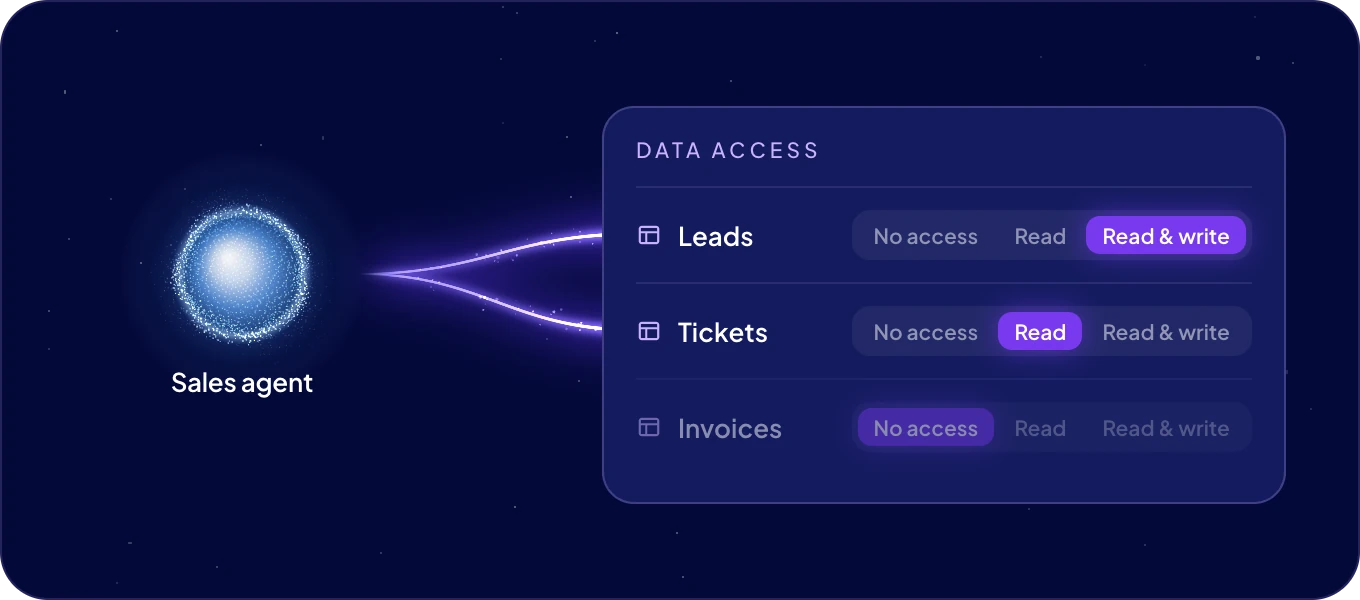
Every agent works with exactly the access you give it. Connections in the left rail shows, agent by agent, what each one can reach: your data, its apps, team chats and logins. Admins set the access, and every change shows in this one list.
What does Your connections show?
Every connection of your agents in one list. Each agent's own Data row comes first, then its apps and other connections.
| Column | What it shows |
|---|---|
| Connection | The app or service. Data is the agent's access to your AgentOS data. |
| Account | The account the agents use there. For Data it is This workspace. |
| Agents | The agents that may use it. |
| Access | How the agents get in: Sign-in, API key, Bot, Mailbox, Password, Address, Records, Wallet or Built-in. |
| State | Whether the connection works. See What does the State column mean? |
To narrow the list, type in Find a connection…, or pick a Type (Apps, AI tools, Team chat, Logins) and a Category. To see one agent's connections, pick it in All agents at the top right.
How do I set an agent's access to my data?
-
In Your connections, open the agent's Data row.
-
For each module, choose what the agent may do:
Access The agent can No access Not see the module at all. Read Read the module's records. Read & write Read the records, create new ones and change them. -
Set Automations to Allowed if the agent may build and run ACT automations for you. Keep No access otherwise. The agent's own scheduled jobs need no setting.
-
Click Save access.
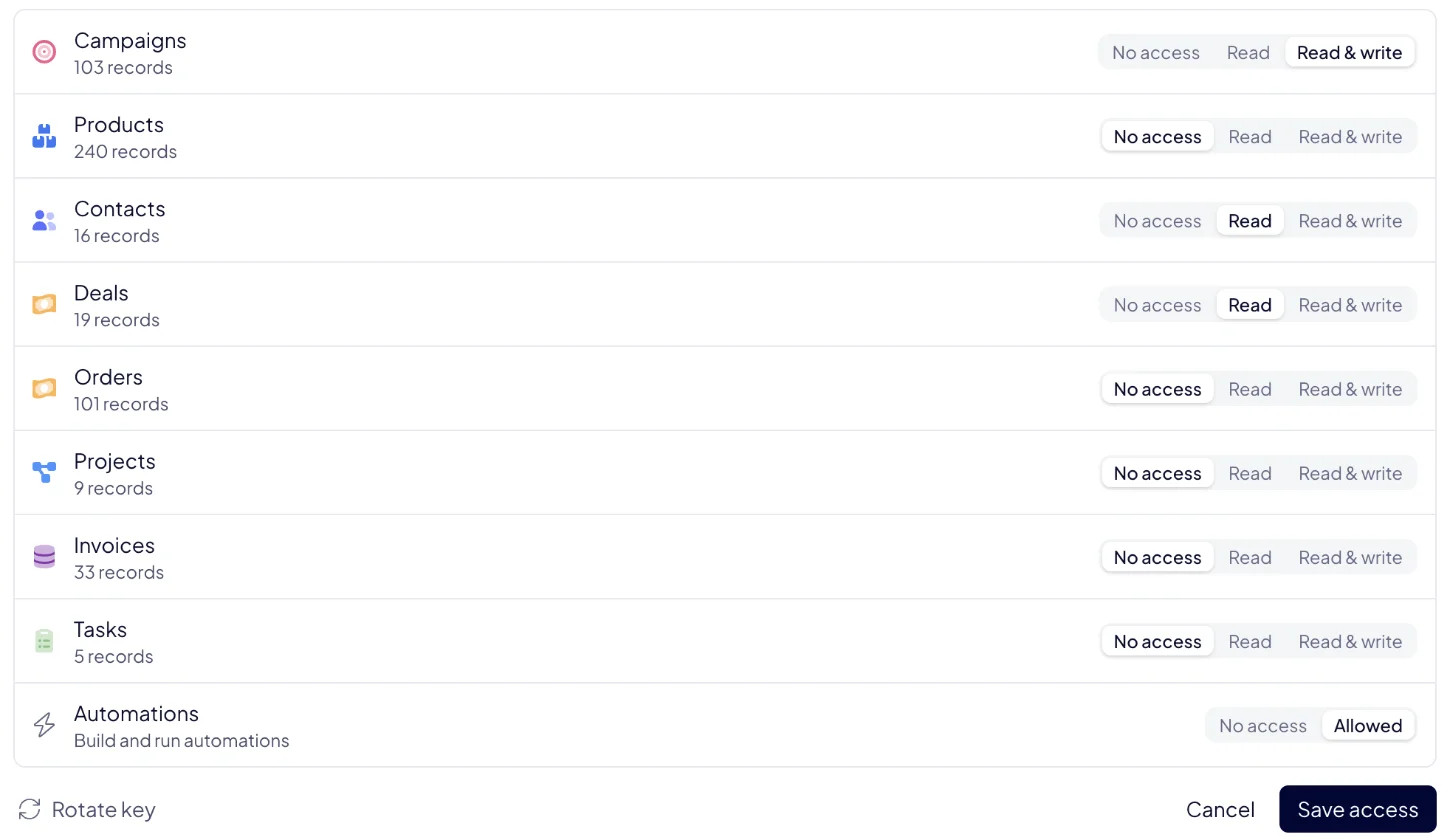
Narrowing access saves at once. Widening it asks first, for example Give Sales agent more access?, and lists what the agent will newly be able to do. Click Give access to confirm. Click Cancel to leave the access as it was.
You can also set access when you add an agent, under What it may touch.
Whose permissions does an agent use?
Its own. Every agent is a separate member of your workspace with its own key. It never signs in and takes no seat on your plan. It sees only the modules you allowed, whoever is chatting with it.
An agent with no data access still thinks with its AI model from the AI wallet. It just sees none of your records.
What does Rotate key do?
Rotate key, in the agent's Data row, gives the agent a new key to your data and retires the old one. Use it when you want to be sure no old copy of the key is in use anywhere. The row shows New key on its way until the agent has the new key.
How do I connect an app?
Open the Library tab and click the app. The chat opens with the request ready, and the agent connects the app and asks you to sign in. See Connect apps.
What does the State column mean?
| State | What it means |
|---|---|
| Connected | The connection works. |
| On | An AI tool the agent thinks with. |
| Paused | The agents do not use it right now. A paused team chat shows how many people are waiting to talk. |
| Error | The app account needs a new sign-in. Open the row to see why, then connect the app again from the Library. |
| Not answering | The service does not answer the agent right now. Ask the agent what it sees. |
| New key on its way | You rotated the agent's key. The row turns Connected once the agent has the new key. |
What is the Connect AI button?
Connect AI, at the top of Connections, connects your own AI tool, such as Claude, ChatGPT or Cursor, to AgentOS. It is for you, not for your agents, and it works with your own permissions. See Connect AI (MCP).
Next: Connect apps, or Skills for the know-how your agents work with.

