Skills
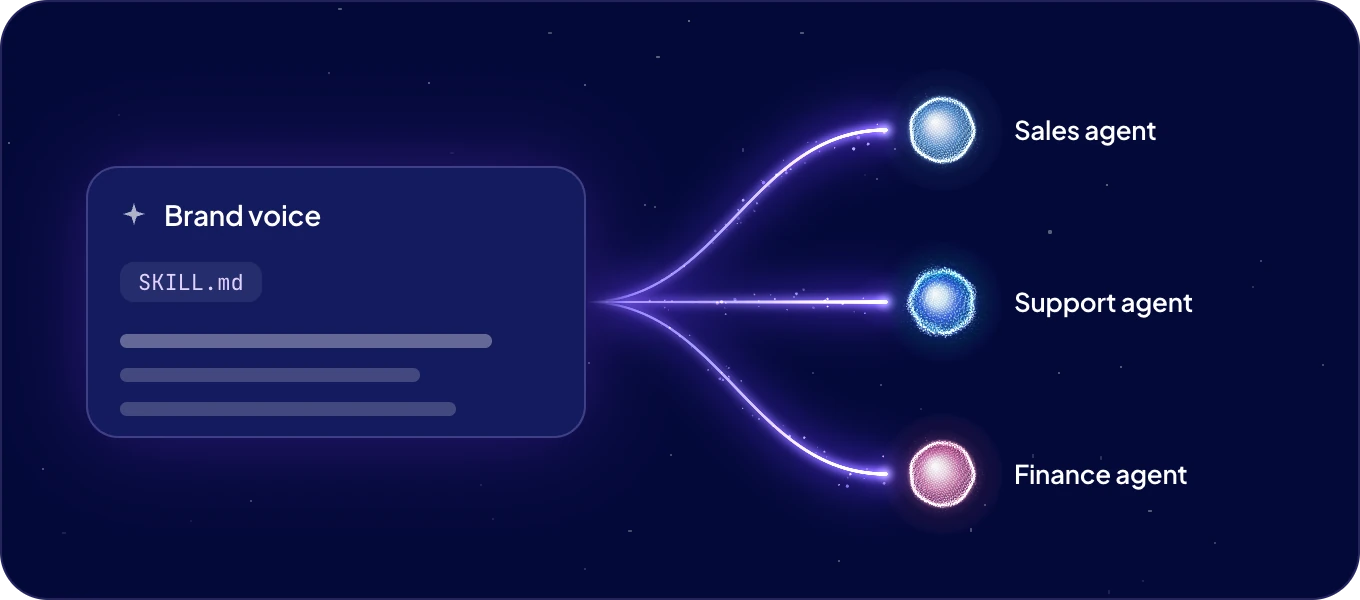
A skill is written know-how an agent follows, such as how to score a lead or how to triage a
support ticket. It is one file, a SKILL.md, that the agent reads before it does that job. What
one agent knows, every agent can use: share a skill across agents, take more from the library, and
adapt them to your business.
Where do skills come from?
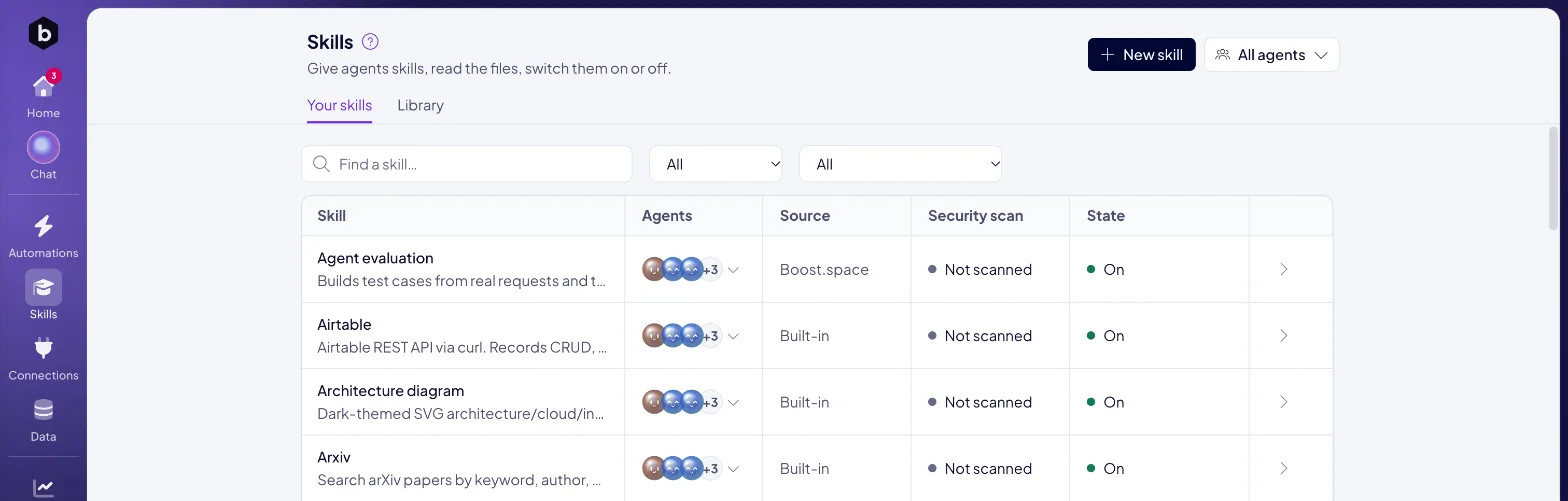
Click Skills in the left rail. Your skills lists every skill your agents have. Library lists the skills Boost.space releases. The Source column says where each skill comes from:
| Source | What it is |
|---|---|
| Boost.space | Released by Boost.space and kept up to date on every agent. These skills fill the Library. |
| Built-in | Comes with the agent's own software. |
| Yours | Written by you or by one of your agents. |
Agents also write skills on their own. When an agent works out how to do a job well, it saves the steps as a skill and improves them the next time.
What does the list show?
| Column | What it shows |
|---|---|
| Skill | The skill's name and what it does. |
| Agents | The agents that have it. Click it to switch the skill on or off per agent. |
| Source | Boost.space, Built-in or Yours. |
| Security scan | No findings, Findings or Not scanned. See What does the security scan check? |
| State | On, Off, or On for 2 of 3 when only some of its agents use it. |
The Library tab adds a Category column. Its State reads On for everyone, On for 2 or Not on.
To narrow the list, type in Find a skill… or pick a Source and a Category. To see the skills of one agent, pick it in All agents at the top right. The Skills tile on an agent's page takes you to the same list.
How do I add a skill?
Click New skill. There are three ways:
- Ask an agent to write it. Describe the job, for example "Send me a weekly stock digest with what will run out". Pick the agent under Who writes it and click Ask <agent> to write it. The agent's chat opens with your request, and the agent writes the skill.
-
Bring a SKILL.md. Click Upload the file, or drop the file on the page. Check the
Skill name: lowercase letters, numbers and hyphens, such as
stock-digest. Under Assigned to, pick the agents that get it, and click Add to 3 agents. The skill's page opens. - Install one from the Library. Click Or install one from the Library and switch a Boost.space skill on for the agents that need it.
You can also ask in any chat: "Learn a new skill: how we write our monthly sales report."
How do I give a skill to an agent, or take it away?
Open the skill. Assigned to shows every agent, and the ones that use the skill are highlighted. Click an agent to switch the skill on or off for it. In the list, the Agents column opens the same choice, grouped by instance when you run more than one.
Switching a skill off asks you to confirm with Disconnect. The agent stops using the skill right away.
| Source | How it moves between agents |
|---|---|
| Yours | The file is copied to the agent you switch on. The last agent with the skill keeps it. |
| Boost.space | Every agent already has it. You switch it on or off per agent. |
| Built-in | Some can be added to another agent here. The others show This skill can't be added to this agent from here. |
Can I read and edit a skill?
Yes. Every skill page shows The skill, as the agent reads it, the full SKILL.md.
Skills with the source Yours, and some Built-in ones, have an Edit button. Change the text and click Save. AgentOS writes the new file to every agent that has the skill, in one step.
Boost.space skills stay as Boost.space releases them. If an agent does not need one, switch it off for that agent.
What is the Skill check?
A good skill says five things. The Skill check on the skill page looks for each of them in the file:
| The file says | For example |
|---|---|
| what it needs to start | The records and access it needs, and what it asks for when something is missing. |
| what it may use | The connections and modules it may read, and the shorter list it may change. |
| what needs a person first | What waits for your yes, such as anything a customer sees or anything about money. |
| what it produces | The shape of the result and where it lands. |
| if it cannot finish | Stop at the failed step, say which one, and leave the work where a person can pick it up. |
The summary reads Every rule written, 1 rule to write or 3 rules to write. Open it to see which ones the file does not cover. If the file covers a rule in other words, click We say this elsewhere. Check again brings the dismissed rules back.
To add a missing rule to a skill of your own, click Edit and write the section into the file.
What does the security scan check?
Every skill is scanned for hidden or unsafe instructions, such as text that tells an agent to send your data somewhere else. The result shows in the Security scan column and at the foot of the Skill check:
| Result | What it means |
|---|---|
| No findings | The scan found nothing unsafe. |
| Findings | The scan found something to look at. The skill page says what. |
| Not scanned | The skill has no scan result yet. |
When agents have different copies of a skill, a finding in any copy marks the whole skill. Read a skill with Findings before you switch it on for more agents.
Which automations use a skill?
The Automations line on the skill page lists them after Runs in, each with its agent. Click one to open it. A skill no automation runs yet shows Nothing scheduled runs this skill yet. See Agent automations.
How do skills get new versions?
Boost.space improves its skills and releases new versions. Your agents' instance picks up a new version overnight. While one is waiting, the skill shows New version tonight in its State, and the skill page links to See what is new.
A skill of your own changes when you or an agent edit it. Every agent that has it gets the new file at once.
Next: Value metrics, to see the time each skill saves, or Connections and security to decide what each agent may reach.

