Agent automations
An agent automation is a job an agent runs on its own schedule. "Every Monday at 9:00, send me last week's new leads." It runs as that agent, on the agent's instance, with the agent's skills, apps, data access and AI model. Each run is a fresh piece of work, so the agent can read, judge and write something new every time.
When is it the right kind?
When the job needs the agent's judgement every run:
- "Every morning at 8:00, read the new support tickets and send me the three that need me."
- "Every Friday at 15:00, summarize what our competitors changed on their pricing pages."
- "On the first day of each month, write the board update from last month's sales."
For work that runs the same way every time, such as moving data or scoring records, the agent builds an ACT automation instead. You do not have to choose: the agent decides from what you describe.
How do I create one?
Ask the agent in Chat. Say when it runs and what it delivers: "Every Monday at 9:00, send me last week's new leads as a table."
Or open Automations and click New automation. Chat opens with "Every Monday at 9:00," in the message box. Finish the sentence and send it. With one agent picked in the scope, the chat is with that agent. With All agents, it is with Boosty, who hands the job to the agent that fits it.
The agent schedules the job and tells you in the chat. Any agent can schedule its own agent automations.
How do I read the list?
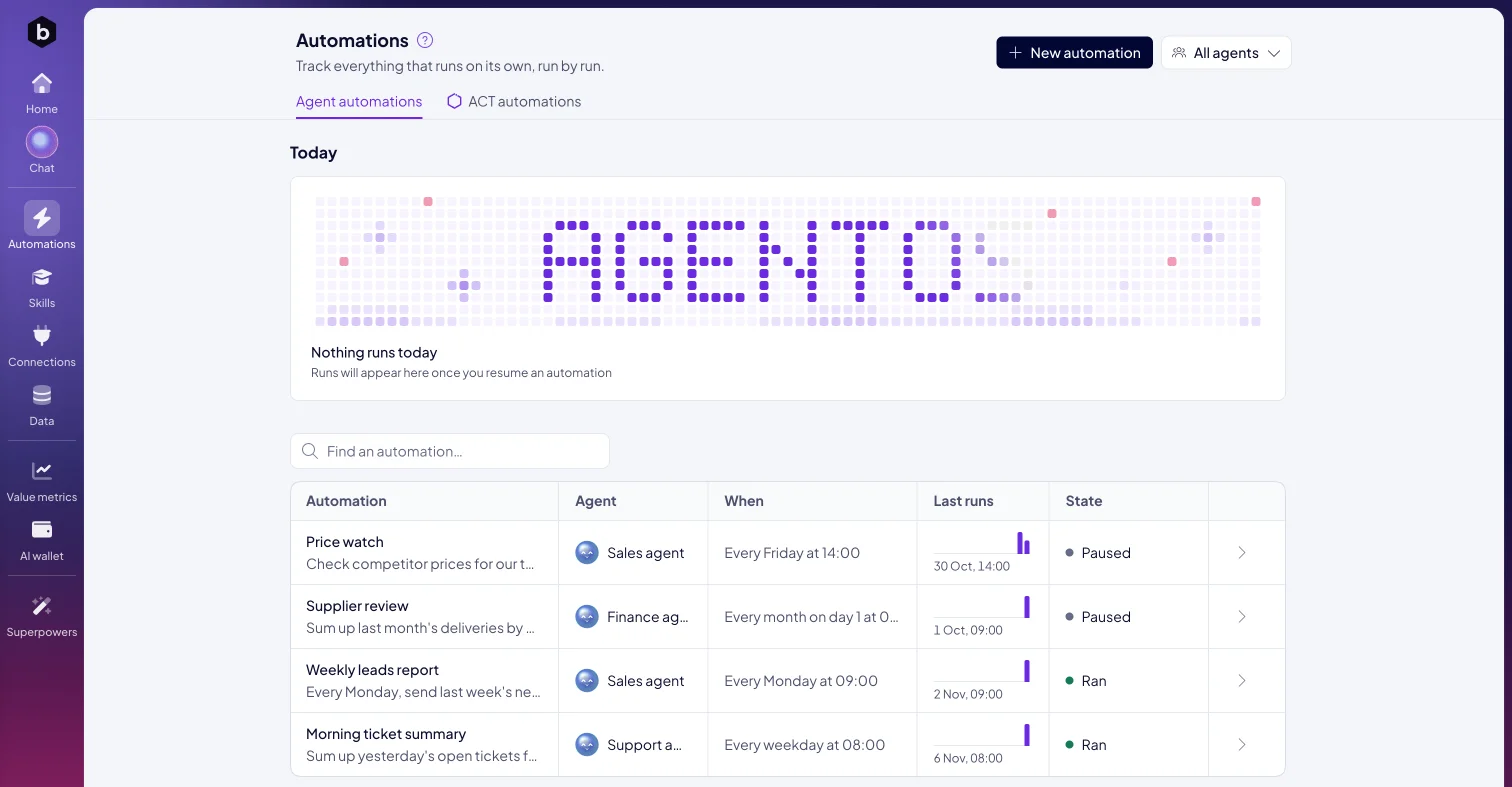
Automations in the left rail opens on the Agent automations tab:
| Column | What it shows |
|---|---|
| Automation | Its name and what the agent is asked to do. |
| Agent | The agent that runs it. |
| When | Its schedule. |
| Last runs | A bar for each recent run. |
| State | How it stands now, see below. |
| State | Meaning |
|---|---|
| Ran | The last run finished. |
| Paused | The automation is switched off until you resume it. |
| Needs a look | The last run did not finish. The tab says how many need a look. |
| Not run yet | The automation has not run so far. |
Use Find an automation… to search. Use the scope picker at the top to see one agent's automations or All agents.
What does Today show?
Today sits above the list. It shows every run your agents have today on one timeline:
| Mark | Meaning |
|---|---|
| Done | The run finished. |
| Running | The run is in progress. |
| Did not finish | The run stopped before it finished. |
| Coming | The run is planned for later today. |
Its heading counts the runs, such as 3 of 5 done, and names the next one. Click a run to open its automation. Runs come from each agent's instance. When an instance is not answering, Today says so and links to Instances →.
How do I see every run?
Click an automation. The page shows the agent under Runs as, its Instance, When it runs and its Status. A chart of the last runs makes a change in the pattern stand out.
Runs lists the latest runs, newest first:
| Column | What it shows |
|---|---|
| When | When the run started. |
| Result | What the run ended with. |
| Wrote | The start of what the run produced. |
| Status | Ran, Working or Needs a look. |
Open a run to see its steps one by one.
How do I fix a run that needs a look?
Open the automation and click Fix with <agent>. The agent's chat opens with a message that asks it to find out why the last run did not finish and to fix it. Send it. The agent reads the run, finds the cause and changes the job.
How do I change, pause or remove one?
- Change it. Click Edit with <agent>. The chat opens with "Change the automation … so that". Finish it, for example "it runs at 8:00", and send it.
- Pause it. Click Pause. It skips its runs until you click Resume.
- Run it now. Ask the agent: "Run the Monday leads report now."
- Remove it. Ask the agent: "Delete the Monday leads report."
What does it cost?
An agent automation uses AI the same way a chat with the agent does. It is paid from your AI wallet, or from the agent's own AI account when you connected one (see Choose your agent's model). It uses no ACT Operations.
Next: ACT automations.

