Choose your agent's model
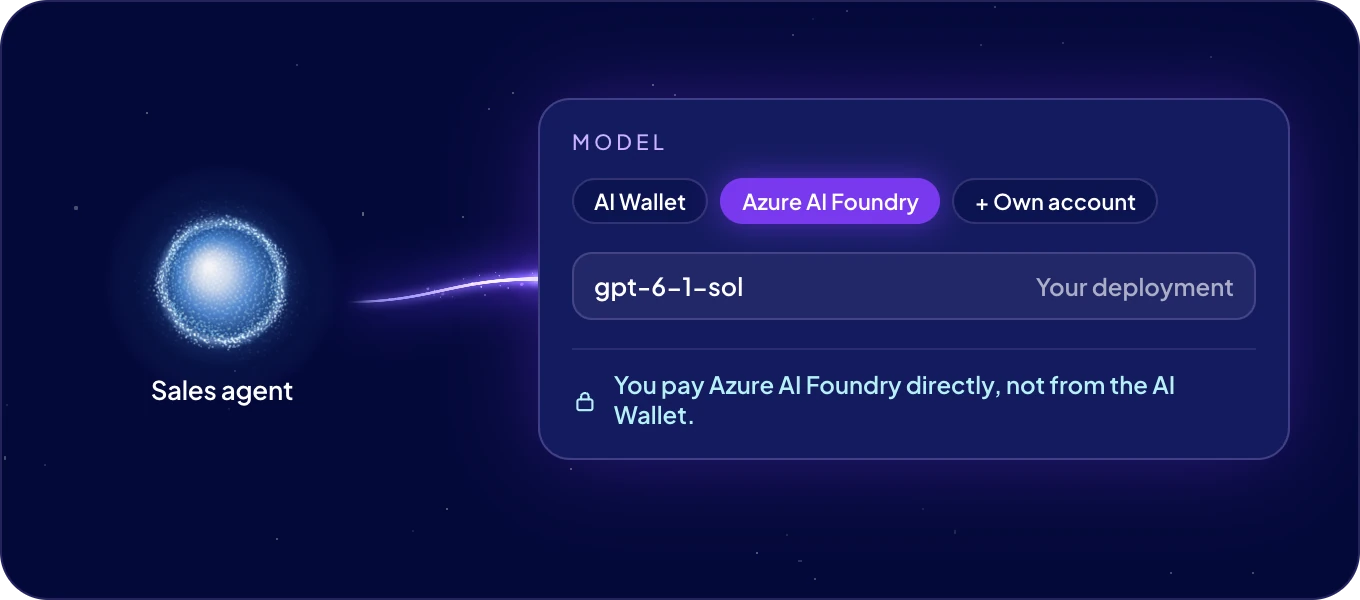
Each agent thinks with one AI model, and you choose which. Pay for it from your AI wallet, or connect your own AI account and let the agent use that. You can switch at any time, and the agent uses the new model from its next message.
How do I change the model?
- Open the agent's page and click the model at the top. Model opens.
- Keep AI Wallet selected. Use Find a model…, or pick one from Recommended. Each model shows its price per 1M tokens in and out. The one the agent uses now is marked Now.
- Click Switch to <model>.
A model that costs more than $20 in or $100 out per 1M tokens asks once more. Click Switch anyway to use it.
Model also shows what the agent spent this period and how many tokens it used. Every model in the wallet is listed in AI models.
Which model should I pick?
| The agent's job | Pick |
|---|---|
| Most work: research, writing, data, apps | A model marked Recommended, such as Claude Sonnet or GPT. |
| Hard reasoning, long documents, code | The largest model of a maker, such as Claude Opus. |
| Many small, simple tasks | A fast, low-cost model, such as Claude Haiku or Gemini Flash. |
Start with a recommended model. Switch when the agent struggles, or when it spends more than the job is worth.
Can the agent use our own AI account?
Yes, this is bring your own key (BYOK). Your company may already pay for AI. Connect that account to an agent, and the agent's model runs on it instead of the wallet. Everything else the agent uses, such as images, web data and apps, stays on the AI wallet. You can switch back at any time.
- Open the agent's page and click the model at the top.
- Next to AI Wallet, click Own account. Connect your own account opens.
- Pick your provider and fill in what it asks for, such as the API key. Click Connect.
- Pick a model from Models of your <provider> account and click Switch.
The model at the top of the agent's page then shows who pays: Wallet, your provider, or Own server. The Model dialog says it too, for example You pay OpenAI directly, not from the AI Wallet.
Which providers can I connect?
| Provider | What you connect |
|---|---|
| OpenAI | An API key from your OpenAI account. |
| ChatGPT | Your ChatGPT subscription. You sign in with a code, no key needed. |
| Anthropic | An API key from your Anthropic account. |
| Google Gemini | An API key from Google AI Studio. |
| xAI | An API key for the Grok models. |
| DeepSeek, Qwen, Kimi, Z.ai (GLM), MiniMax | An API key from the provider. |
| Azure AI Foundry | The API endpoint of your model's deployment and its API key. You pick the model by its deployment name. |
| Amazon Bedrock | Your AWS Region, such as eu-central-1, and a Bedrock API key. |
| Own server | A server with an OpenAI-compatible API, such as a model you host yourself: its API endpoint, a Name, and an API key if the server asks for one. |
Each provider shows Where to get a key. Azure, Bedrock and your own server come with a short guide. The list comes from the agent's instance, so you see every provider it supports. If the dialog asks for an update first, update AgentOS on the agent's instance under Instances in Settings.
What should I know about each kind of account?
- A key is checked when you connect. If the provider rejects it, the dialog says so. A few providers cannot check a key in advance: the key is saved, and a wrong one shows at the agent's first message.
-
An own server must be reachable from the internet over HTTPS. Its address usually ends in
/v1. AgentOS does not connect to addresses inside the instance's own network. - An account without a model list. Type the exact model or deployment name into the search. It is checked when you switch.
- An expensive model of your own account asks once more, with Switch anyway.
How does signing in with ChatGPT work?
Pick ChatGPT. AgentOS gets a code and shows it with Copy the code and Open ChatGPT. Sign in on the ChatGPT page and enter the code. AgentOS waits for you and connects the account. If the code expires, click New code.
Where is my key kept?
Only in that agent, on its instance. Boost.space keeps it nowhere else, and no other agent uses it. Each agent connects its own account, so one agent can run on your Azure contract while the others use the wallet.
How do I go back to the wallet?
Open Model, pick AI Wallet, choose a model and click Switch. The agent uses the wallet from its next message.
To remove your account from the agent, select it in Model and click Disconnect the account, then confirm. The instance removes the account and its key or sign-in. If the agent still runs on that account, switch it to the wallet or another account first.

