Channels
A channel lets people reach an agent outside AgentOS, in a messaging app they already use. The agent answers there with the same skills and the same access it has everywhere else. Each agent has its own channels, and only the people you list can message it.
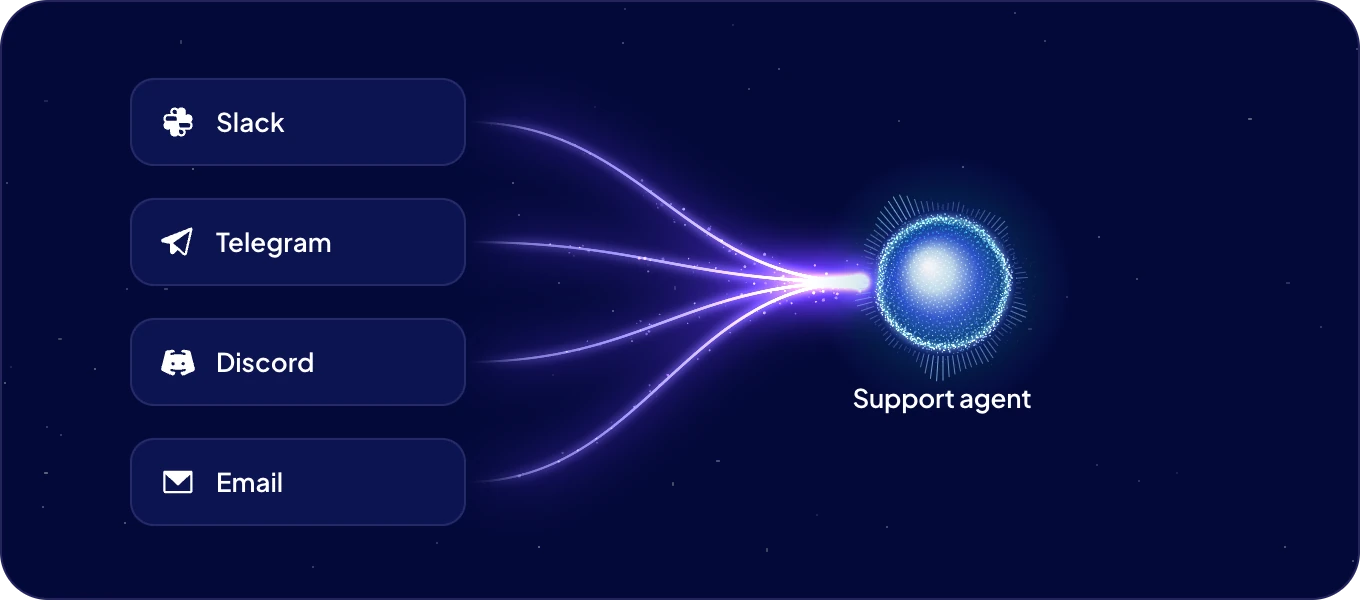
How do I connect a channel?
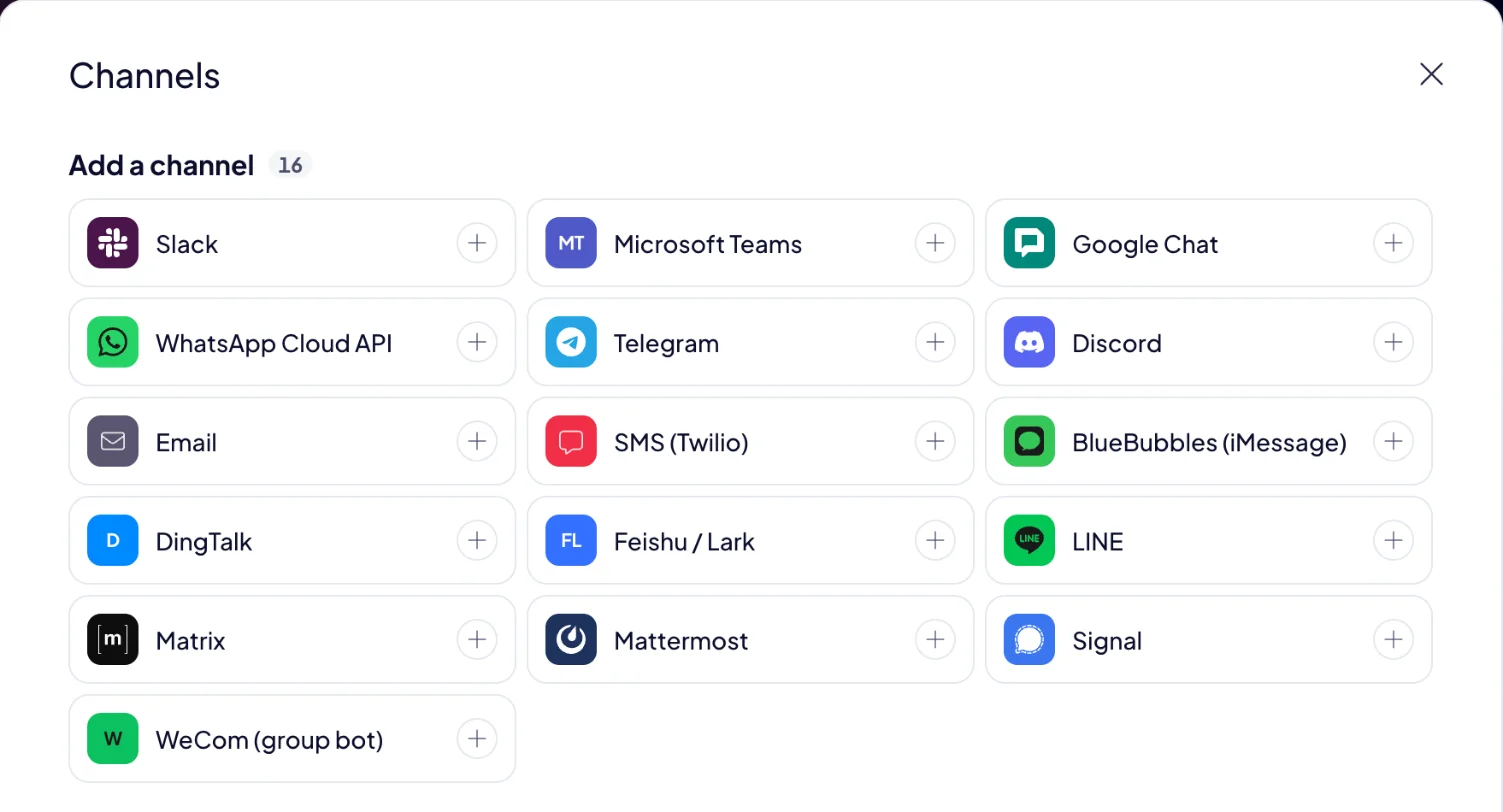
- Open the agent's page and click Add a channel. The Channels dialog opens.
- Under Add a channel, pick the app.
- Fill in the fields marked *. Under each field, a hint says where to find the value, and View documentation opens the app's own guide.
- Fill in Who can message the agent. See the table below for the format each app uses.
- Click Connect. The channel shows Waiting for restart.
- Click Restart gateway, then Restart to confirm. The gateway is the part of the agent that connects it to its channels, and it picks up a new channel when it restarts.
- Click Check status. When it says The channel is connected., the agent answers in that app.
Pick a quiet moment for the restart. Restarting the gateway ends the open conversations in every channel of this agent. The next message starts a new one.
Which apps can I connect?
Each app asks for what it needs to connect, and for Who can message the agent as a list separated by commas. Settings you rarely need sit under Advanced settings.
| Channel | What it asks for | Who can message the agent |
|---|---|---|
| Slack | Bot User OAuth Token, App-Level Token | Slack member IDs |
| Microsoft Teams | Microsoft App ID, Client secret, Tenant ID | Object IDs of people in Microsoft Entra ID |
| Google Chat | Service account key (JSON), Project ID, Pub/Sub subscription | Google email addresses |
| WhatsApp Cloud API | Phone number ID, Access token | Phone numbers in international format, such as +44… |
| Telegram | Bot token | Numeric Telegram user IDs |
| Discord | Bot token | Discord user IDs |
| Email address, Password, Incoming mail server (IMAP), Outgoing mail server (SMTP) | Senders' email addresses | |
| SMS (Twilio) | Account SID, Auth Token, Twilio number | Phone numbers in international format |
| BlueBubbles (iMessage) | BlueBubbles address, Server password | iMessage email addresses or phone numbers |
| DingTalk | Client ID, Client Secret | DingTalk staff IDs |
| Feishu / Lark | App ID, App Secret | People's open_id, starting with ou_ |
| LINE | Channel access token, Channel secret | LINE user IDs, starting with U |
| Matrix | Homeserver, Access token, Bot's Matrix ID | Matrix IDs, such as @name
|
| Mattermost | Server address, Bot token | Mattermost user IDs |
| Signal | signal-cli address, Signal number | Phone numbers or Signal UUIDs |
| WeCom (group bot) | Bot ID, Secret | Members' account names from the WeCom contacts |
Where do I get the values?
The hints in the dialog walk you through each field. The points people most often look for:
-
Slack. The hint under Bot User OAuth Token has a link, Create the Slack app. It opens
Slack with a new app already set up for the agent. Install it to your workspace and copy the
Bot User OAuth Token. The App-Level Token needs the scope connections
. People then message the agent directly, or @-mention it in a channel it was added to. - Telegram. Message @BotFather, send /newbot and copy the token it sends. Each person gets their numeric ID from @userinfobot.
- Discord. In the Developer Portal, open your app, then Bot. Copy the token, turn on Message Content Intent and add the bot to your server.
- WhatsApp Cloud API. In Meta for Developers, use the Phone number ID from the API Setup page, not the phone number itself. A permanent access token comes from Business Settings > System users.
- Email. Use a mailbox for the agent, such as agent@yourcompany.com. For Gmail, the password is an app password, and the servers are imap.gmail.com and smtp.gmail.com.
- Microsoft Teams. The values are on your Azure Bot in the Azure portal, under Configuration.
- Google Chat. Paste the whole content of the service account's JSON key, and the full name of the Pub/Sub subscription, projects/…/subscriptions/….
- BlueBubbles. It runs on a Mac with BlueBubbles Server, which shows the address and password.
- Signal. It connects through signal-cli running as an HTTP service, with a registered number.
- DingTalk. Set the app's robot to Stream mode.
Who can message my agent?
Only the people you list in Who can message the agent. A channel with an empty list accepts nobody, so the agent never answers a stranger who finds it. Whoever writes, the agent works with its own access, the one you set in Connections and security.
How do I change or switch off a channel?
- Open the agent's page and click the channel's icon, or Channel.
- Under Connected channels, pick the channel.
- Change what you need:
- A stored value shows Value is set. Type a new one to replace it, or click Clear to remove it.
- Turn Enable this platform off to switch the channel off. Its setup stays saved.
- Click Save, then Restart gateway. The change applies after the restart.
If you close the dialog with changes not saved, AgentOS asks Discard unsaved changes?.
What does a channel's state mean?
| State | What it means | What you do |
|---|---|---|
| Connected | The agent answers in this app. | Nothing. |
| Waiting for restart | The settings are saved. | Click Restart gateway. |
| Configured | The settings are complete, and the gateway is not running. | Click Restart gateway. |
| Not configured | Some required fields are still empty. | Fill in the fields marked * and save. |
| Disabled | The channel is switched off. | Turn Enable this platform on and save. |
| Error | The channel cannot connect, or lost its connection. | Read the message under the form, check the token and the settings, and restart the gateway. |
Check status tells you the same in a sentence, such as The channel is connecting. Check again in a moment.
Who sets up channels?
Admins. Everyone you invite to AgentOS joins as an admin.
Next: Talk to Boosty from inside AgentOS, or Skills to teach the agent more.

