Connect your apps
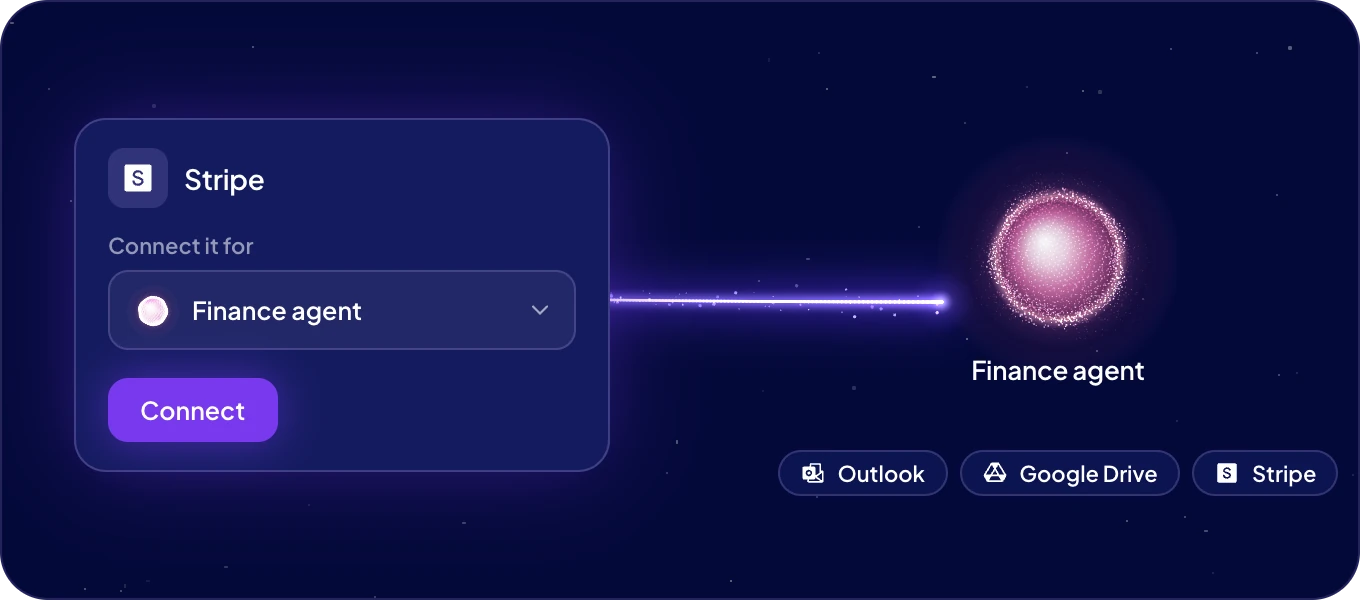
Agents work in the apps your company already uses: your mailbox, your files, your payments. An agent connects an app for you, and you choose which agents may use it. Every agent works only in the apps it may use.
How do I connect an app?
- Click Connections in the left rail and open the Library tab.
- Find the app. Type in Find a connection…, pick a letter, or narrow the list with Type, Source and Category.
- Click the app. The chat opens with the request ready, for example "Please connect Stripe for me."
- Send it. The agent sets up the connection and asks you to sign in to the app.
Which agent connects it depends on the scope at the top right. With one agent picked there, that agent's chat opens. With All agents, Boosty's chat opens and Boosty asks which agent gets the app.
The app then appears in Your connections, with the agents that may use it.
Which apps can I connect?
The Library lists two sources:
| Source | What it is |
|---|---|
| Boost.space | The app library: more than 1,500 apps, each with the actions an agent can take in it. |
| Built in | Integrations that come with the agent's own software. Their tiles carry a Built in badge. |
Look any app up in the app catalog: every app by category, what it does, how it connects and the actions an agent can take in it.
A tile shows the app's category. Once the app is connected, it shows who uses it, such as Used by Finance agent.
What if the app is not in the Library?
Ask an agent to connect it. Below the Library list, next to Not in the library?, click Connect with an agent. The chat opens with a request ready. If you searched for the app first, the request names it, for example "Connect Zendesk". Otherwise, type the app's name after the request. Send it, and the agent sets up the connection and asks you to sign in.
How do I let another agent use a connected app?
Each app is connected once, with one account, and shared from there. A connected app's tile in the Library cannot be clicked again.
- Open Your connections and find the app.
- Click its Agents cell. Every agent that can use apps is listed.
- Switch the agents on or off.
An app nobody may use yet shows Nobody in the Agents column.
How do I check or disconnect an app?
Open the app's row in Your connections. It says whether the app works, for example Stripe is connected for Finance agent., and why when it does not.
To remove the app, click Disconnect for every agent and confirm. The app stops working for every agent at once. You can connect it again from the Library at any time.
To take the app from one agent only, switch that agent off in the Agents column instead.
What does an agent do with a connected app?
What you ask, within that app. For example: "Every morning at 8:00, check Stripe for failed payments and send me the list." To make that a schedule, see Agent automations.
Next: Connections and security, to set what each agent may do with your data.

