Modules
A module holds one kind of data, such as Products, Deals or Tickets. It opens as a table, and each row is a record. Admins create and delete modules. Everyone who can see a module works with its records.
How do I create a module?
- Open the builder:
- With no module yet, click Data in the left rail, then Create your first module.
- Later, open Settings > Data > New module. With two or more modules, you can also click the module name at the top of Data and choose Create a new module.
- Build a module with AI opens. Pick one way to start:
| Start | What you do | Good for |
|---|---|---|
| A description | Type the purpose or a sample record in AI Prompt, then click Generate. | Your own kind of data. |
| A template | Click Deals, Tasks, Order, Campaigns, Emails or Shipments under the prompt. AI starts building that module right away. | A common business object with the usual fields. |
| Try demo module | Click it. It is offered while your system has no module yet. | Trying out the table before you build your own. |
| From scratch | Click it, pick an icon, type the Name and click Create. | Knowing exactly which fields you want. |
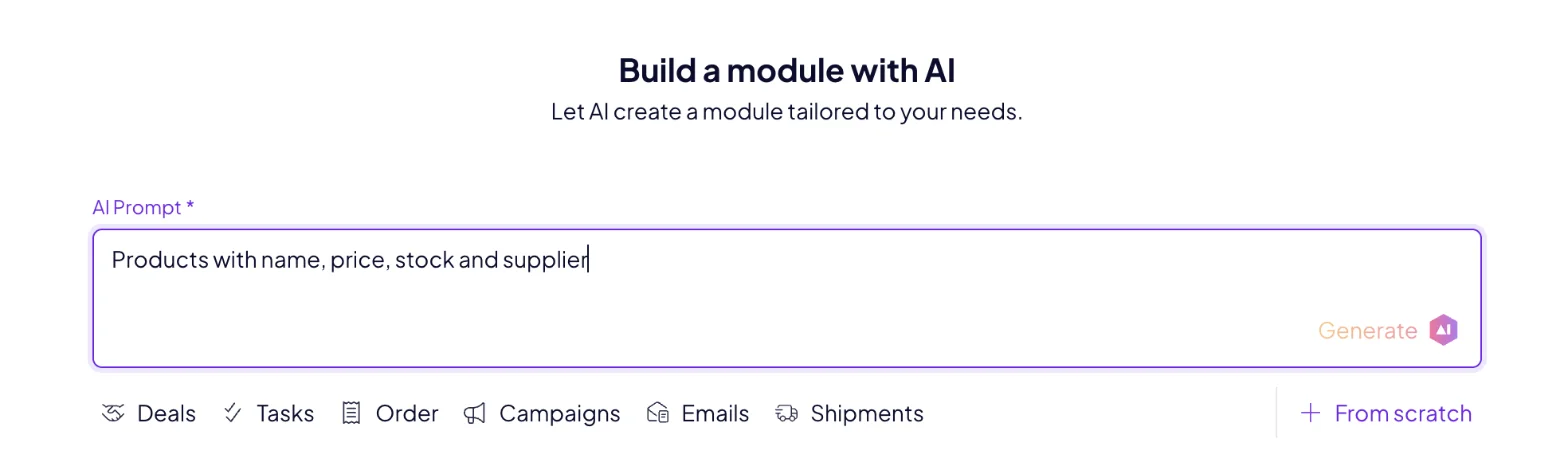
A good description names the records and their fields: "Products with name, SKU, price, stock, supplier and a product photo." AI picks a type for every field, so a price becomes Money and a photo becomes Image.
What happens after I click Generate?
- Building your module… AI proposes the module, its spaces and the fields of each space.
- Set the module name and icon. Change them if you like, then click Continue.
- For each proposed space, AI lists the fields with their types. Change any field in the list. Or write what to change in the box, such as "Add the supplier's VAT number", and click Generate.
- Click Create space. From the second space on, Skip this space leaves it out and Back returns to the previous one.
- After the last space, the new module opens, ready for records.
Try demo module creates Demo Module with one space, Demo Space, and opens it. From scratch creates an empty module. With more than one menu in your system, choose the Menu it goes in. Then add a space with + in the spaces bar, and your fields. See Spaces and Fields.
Can an agent create a module for me?
Yes. Describe it in Chat: "Create a Suppliers module with name, country, contact email and payment terms, and link it to Products." The agent creates the module, its fields and the link.
How many modules do I need?
One per kind of data. Products and suppliers are two modules, connected by a link field. Five product ranges are five spaces in one module, not five modules. Start with the data your first agent works on, and add modules as you grow.
How do I switch between modules?
Click the module name at the top of Data. The list shows your modules in the order of your menu. Admins drag a module in that list to move it. See Data settings.
What is in a module's menu?
Click the menu button next to the module name at the top of Data. Module Actions opens:
| Item | What it does |
|---|---|
| Displayed spaces | Shows spaces by their status. Active spaces show by default. Switch on Done or Archived to see those too. |
| New Space | Adds a space to the module. |
| New record | Adds a record. |
| Module settings | Opens the module in Settings > Data. For admins. |
| Sort | Orders the spaces bar: Ascending (A–Z), Descending (Z–A) or Custom order. |
| Delete | Deletes the module, see below. |
How do I rename a module or change its icon?
Open Settings > Data and click the module by name. In Module detail, change the icon, the Name or the Module description, and click Save.
Write a clear Module description, such as "Every product we sell, one record per SKU." Your agents read it to understand what the module holds.
The same page lists the module's spaces, segments, field groups, labels and statuses. See Data settings.
How do I delete a module?
Use it for a module you no longer need, such as a demo. Deleting a module removes all its records, files and history for good.
- Click Delete module in Module detail, or Delete in Module Actions.
- Type the module's name to confirm.
- Click Delete module.
To keep the records but stop working with them, set their status to Archived instead. See Statuses and labels.
Next: Fields, or Import and export to fill your new module.

