Segments
A segment is a saved view of a module, shared with the people who need it. An admin defines which records it holds, such as Products without a price, and chooses who sees it. The segment then sits in the bar above the table, one click away, and always shows the records that match right now.
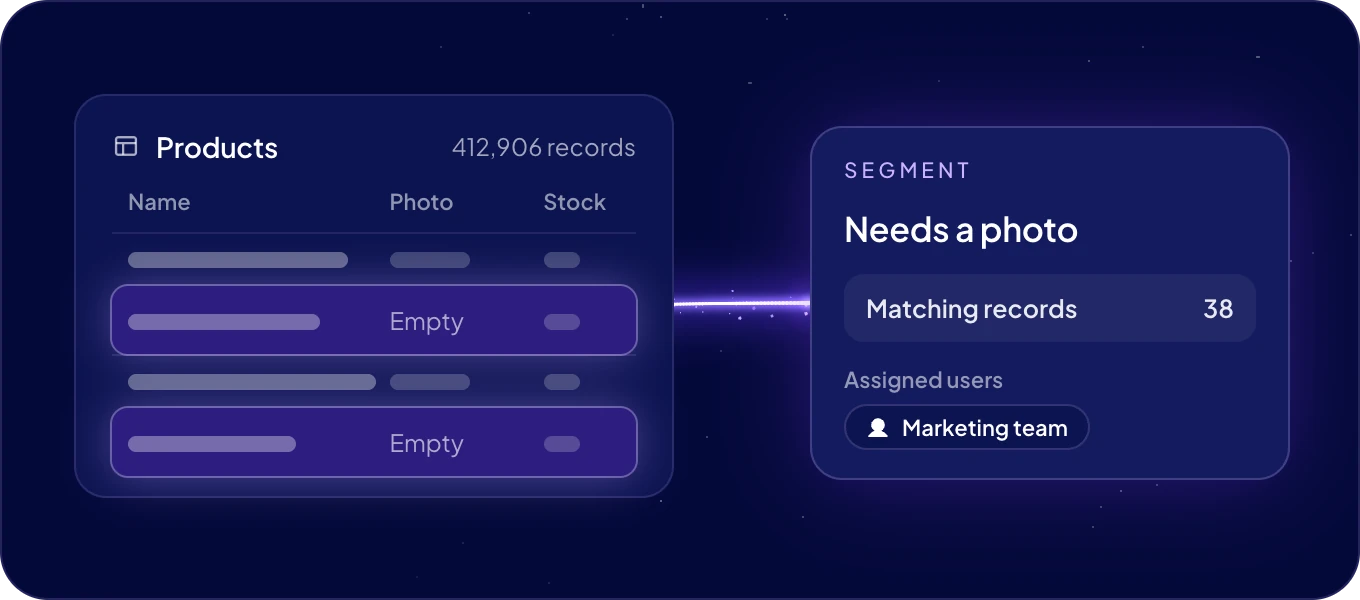
A segment is more than a saved filter:
| Filter | Segment | |
|---|---|---|
| Who makes it | Anyone, for themselves | Admins, for the team |
| Kept | In your browser | On the server, until an admin deletes it |
| Who sees it | Only you | The users, teams and categories assigned to it |
| Loads | Narrows the records already loaded | Loads only its own records from the server |
| Shared by | A link with the filter | Its link, or its place in the bar |
What are segments for?
- A view for one team. Give the warehouse Low stock and the sales team Hot leads. Each team opens the records it works on, without building a filter every morning.
- A standing work queue. Leads without an owner or Products without a photo lists the work to do. A record leaves the segment the moment it is fixed, so the count shows what is left.
- A quick share. Make a segment for one job and send its link. Whoever opens the link lands on the same records, if they are assigned to the segment. Delete it when the job is done.
- Very large modules. A segment loads only its own records, so a module with hundreds of thousands of records stays fast. See below.
Name a segment after the job, not the filter. Needs a photo tells the next person what to do.
Where is the segments bar?
Above the table, in the same place as the spaces bar. The switch at the start of the bar changes between Spaces and Segments. It appears when:
- the module has segments, or
- it holds more than 70,000 records, or
- an admin switched on Segments Mode - on-demand data in Settings > Data > All modules > Tables & details, for every module.
How do I create a segment?
- Open the module and click + (New segment) at the end of the segments bar. Or open the module in Settings > Data and click New segment under Segments.
- In New Segment, type the Name.
- Under Assigned users, choose the users, teams or categories who see it.
- Under In this Segment, show records:, build the conditions as in a filter. Add condition adds a row, and Add group adds a second level.
- Check Matching records, which counts the matches while you build.
- Click Save. The segment appears in the bar above the table.
Only admins create, change and delete segments. Admins see every segment. Everyone else sees the segments assigned to them, or to a team or category they belong to.
How do I work with a segment?
Click it in the bar. Default at the start of the bar shows the module without a segment. Segments that do not fit in the bar sit behind a button with their count, such as +3. Drag a segment to change the order.
Right-click a segment for Segment Actions:
| Item | What it does | Who |
|---|---|---|
| Edit | Opens Edit Segment to change the name, the people or the conditions. | Admins |
| Copy filter | Copies its conditions, for an automation or the API. | Everyone |
| Delete | Removes the segment after you confirm. Its records stay. | Admins |
The open segment is part of the page address, so a copied link opens the same segment.
How do segments keep large modules fast?
Opening a segment counts its records on the server and loads only those, so your browser never holds the whole module.
A module of more than 70,000 records opens on Too many records to display, with the record count. Click New Segment to make a smaller view. A segment that matches more than 70,000 records says Too many results in this Segment and shows its share of all records. Click Edit Segment to narrow it, for example by date or status.
Can an agent work on a segment?
Agents get access per module, not per segment. To hand an agent the records of a segment, open the segment, select the records and click Bulk actions > Ask an agent. See Work with records.
Next: AI features.

