Invite users and set up teams
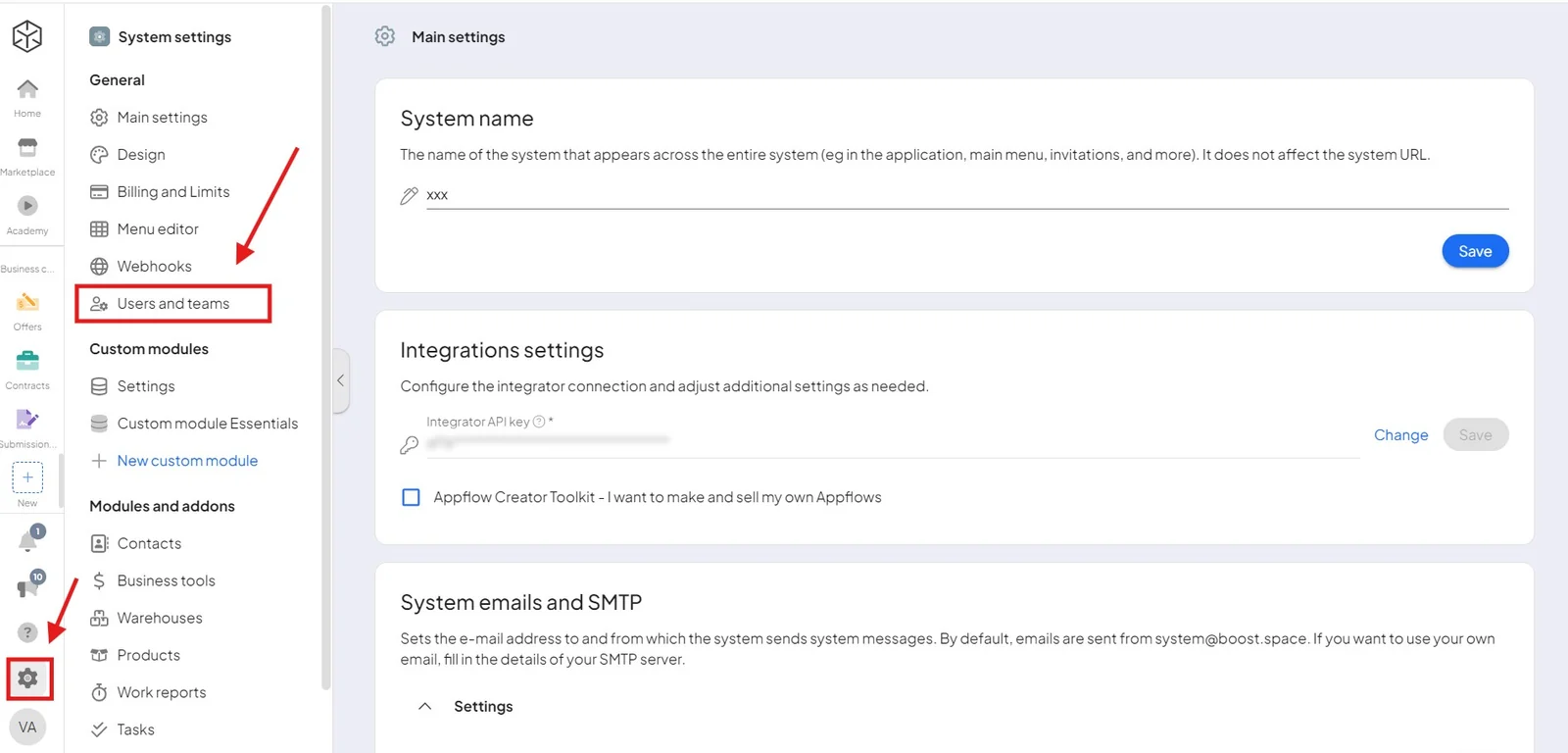
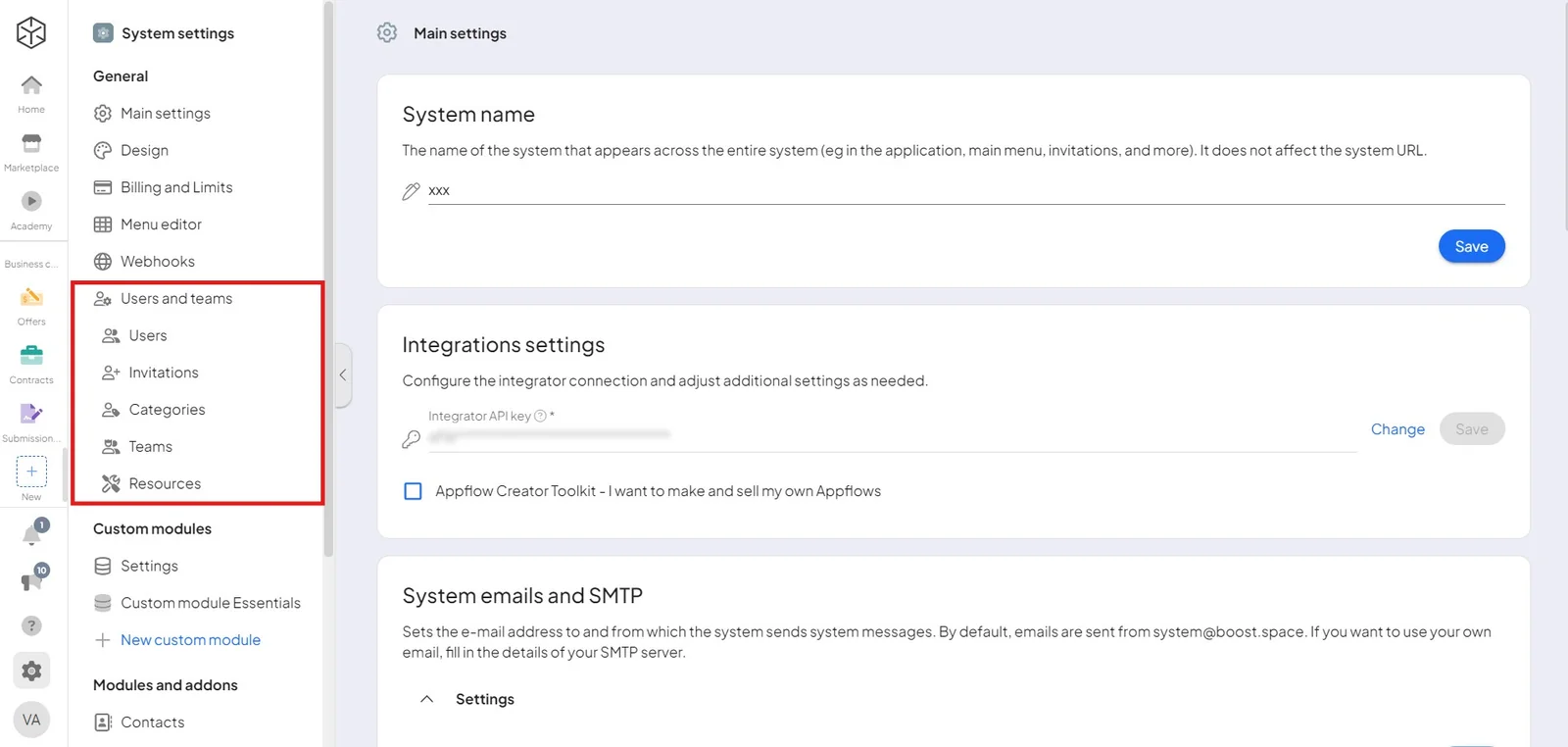
As an admin, you manage everyone in the system — inviting users, creating teams, and assigning roles. Open the settings icon at the bottom left of the home screen and choose Users and teams.
Add users
There are two ways to add a colleague:
-
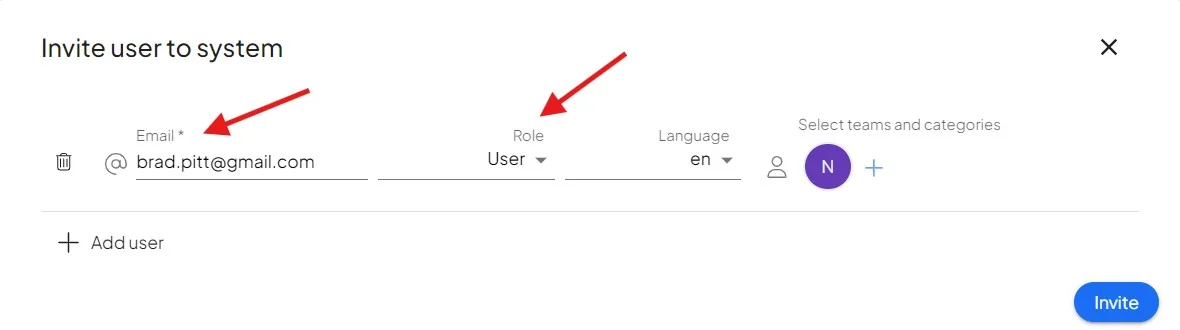
Invite by email — enter their email and role (user or admin). When they accept, they log in, fill in their details, and can be assigned to teams. The number of (non-admin) users is unlimited.
-
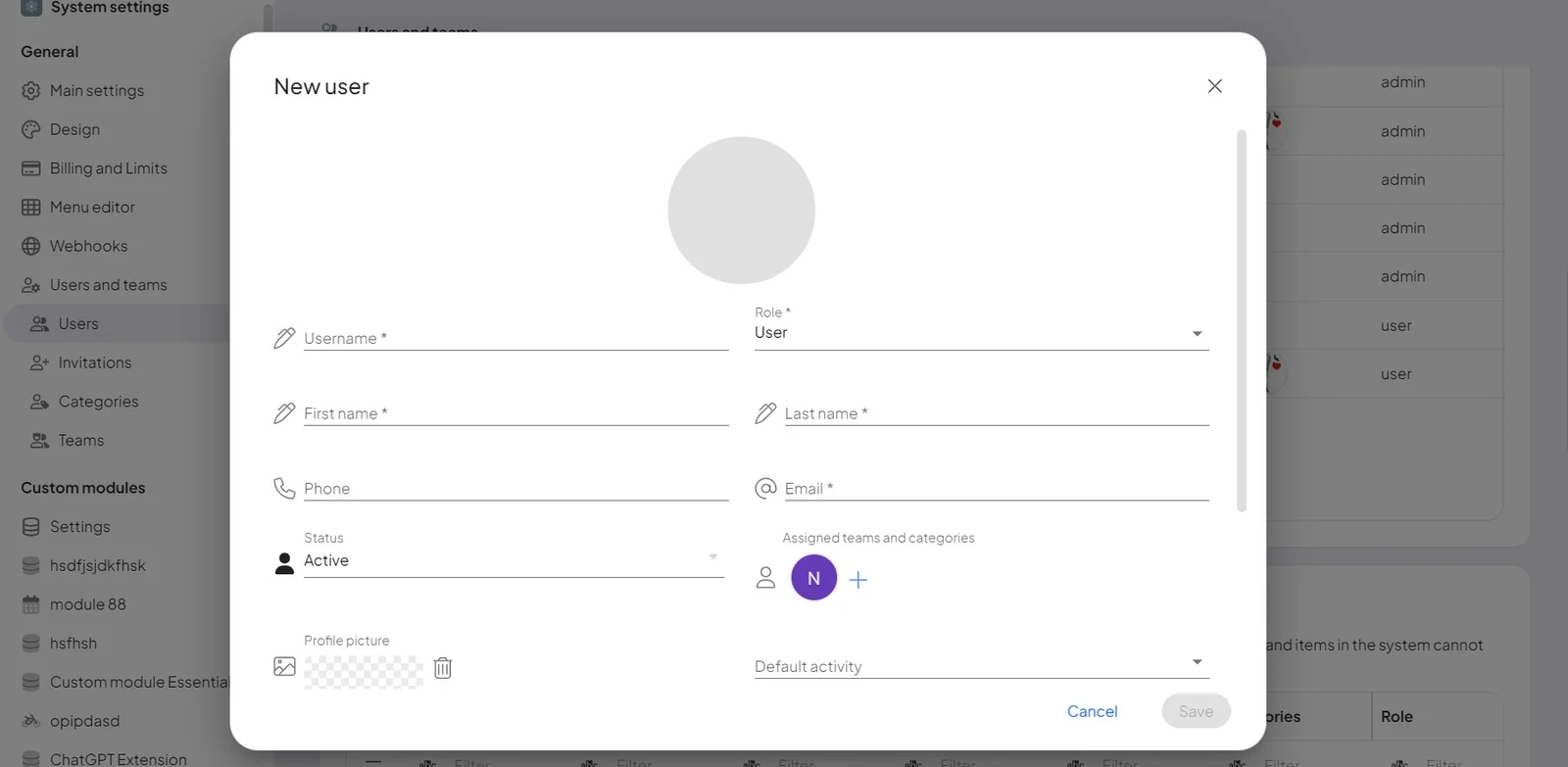
Create manually — fill in the user's details yourself and add them to teams or categories. They get access as soon as they log in.
Deactivate a user
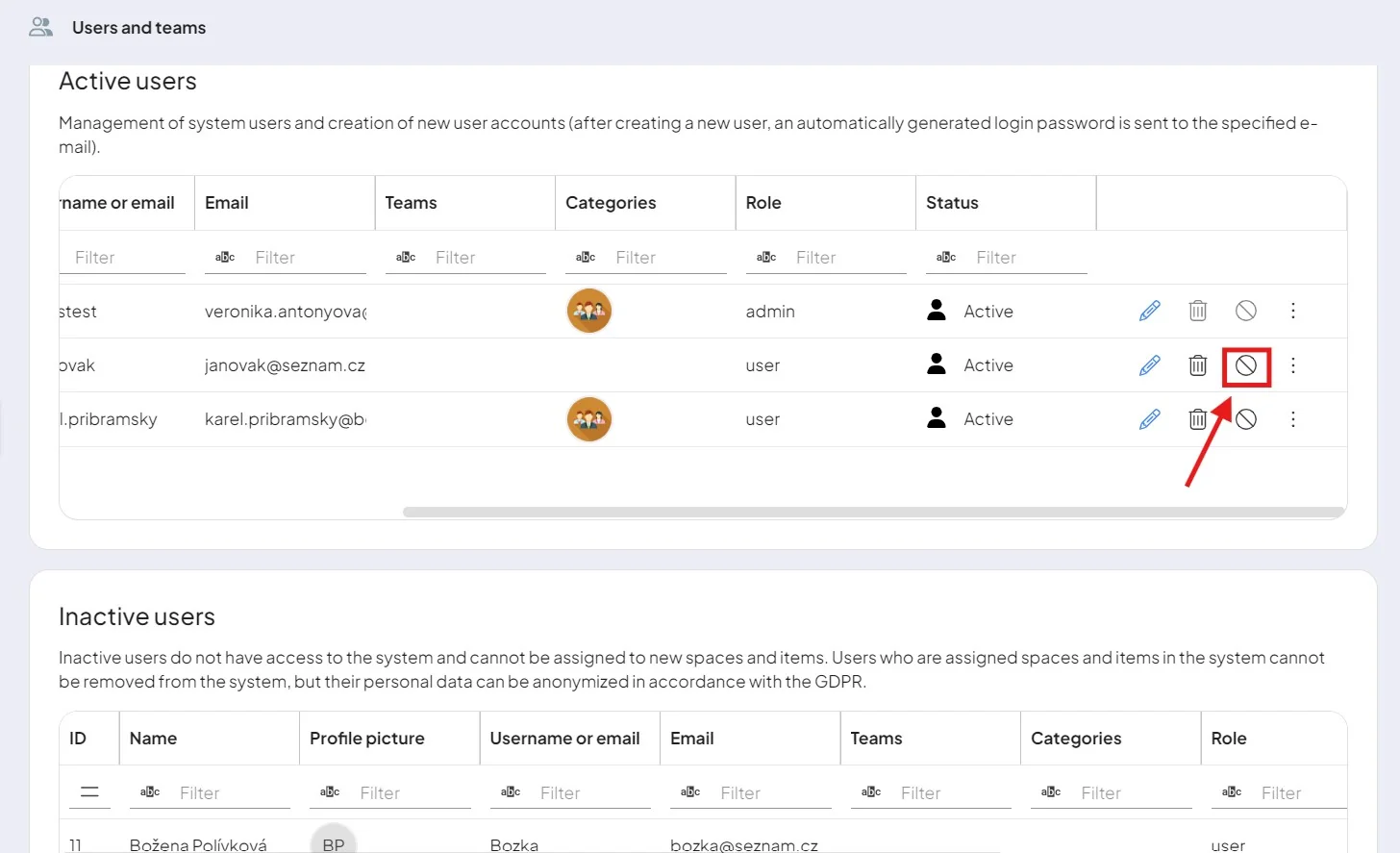
The Users section lists every active and inactive user. To stop working with someone, deactivate their profile — this removes their access but preserves their data. You can also anonymize a user's data if needed.
Teams and categories
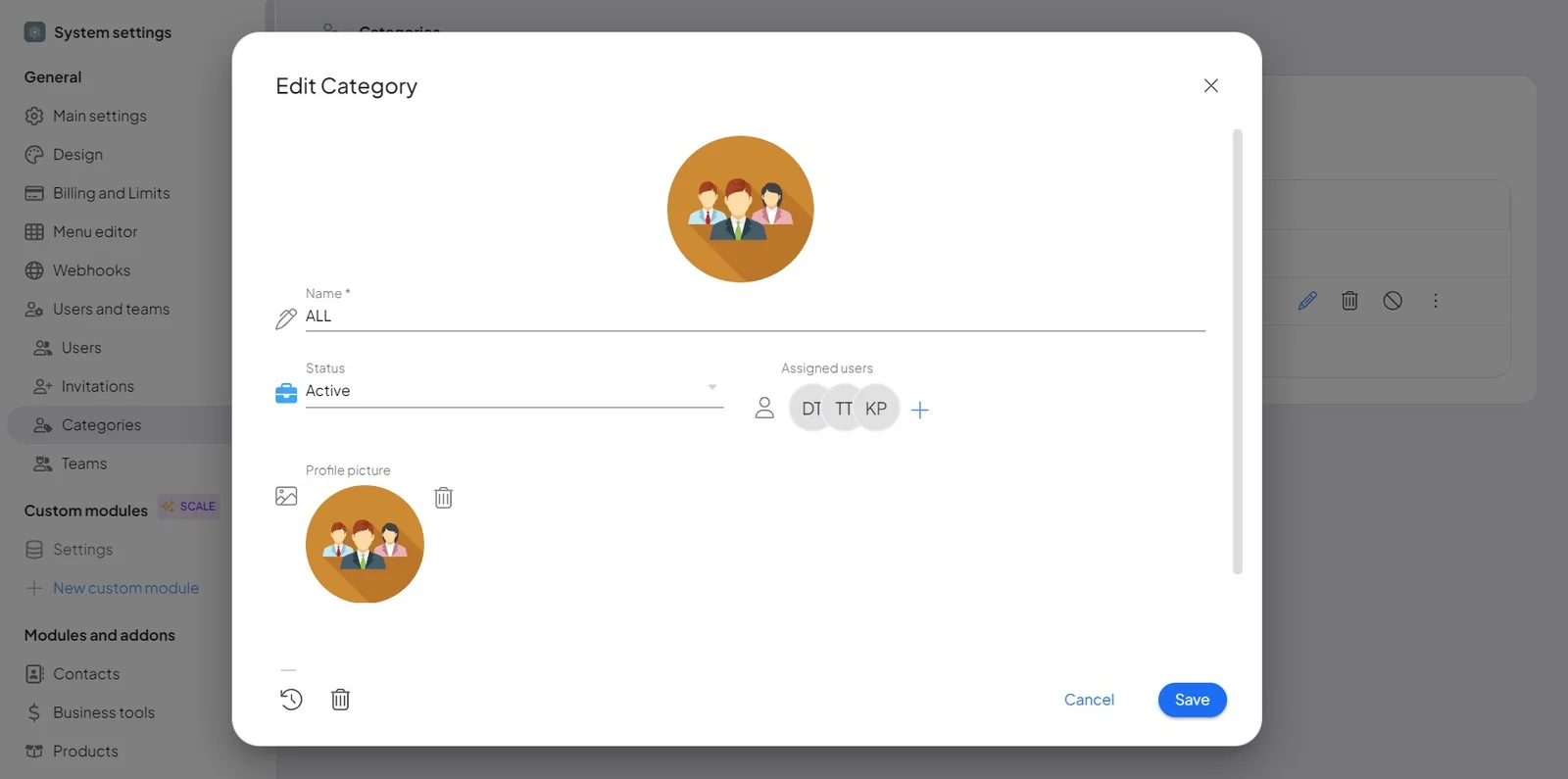
Create teams and categories to organize people. Teams can be assigned to modules (via the Menu editor), to spaces — while creating the space, or afterwards from the space's own people dialog, the same place you assign individual users — and to individual records. Every new user joins the Everyone category by default; add your own categories as needed.
Set access up teams-first. Create the teams, give the teams their space roles, then put people into teams. Access then follows membership: someone joining a team inherits every space that team can reach, and someone leaving loses it — one change instead of one grant per person per space. Granting each user each space individually works on day one and becomes unmaintainable by the tenth space.
Note the direction: a space chooses its teams, not the other way round. Settings → Teams manages who is in a team; which spaces that team can reach is set from each space.
Assign people to a space
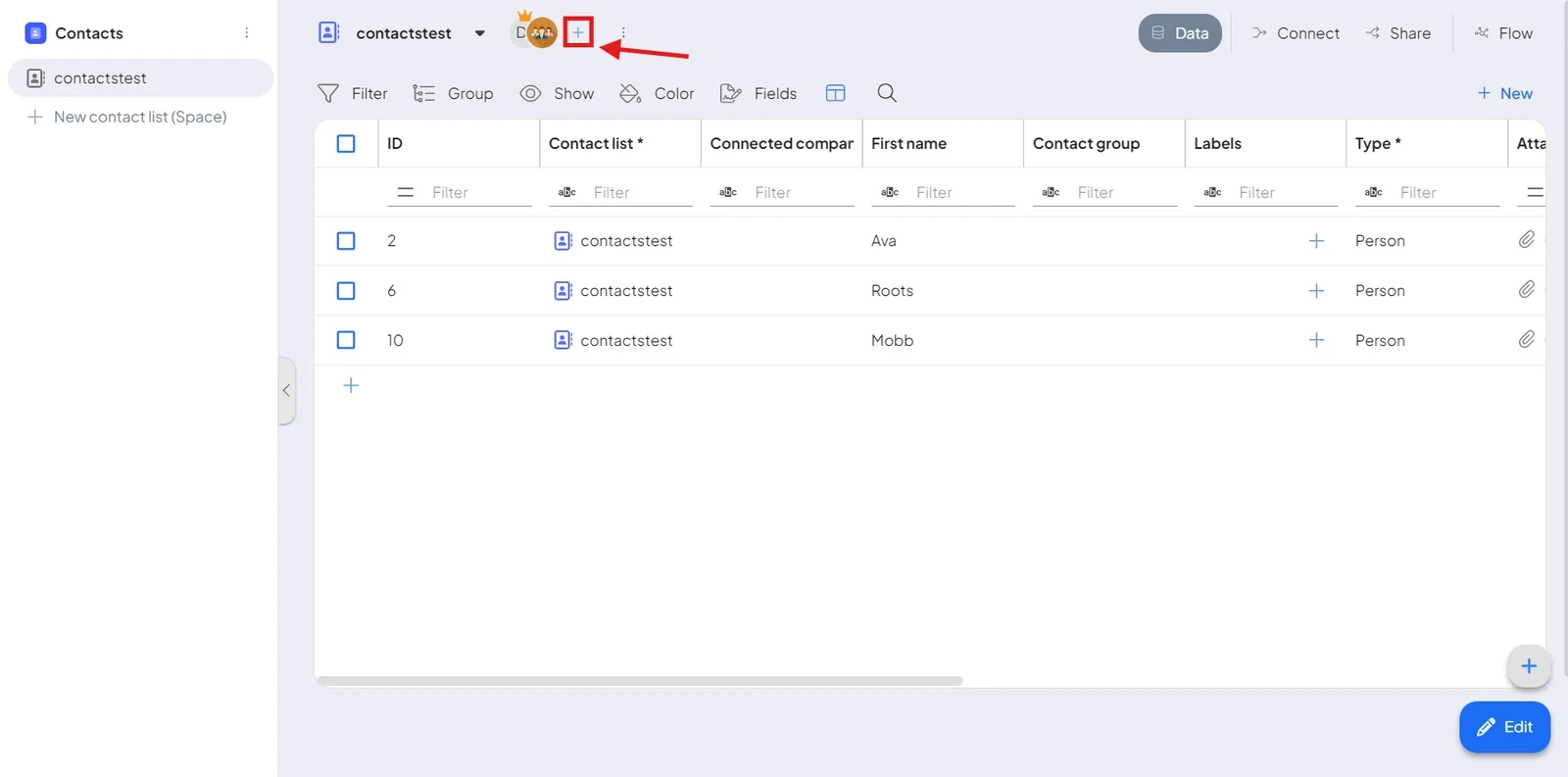
- Choose the module.
- Open the space where you want to assign people.
- Click User settings at the top.
- Assign the colleagues and set their space roles.
Tip: organize teams around departments — marketing, developers, designers, finance — to mirror how your company actually works.
