Menu editor
The Menu Editor is an essential interface where users navigate according to the structure set by an admin. As an admin, you have the authority to create, edit, and manage menus, as well as control user access within these menus.
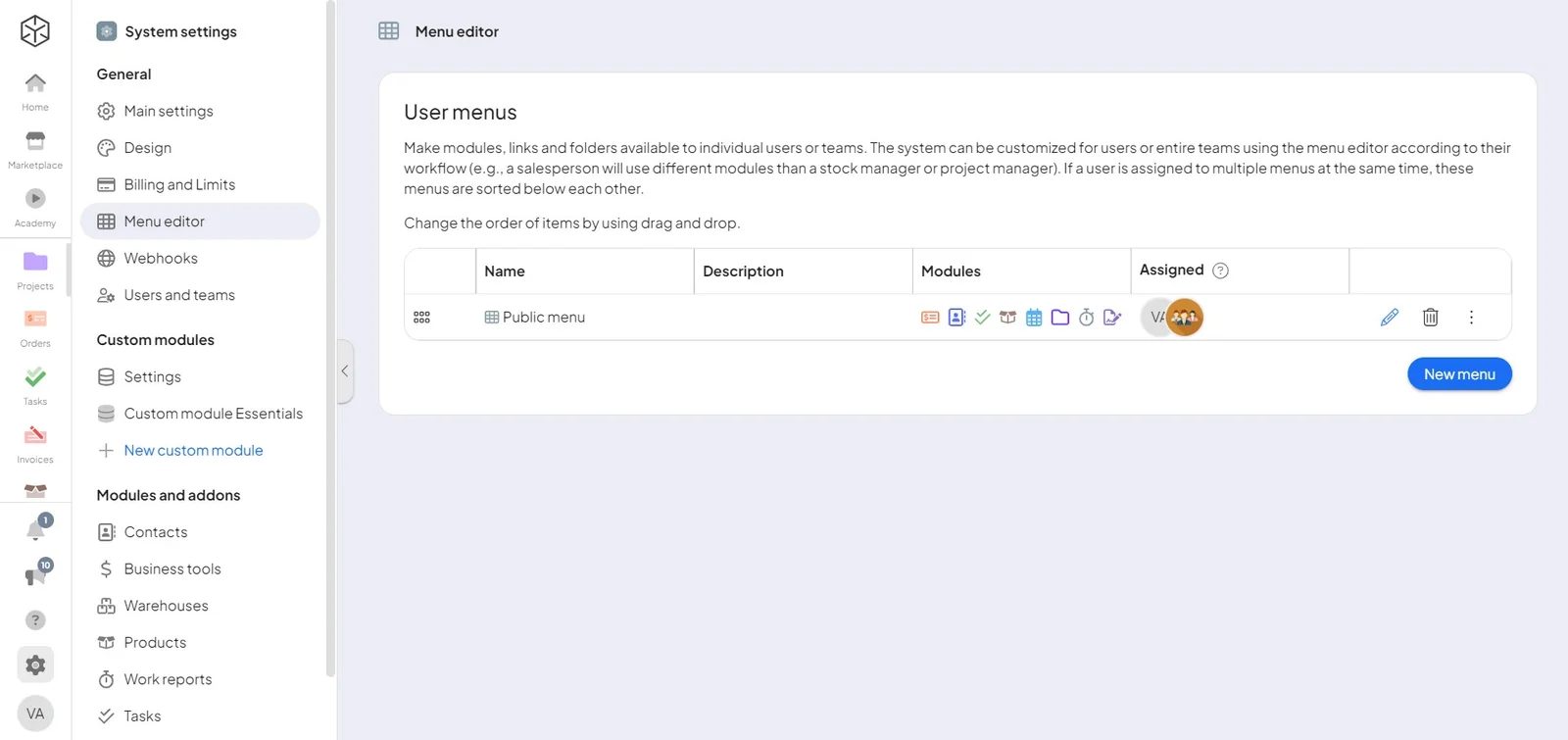
Creating and editing menus
Admins can easily create and modify menus. To create a new menu, simply open your primary menu and click on the "New Module" button. This will open a sidebar where you'll find the "Menu Editor" option at the bottom. Click on it to access the Menu Editor. Alternatively, you can reach the Menu Editor through "System Settings" by selecting the "Menu Editor" option in the left column.
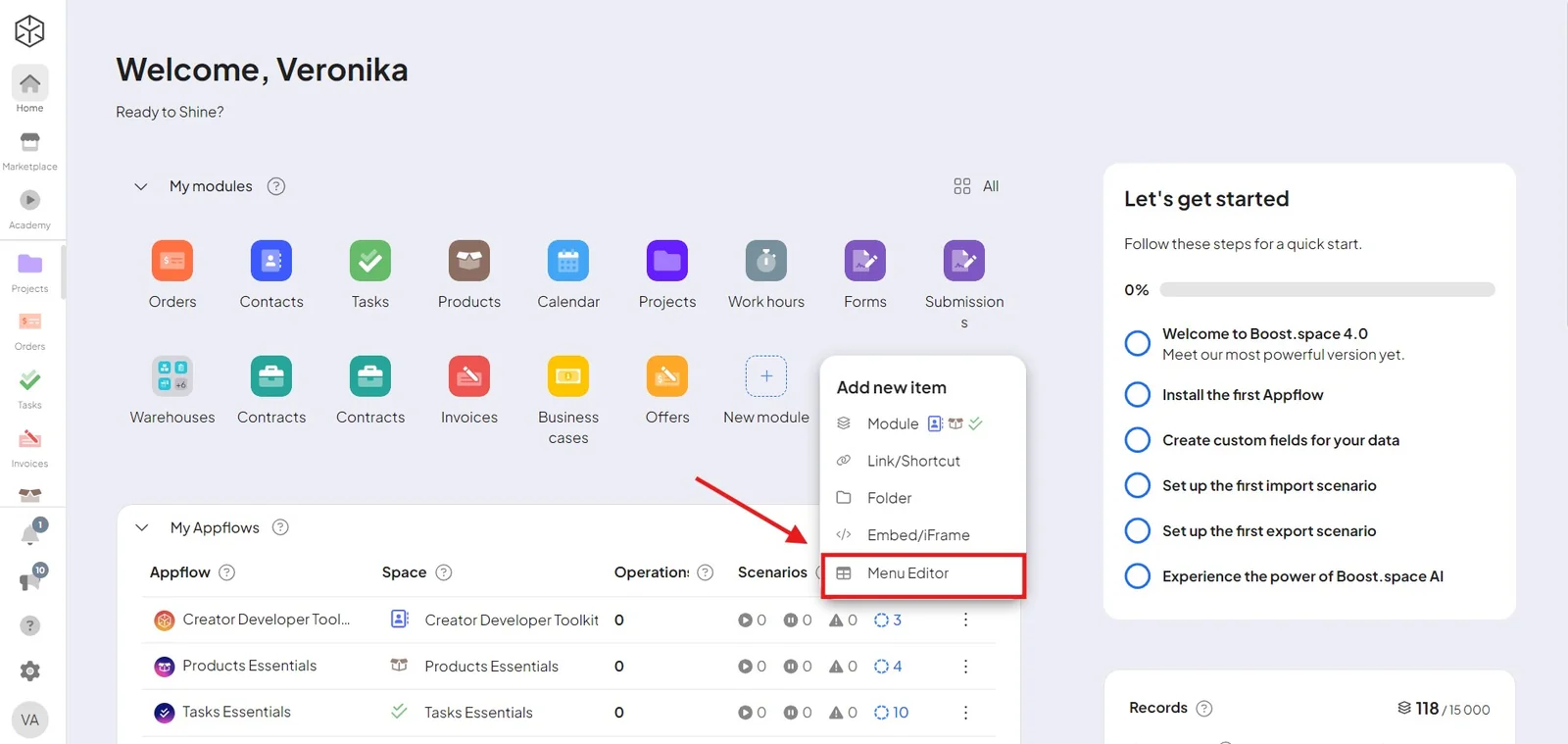
Features of the menu editor
Within the Menu Editor, you can create a new menu by naming it and adding a description. Once created, the menu will appear in a customizable format. Here, you can add users, ensuring they have access to the necessary sections.
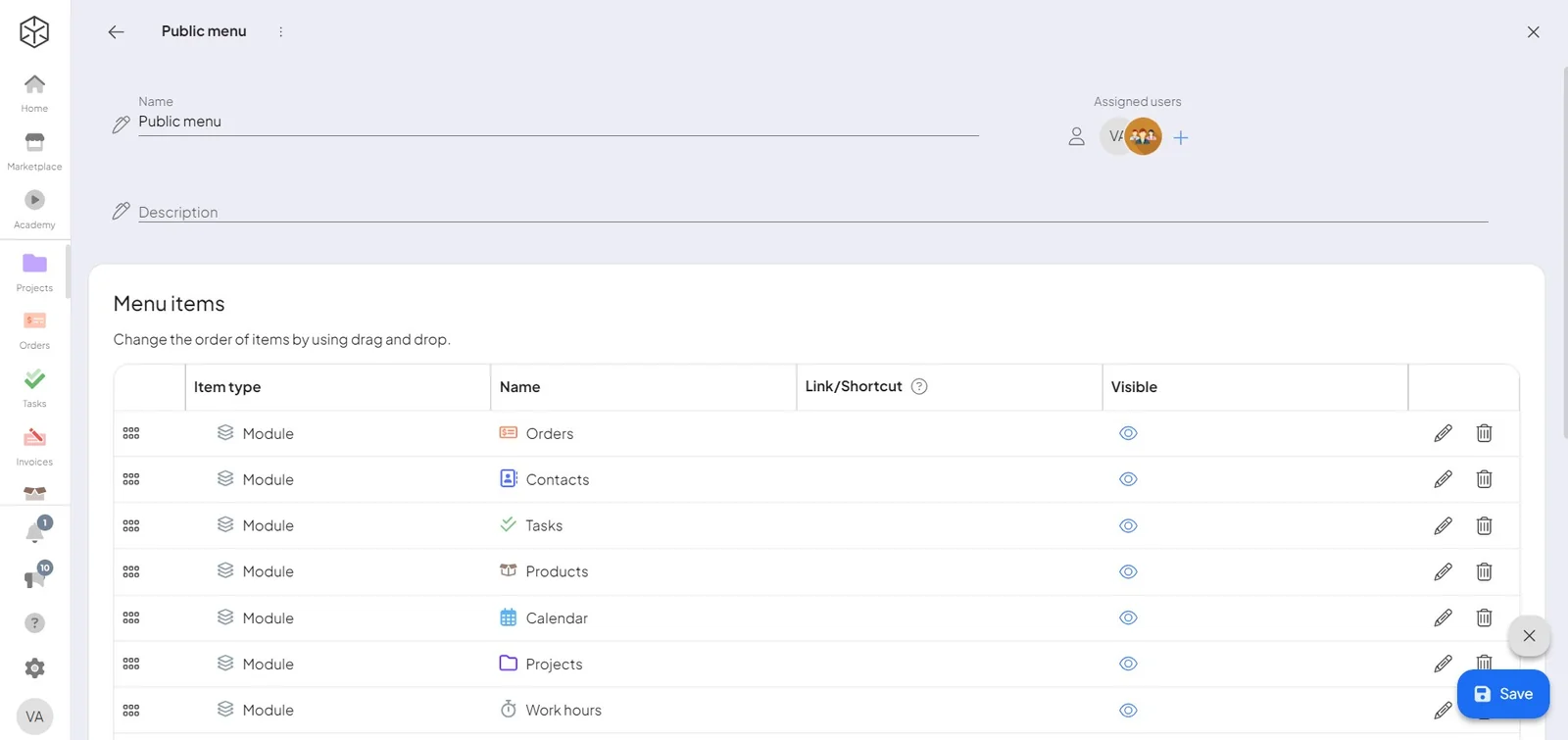
Each menu item can be configured for visibility, allowing you to control which items are seen by users. You can edit or delete any item within the menu, providing flexibility and control. Additionally, you can create new entries at the bottom of the menu, including:
- Modules: Add specific functionalities or tools to the menu.
- Folders: Organize modules into categories, such as business or marketing.
- Shortcuts: Include direct links to frequently accessed pages.
- Embed/iFrame: Insert embedded content or iFrames to enhance functionality.
Several menus at once
A menu is not a single global thing you edit — you can keep several, and a person can be in more than one. When they are, they see all of their menus, in the order the menus sit in the Menu Editor list. Drag the list to change that order; it is what every affected user sees.
Assignment is not limited to individual people either: a menu can be given to teams and categories, which is what makes per-audience menus practical to maintain.
Three things menus are good for
Cut a menu down to one audience. Give a group only what they act on. A team that translates product copy does not need billing, warehouse, or CRM entries — build them a menu with the one space and the one view they work in, and their whole system becomes that job. This is the most underused thing in the editor and the fastest way to make Boost.space feel simple to someone who only has one task in it.
Put the queue people should check in the menu. When a segment exists precisely so a human keeps an eye on it — records with errors, items waiting for review — leaving it inside a data view means remembering to go look. As a menu shortcut it is simply there every time they open the app.
Bring outside tools inside. A shortcut takes any external URL, so a dashboard you built on the API belongs in the menu next to everything else. To the person using it there is no seam.
