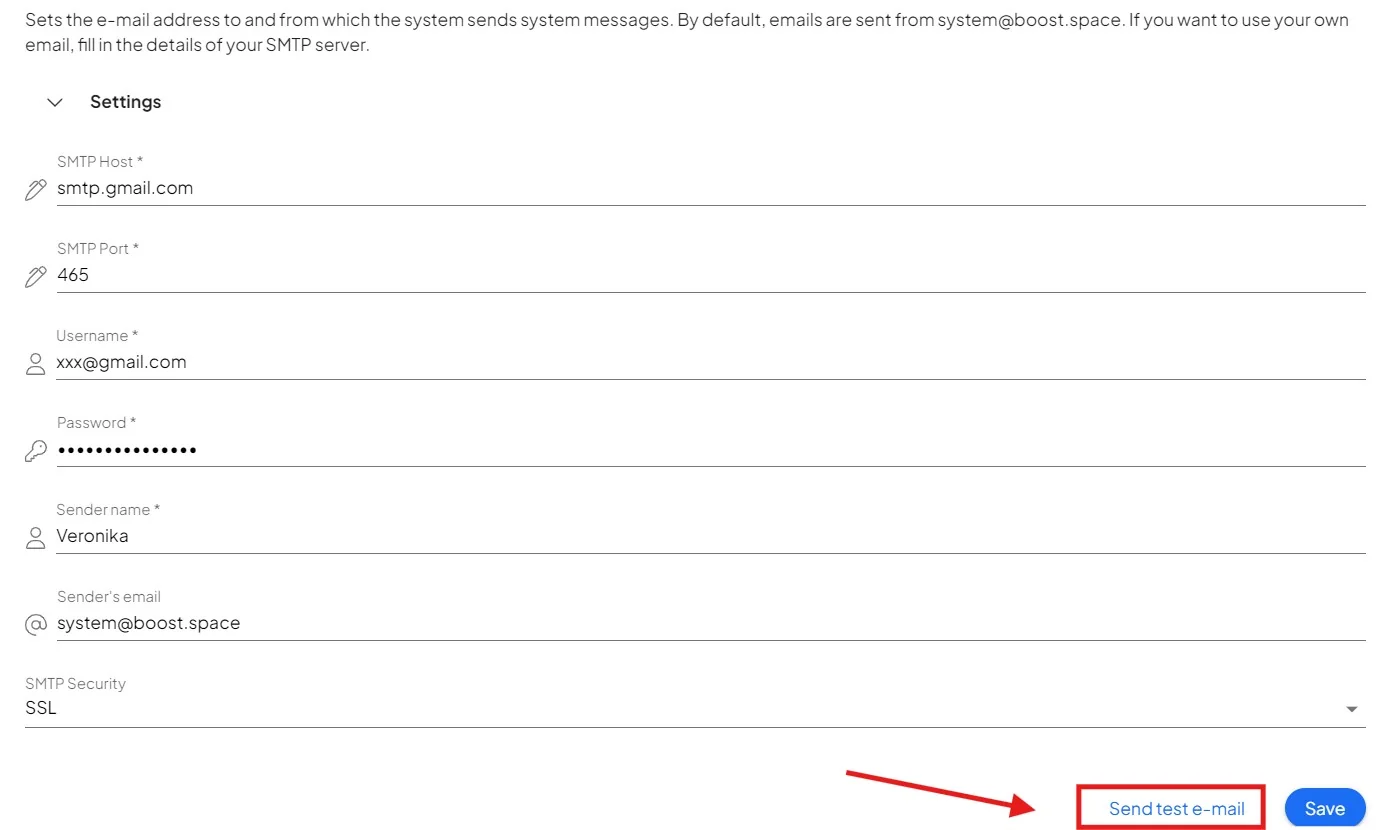
SMTP setup
This article serves as a Boost.space general guide for setting up the e-mail address to and from which the system sends system messages. By default, emails are sent from system@boost.space. If you want to use your own email, follow the guide on this page.
The specifics such as server names, ports, and security settings must be adapted based on the service provider or the particular requirements of the email server in use.
SMTP server configuration
- Open System settings.
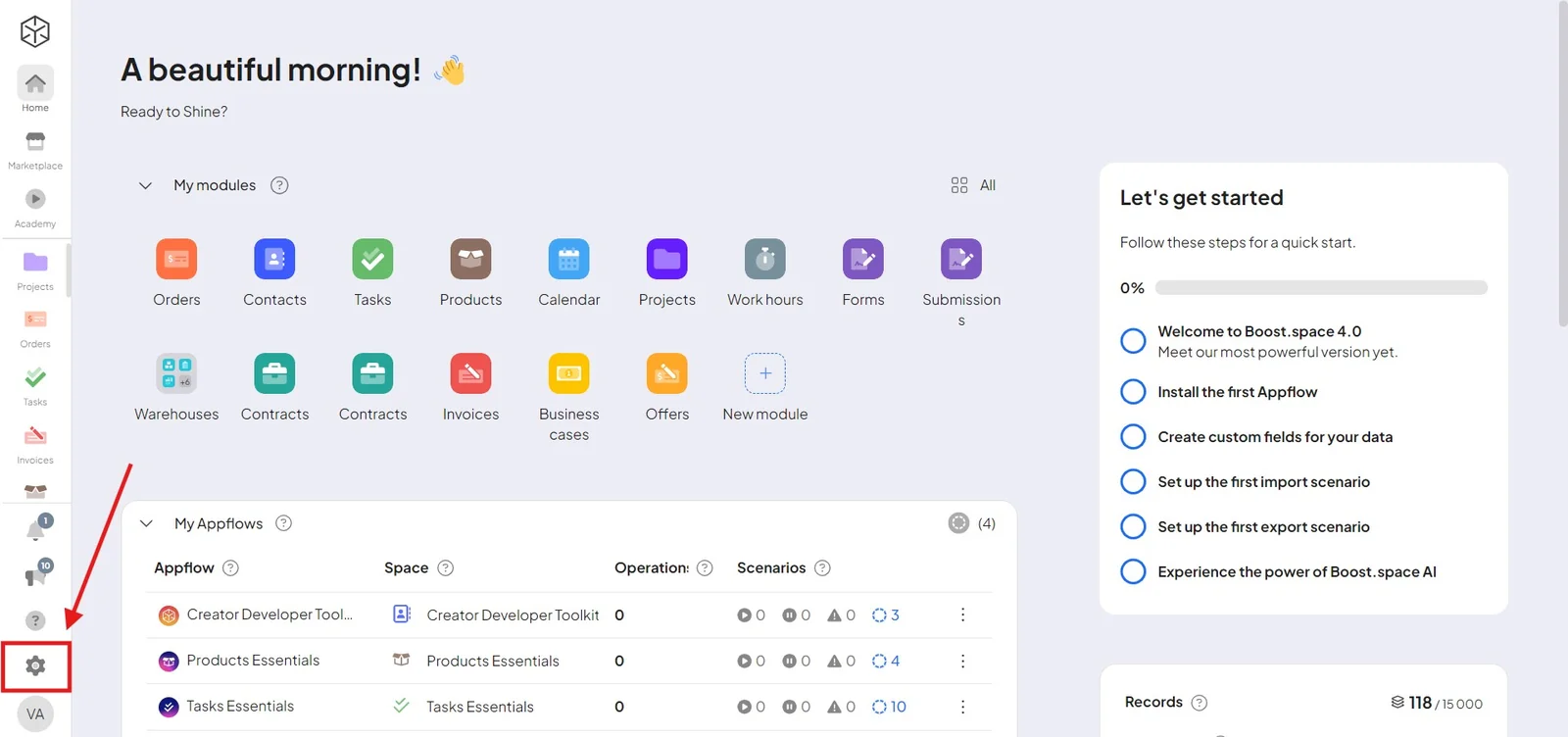
- In Main settings, open the System emails and SMTP section.
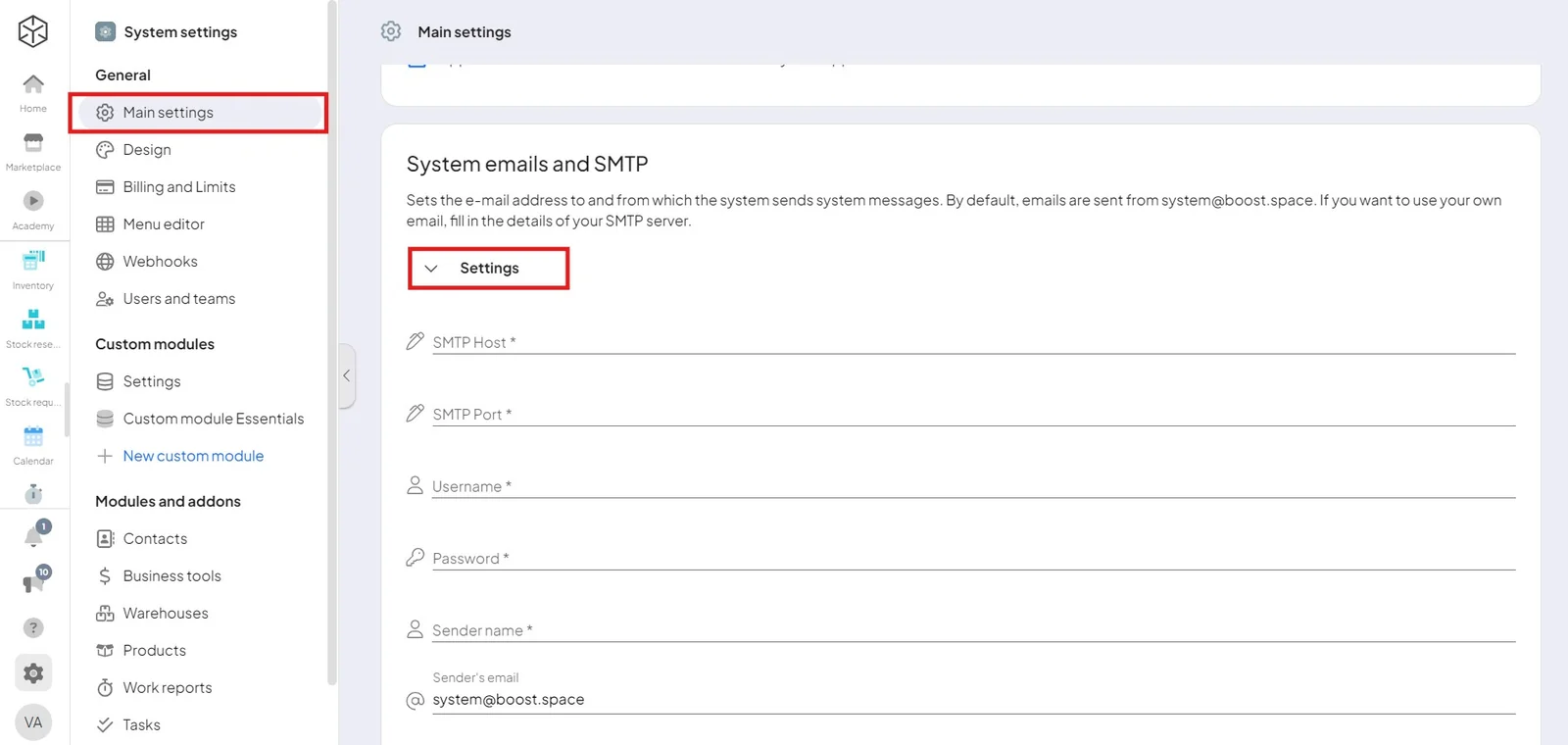
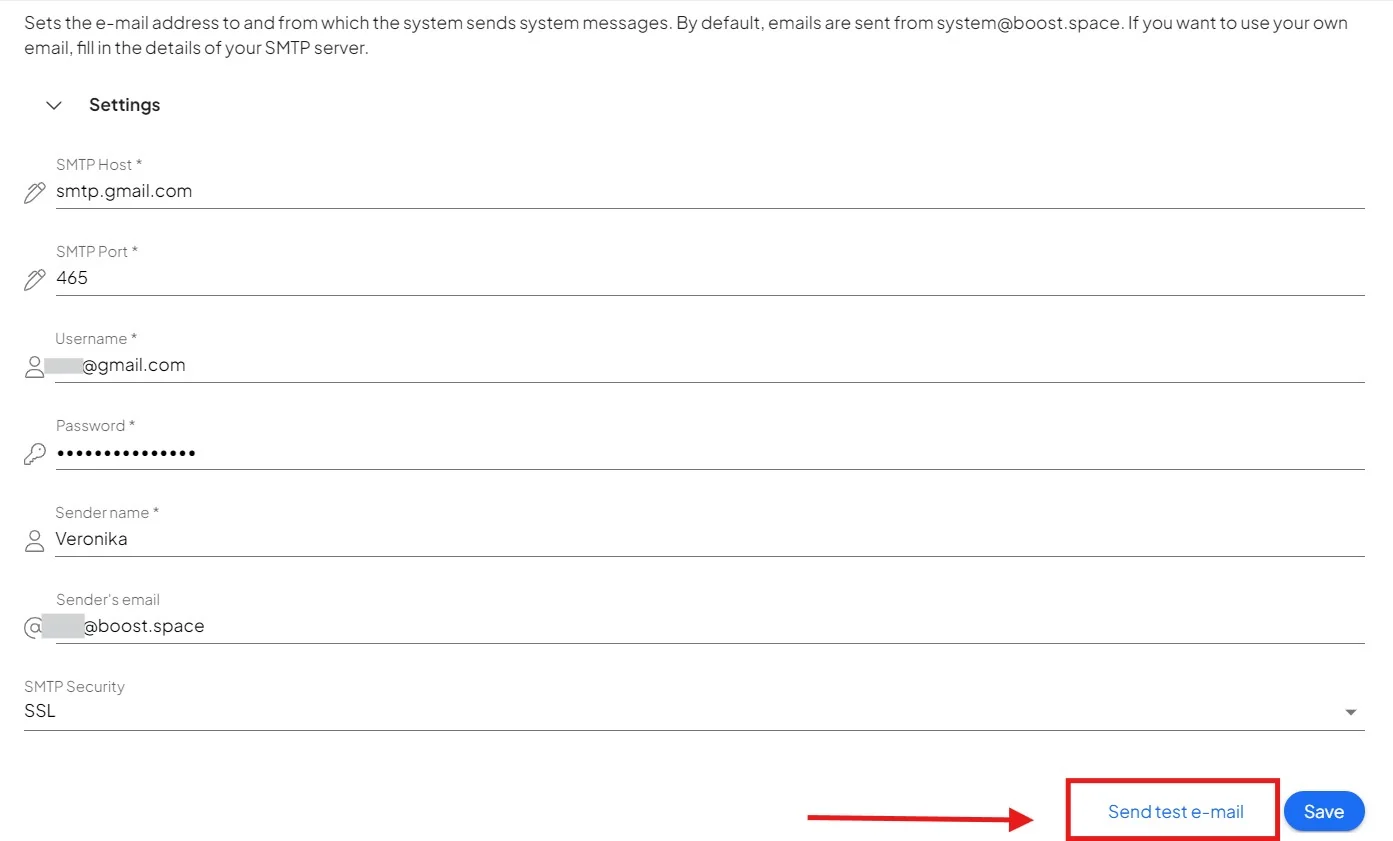
- Set up the authentication:
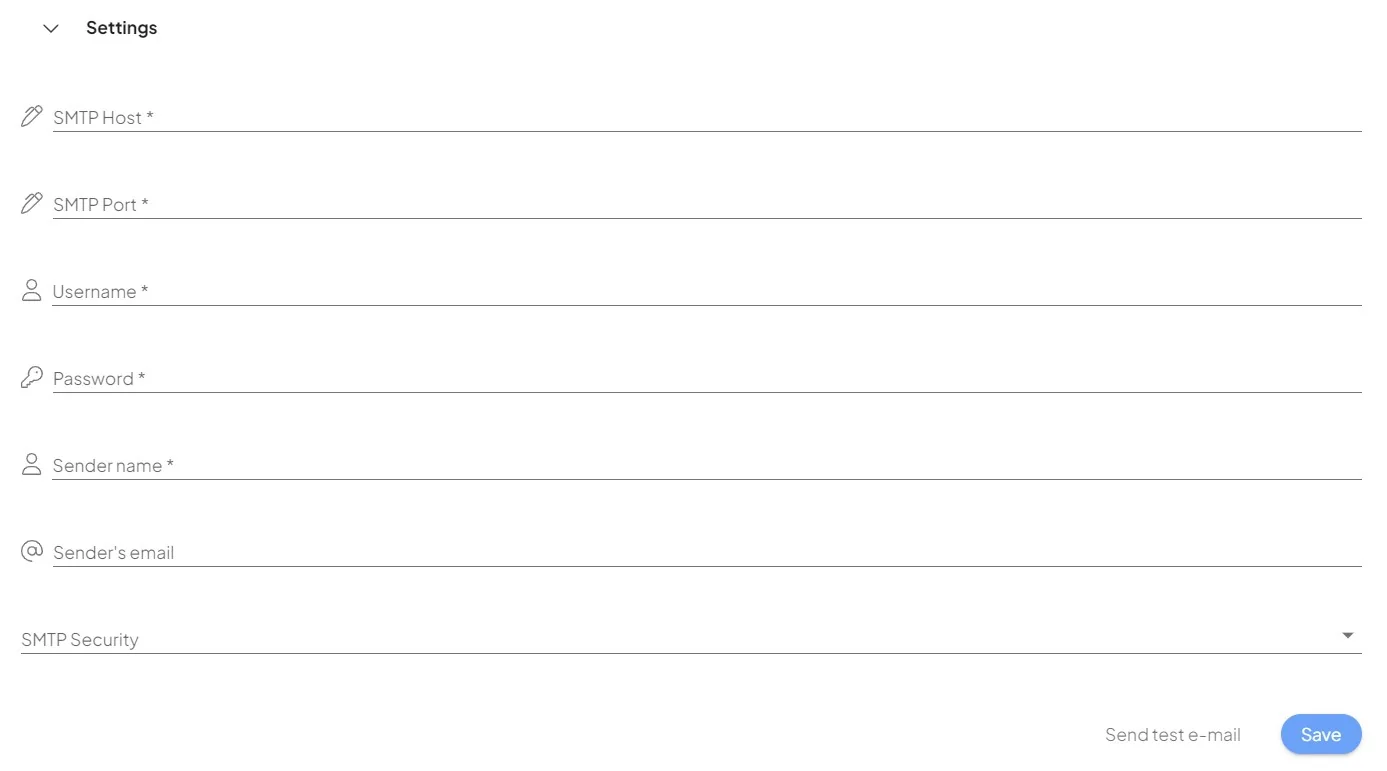
The SMTP server requires authentication to verify the identity of the email sender. Please use the following details for setting up the SMTP server:
- SMTP Server —
smtp.yourdomain.com(replace with your SMTP server) - SMTP Port — choose one based on your security requirements:
- 587 with TLS (recommended)
- 465 with SSL
- 25 if the other ports aren't available (less secure)
- Username — your full email address
- Password — your email account password
For a Gmail connection you may need an app-specific password: enable two-factor authentication on your Google account, then create one at Google App passwords.
Sending domains
The sender's email address domain must match the domain used for authentication or its alias. If your email provider is different (e.g., Gmail, Outlook), you should use the SMTP server provided by them.
Security and encryption
The following methods are supported to secure the email delivery process:
- TLS: This initiates a secure TLS connection over an initially unsecured network.
- SSL: This establishes a secure connection from the beginning of the communication.
Limits and restrictions
Be aware of the following limits and restrictions that your SMTP server might impose:
- A maximum number of invalid authentication attempts per hour.
- Daily and hourly limits on the number of emails sent.
- Restrictions on sending emails from domains that do not have associated webhosting.
Testing the setting
After you set up your SMTP, you can test the changes with a "send test e-mail" button.