Manage records
This guide covers working with records by hand — creating, editing, and deleting them. To bring records in automatically, use automation or import from a file.
Manually entered data has Medium priority — the default for every source. In data consolidation, a higher-priority source can overwrite it and a lower-priority one can't.
Create a record
Add a record with the + New button on the right of the control bar.
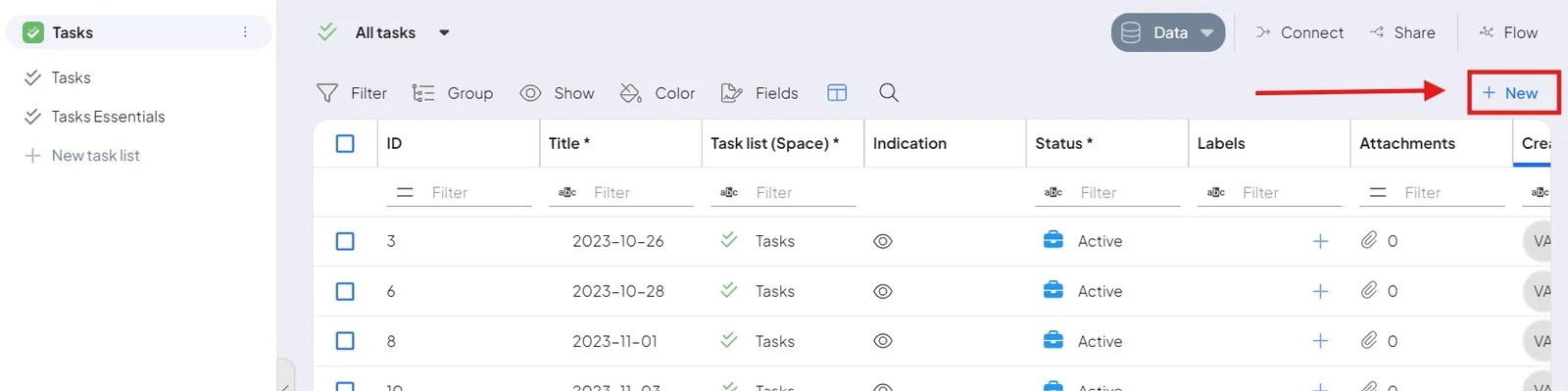
The creation window opens — fill in the essentials and save. You can add the rest afterwards in the record's detail.
Edit a record
Editing happens in the record detail — open it with the pen / Edit icon on the row.
- Enable edit mode with the Edit button.
- Make your changes — every field the record's space offers is editable here.
- Click the blue Save button.
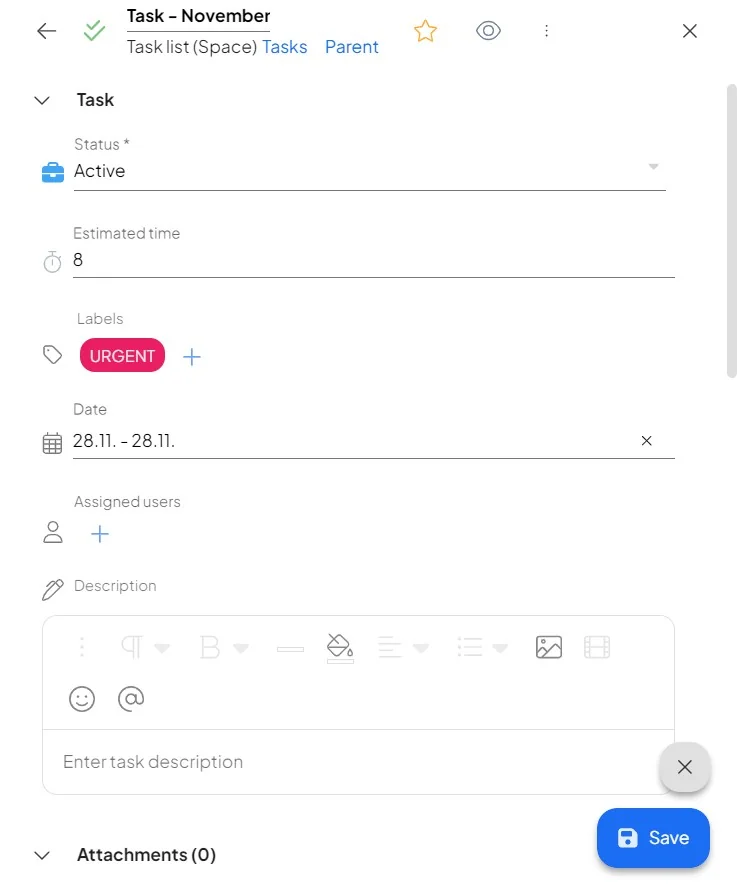
Prefer to open records ready to edit? An admin can enable Automatically start edit mode in record detail in System settings.
Delete a record
Delete a record with the trash icon — on the right of the table row, or inside the record detail. A confirmation is always shown so you don't delete by accident.
If other parts of the system depend on the record, Boost.space shows exactly which links must be removed first — this keeps your data consistent instead of leaving broken references.
