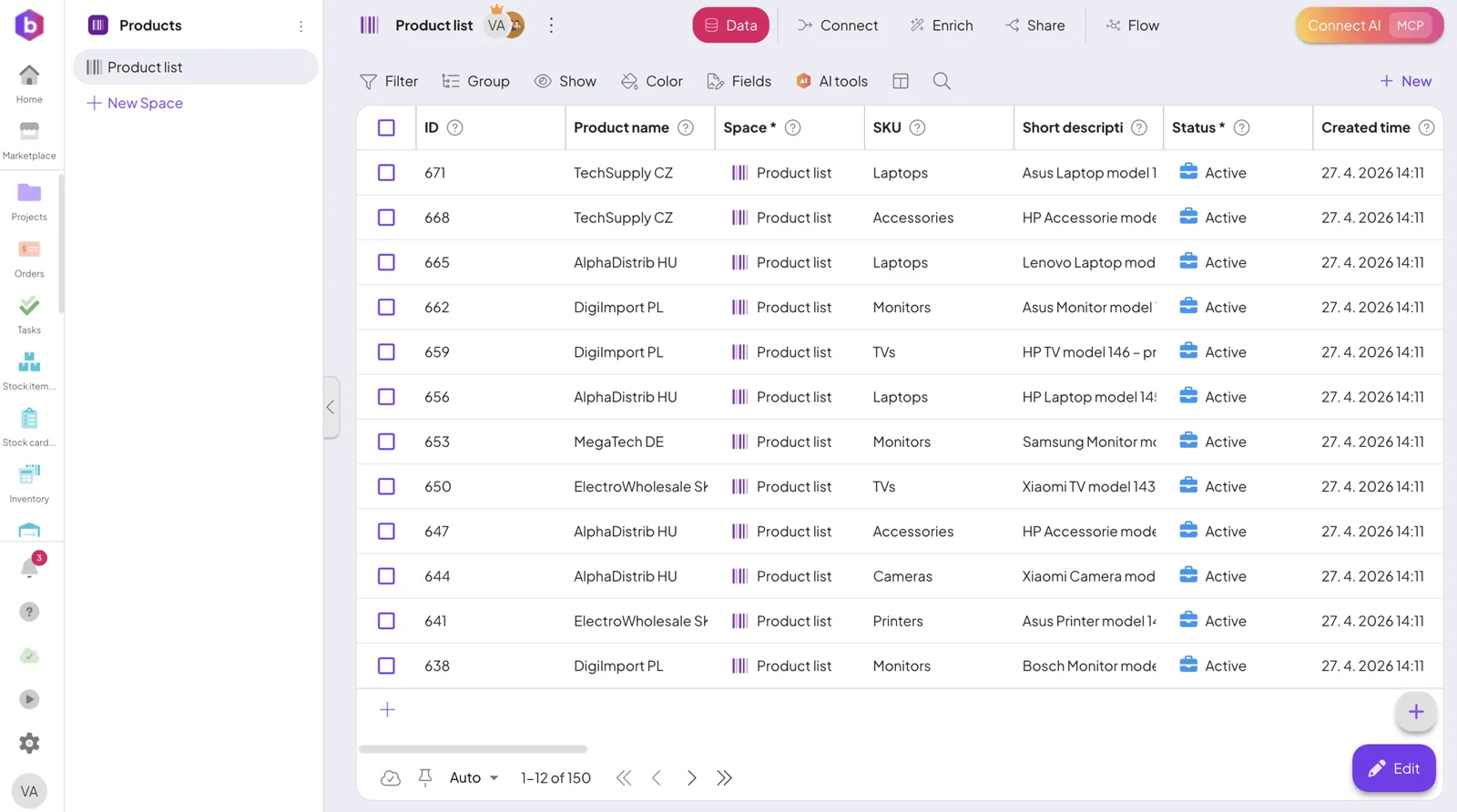
Import data from a file
Import your own data into any space from a file — map it to existing fields or create new ones automatically. With a key field set on the space, an import updates matching records instead of duplicating them.
Supported file formats
You can upload the following file types:
- CSV
- XLSX
- XML
These formats allow you to import structured datasets from most external systems.
How it works
The import process consists of a few simple steps:
-
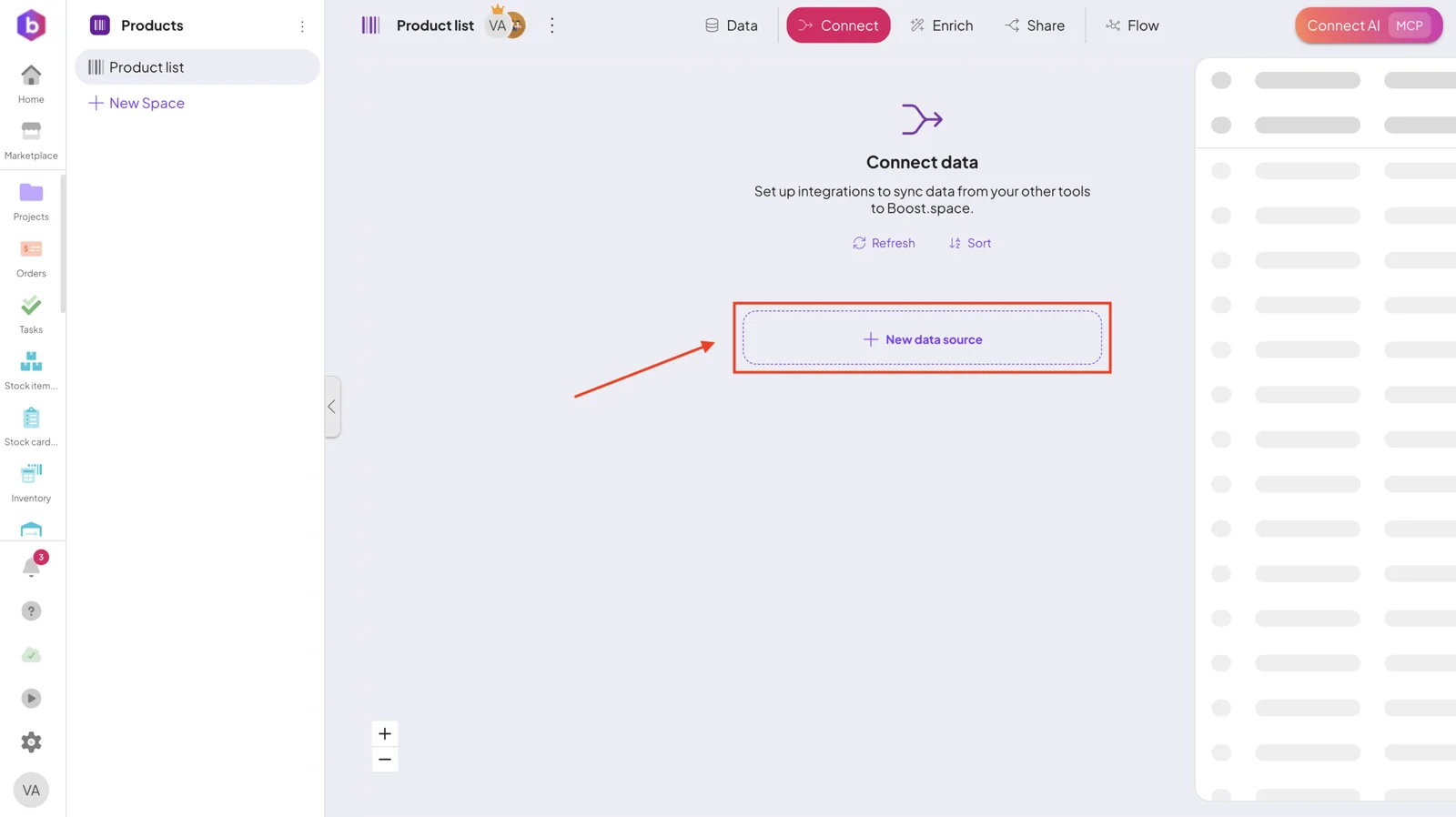
Select Data destination. Open the desired Module and choose the Space where your data will be imported. Then click + New Data source.
-
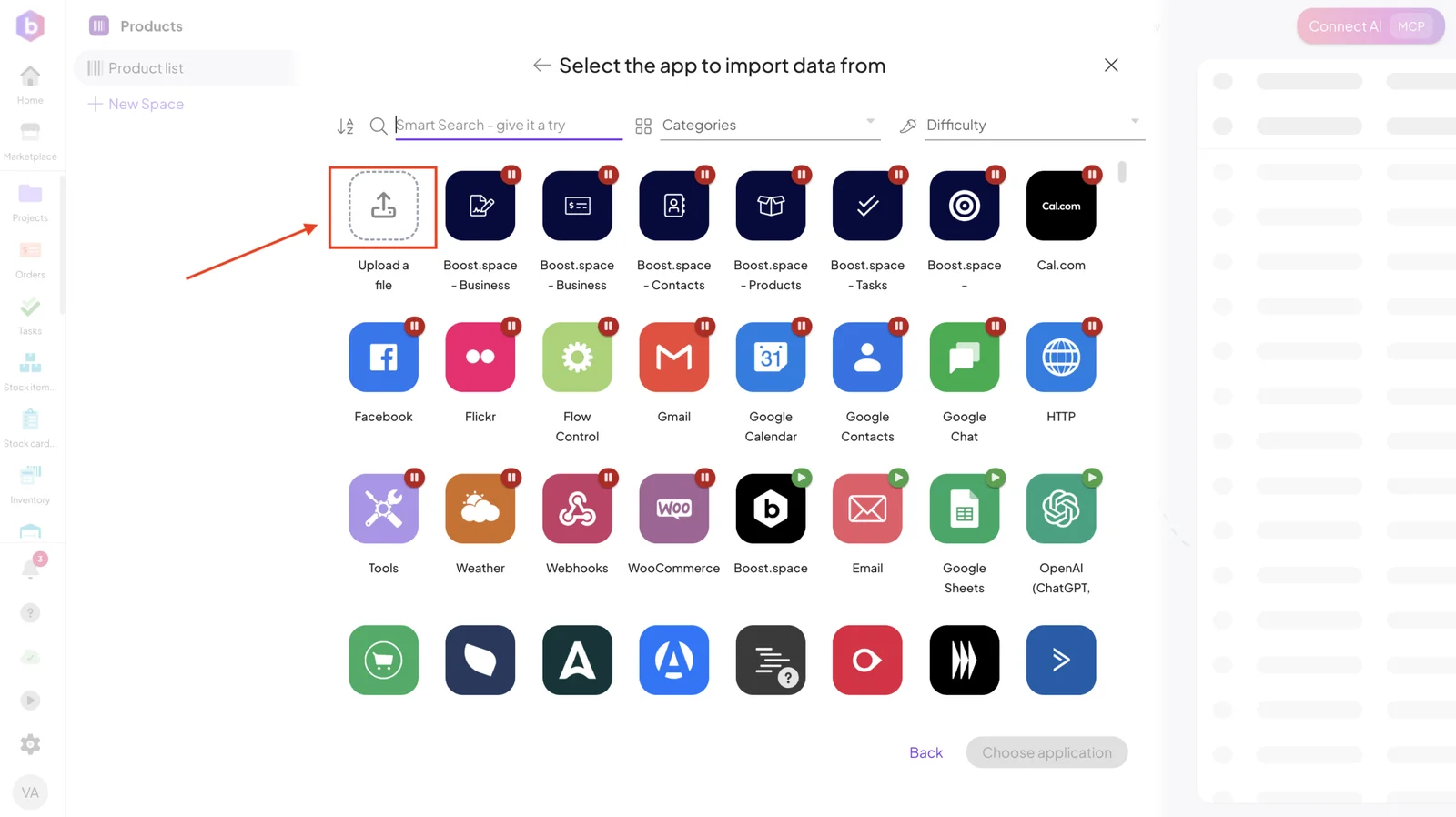
Choose source type. Select the Upload a file option.
-
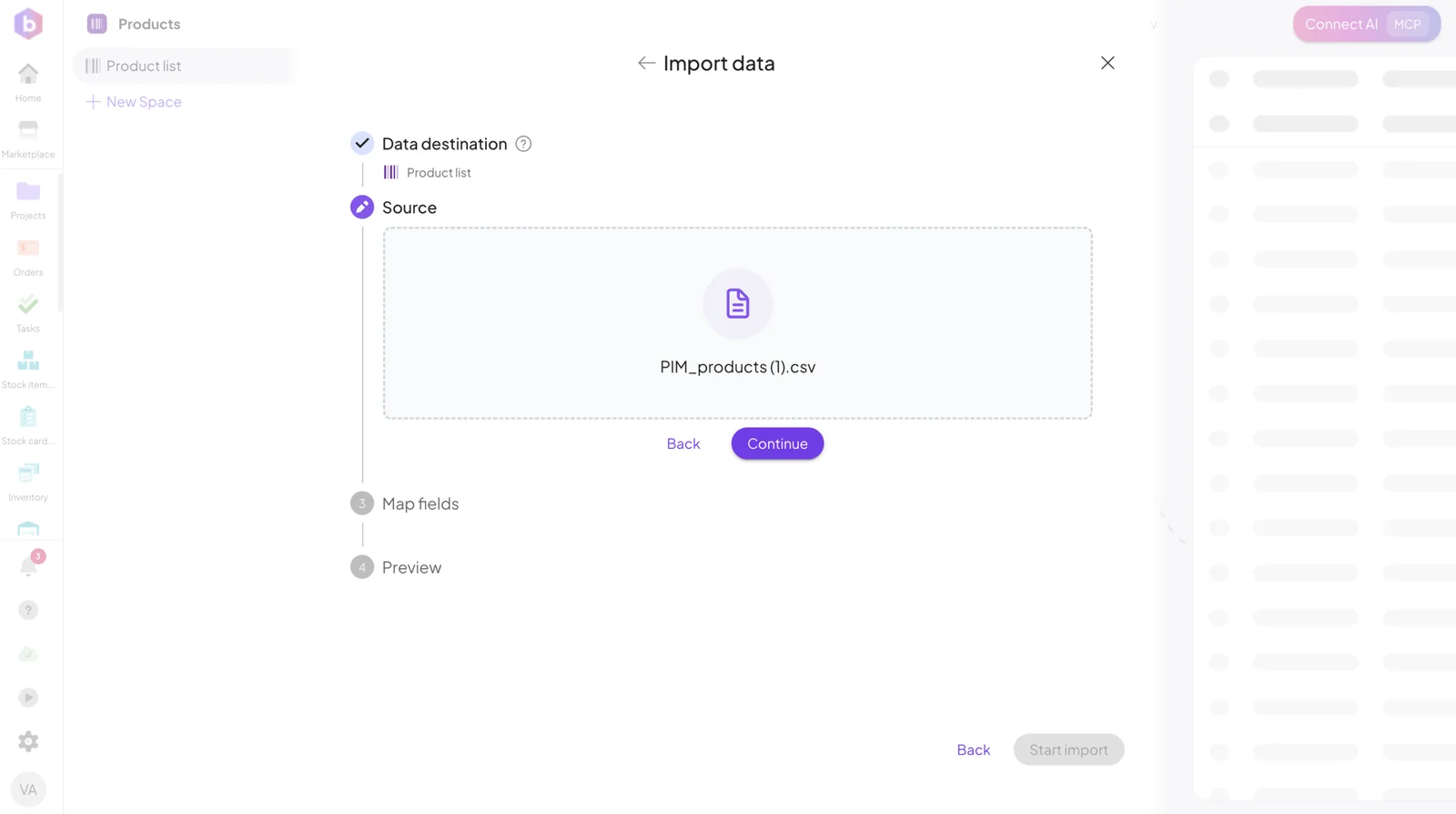
Upload your data file (e.g. CSV, XML, XLSX) and click Continue.
-
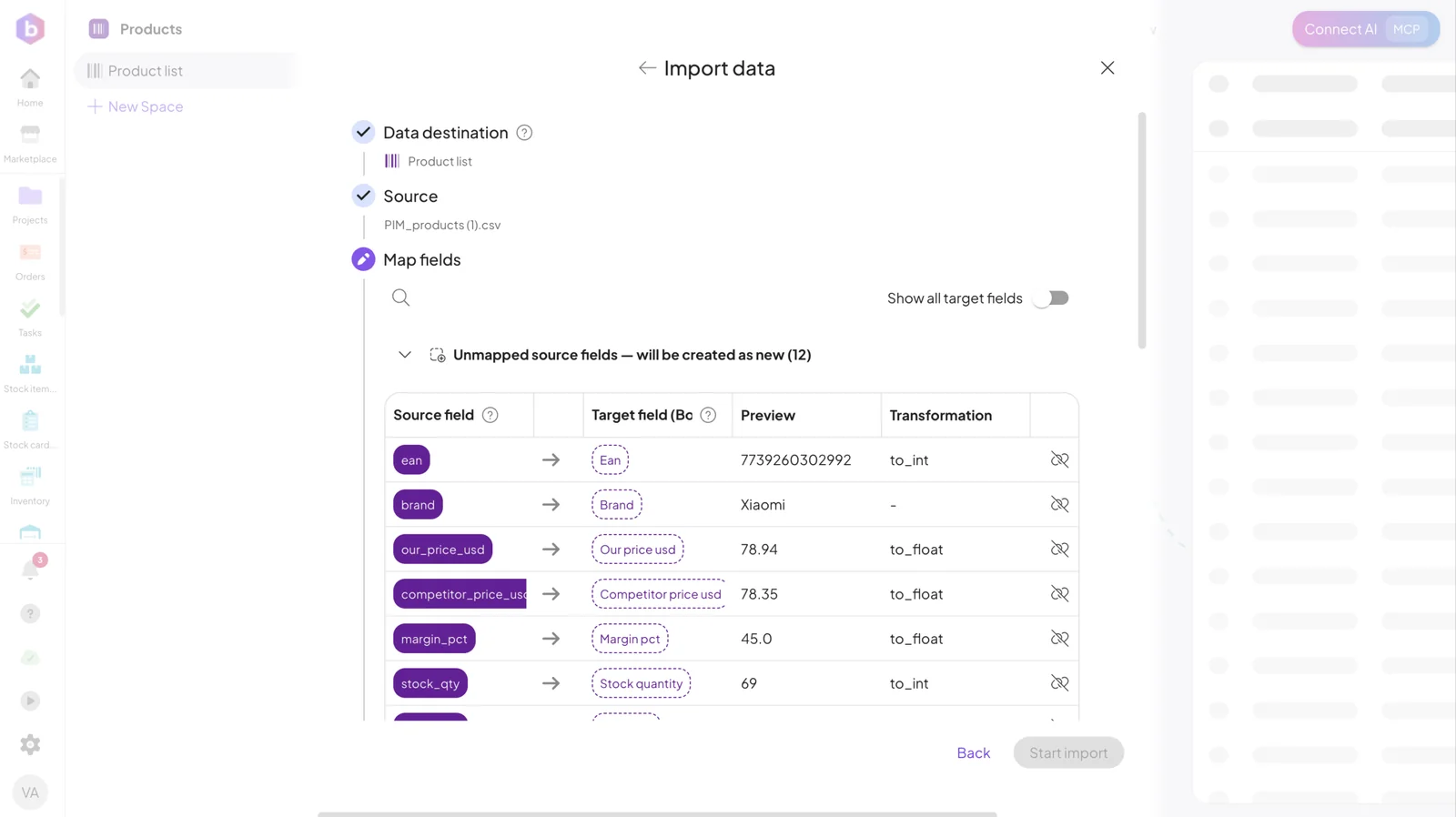
Map Fields. Boost.space uses AI to analyze your data structure and suggest the most suitable field setup.
During the import process, you define how data from your file is mapped to fields in Boost.space.
- Your uploaded data (e.g. CSV) is analyzed automatically
- AI proposes matching field types
- Each source field (from your file) is matched to a target field (in Boost.space)
- You can map data to existing fields or create new ones
- Unmapped columns can be created as new fields.
-
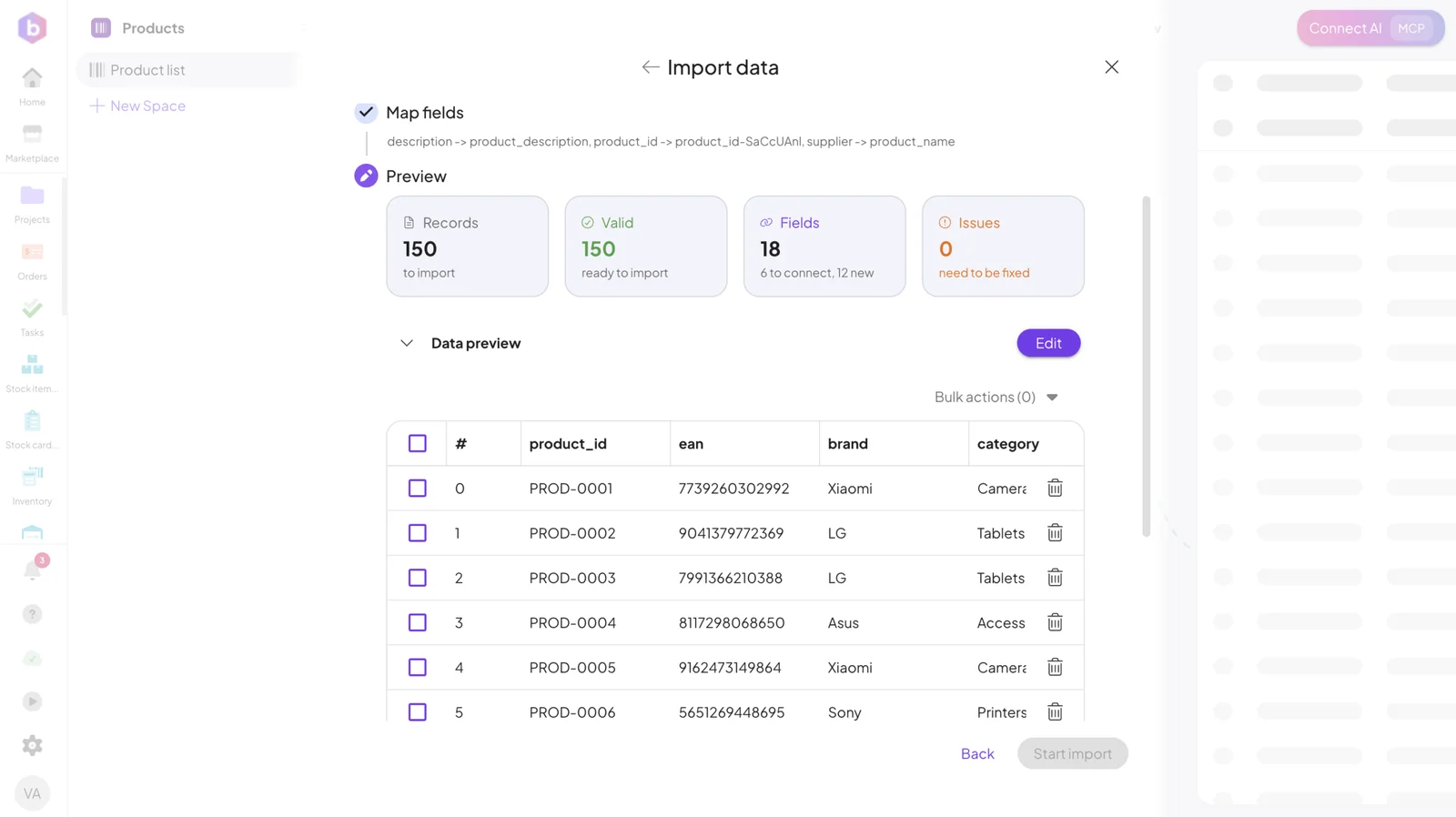
Data preview. Before importing, you can review your data:
- See how fields are mapped
- Validate values and formats
- Identify missing or incorrect mappings
Only valid data will be imported, helping you avoid errors. Click Continue to proceed.
-
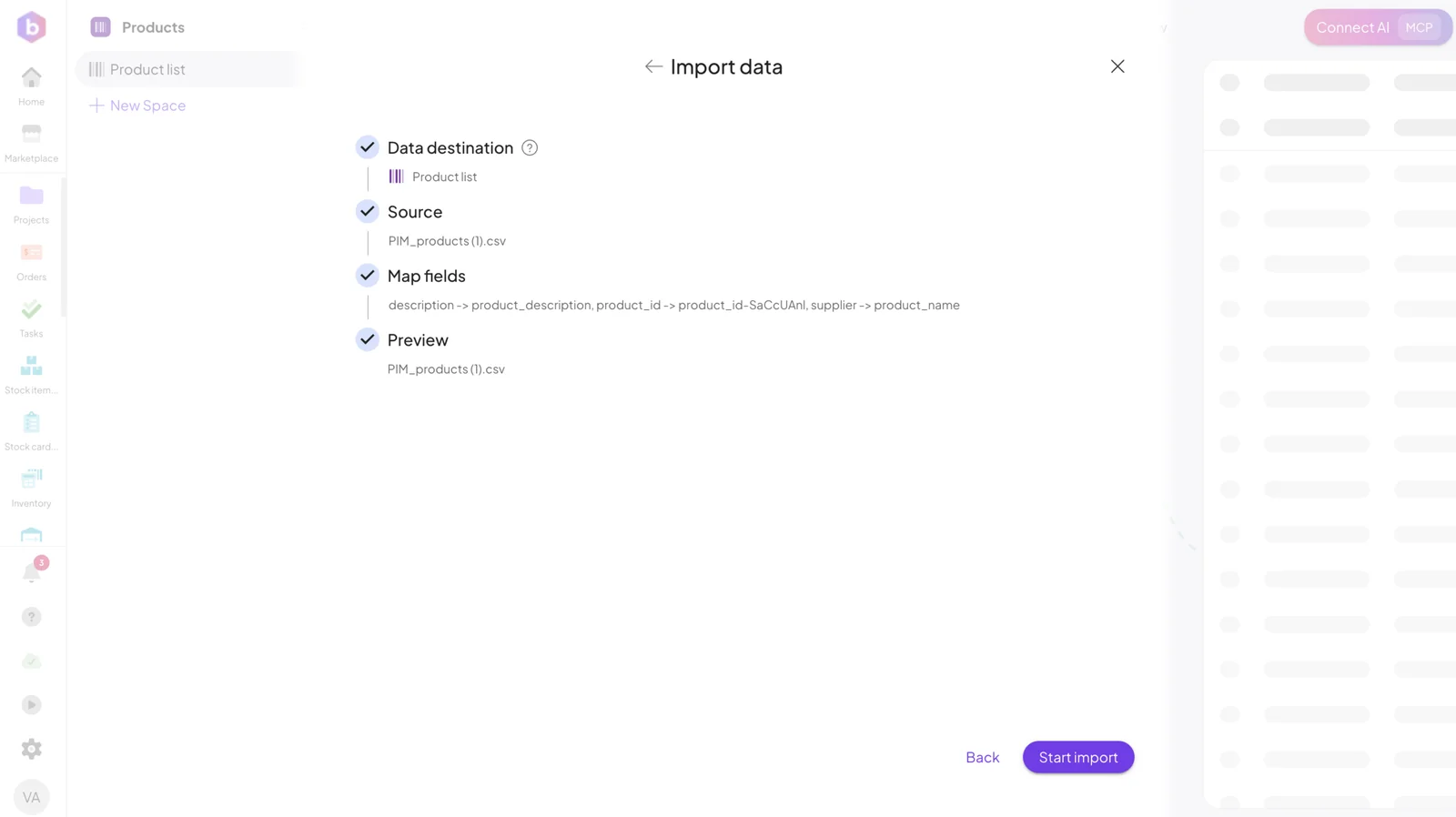
Start import. Confirm and start the import process.
-
View your Data. Once the import is complete, your data will appear in the selected Space and is immediately ready to use.