Bulk actions and exporting
Using bulk actions
Bulk actions allow you to select multiple records and apply changes across them at once. Here's how to use bulk actions:
- Select Records: You can select one or more records within your space. Once you select the records, a Bulk Actions button will appear at the right side of the screen.
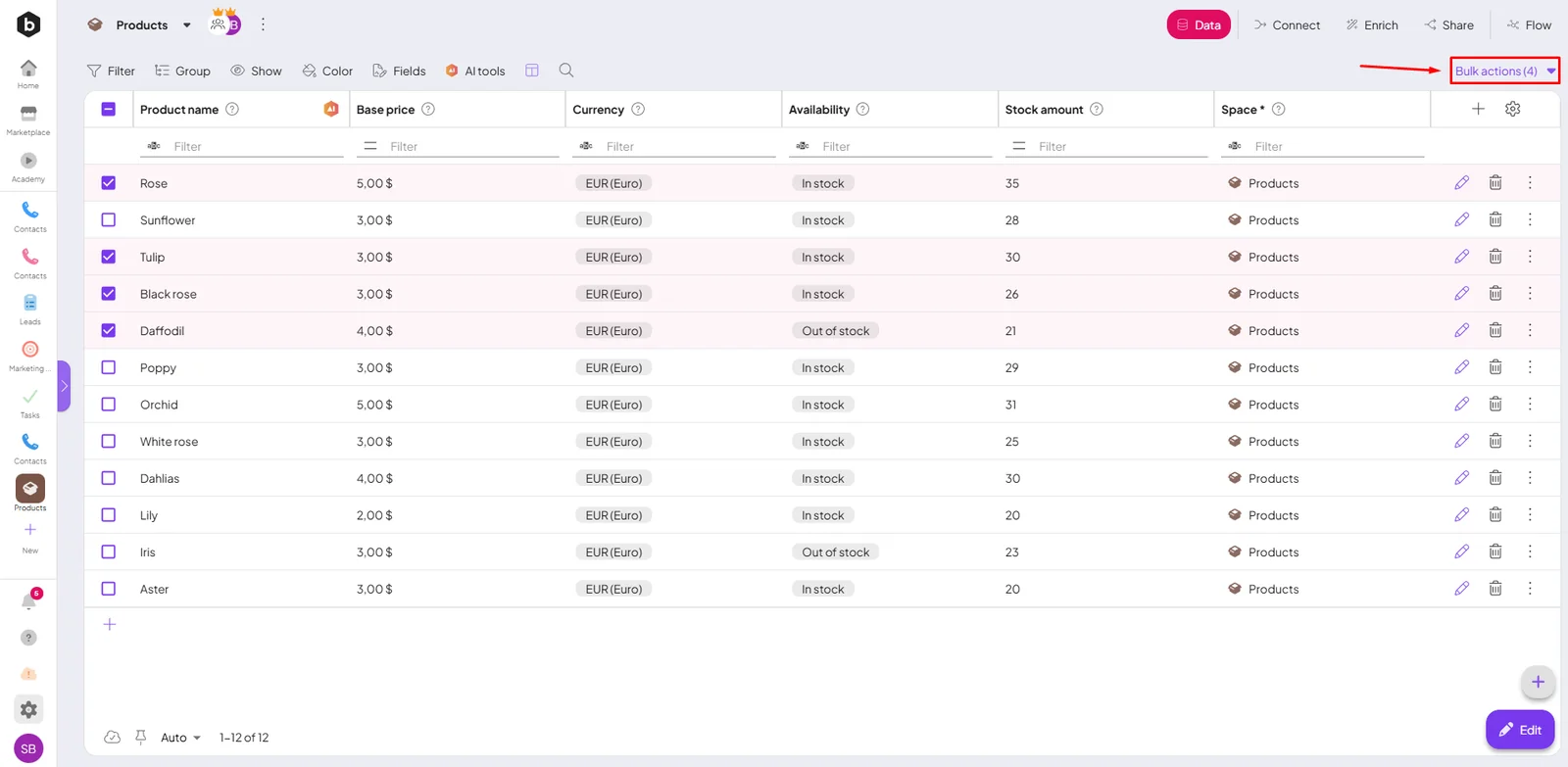
- Apply Bulk Action: After selecting your records, click on the Bulk Actions button.
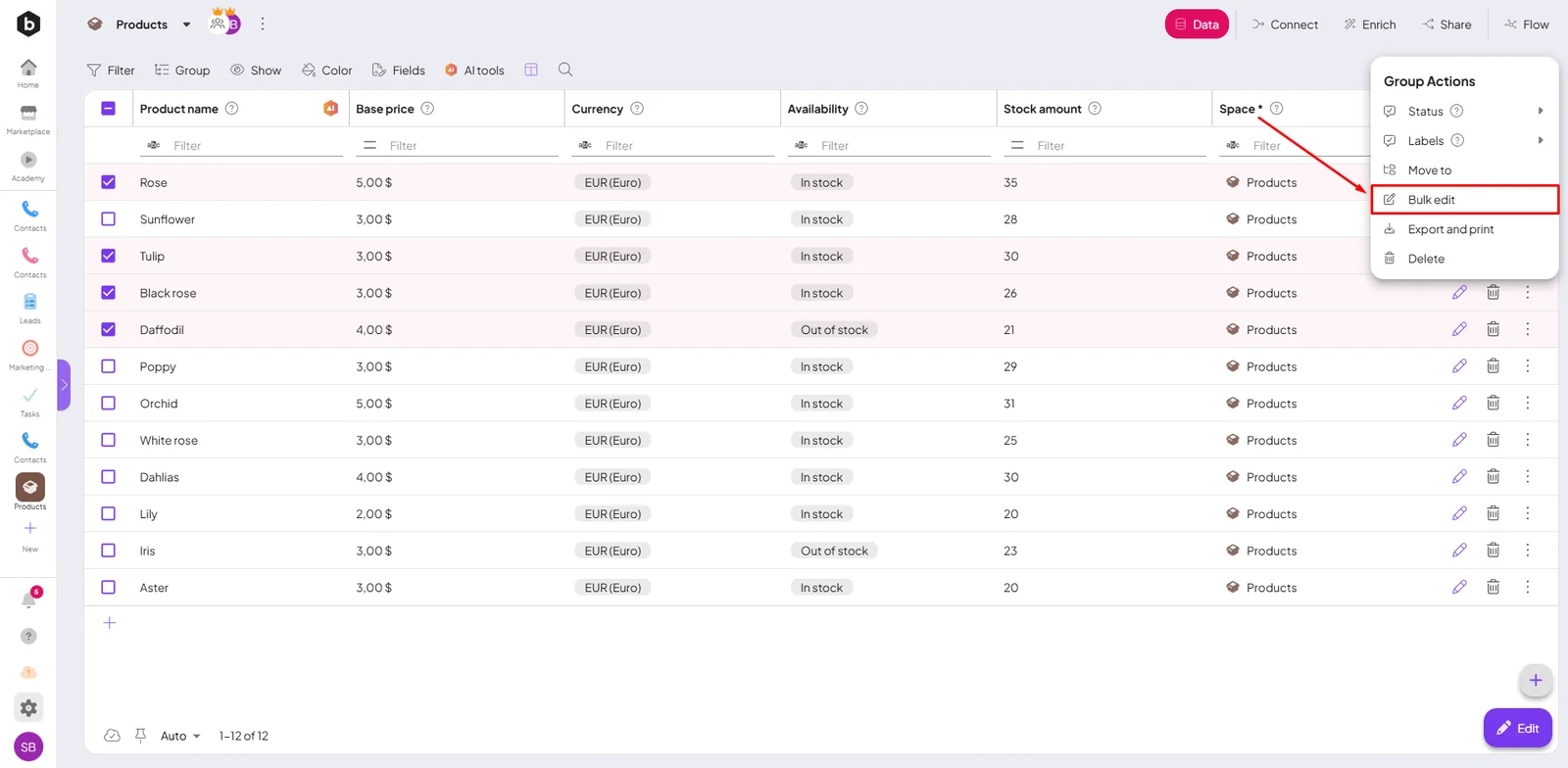
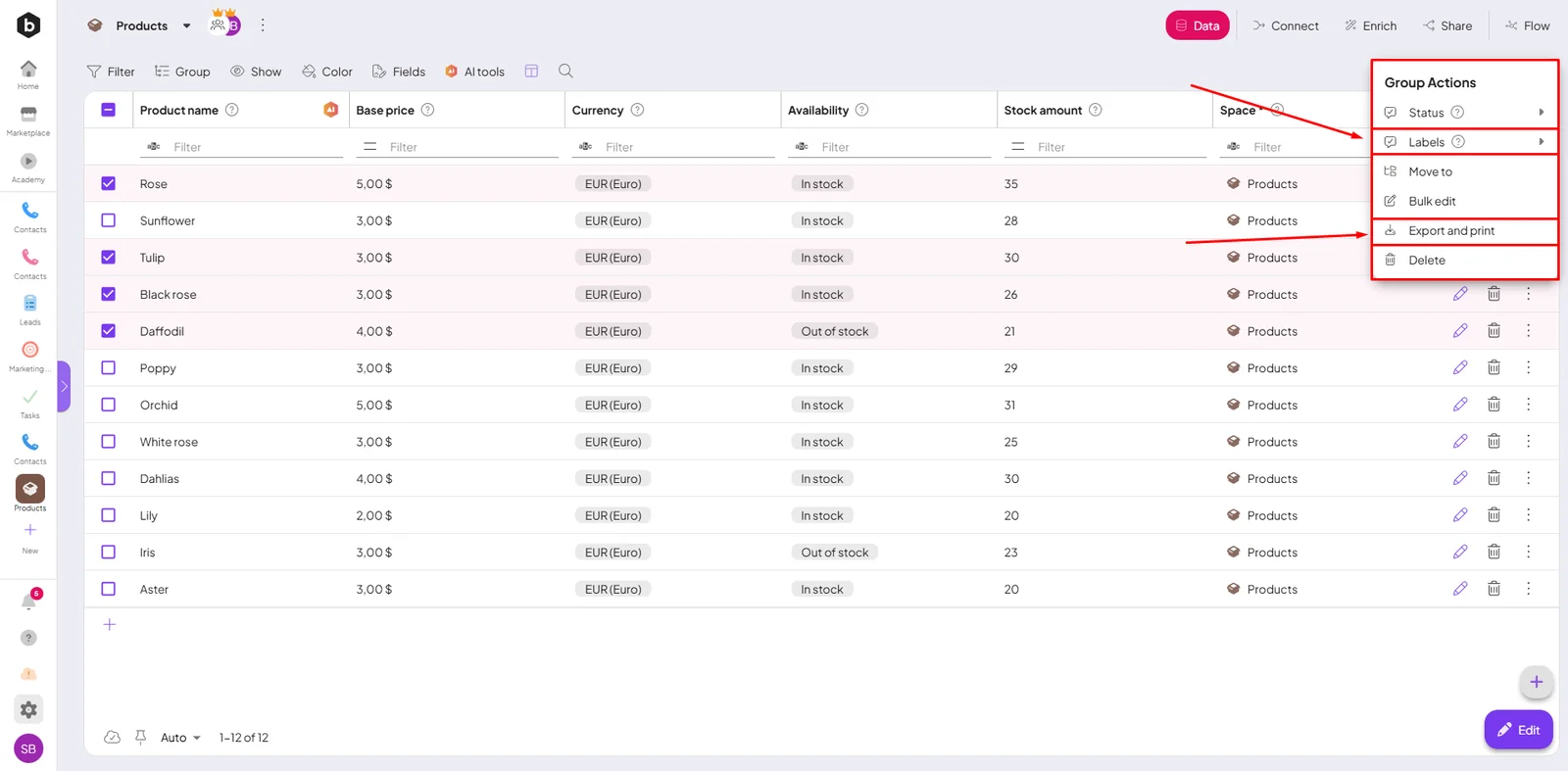
- A dropdown menu will appear for you to choose from. For example, you can bulk add a label to all the selected records. This action will be applied to every record you have chosen, and you'll see it reflected in your database after a brief moment.
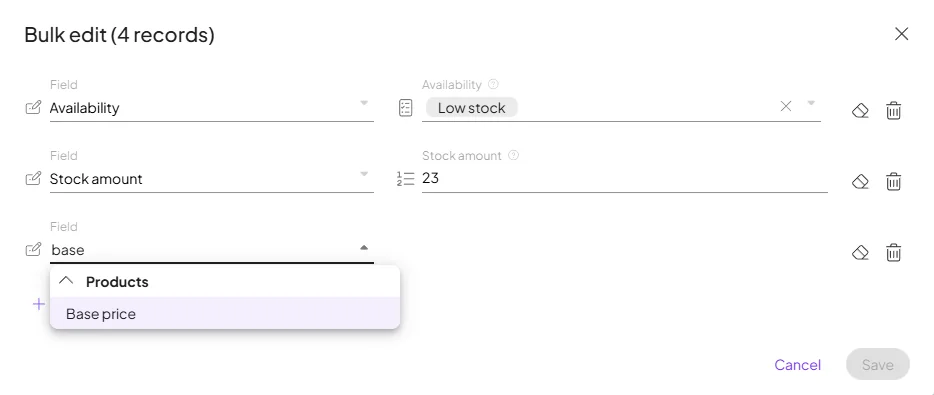
You can also update multiple fields at once using the Bulk Edit feature. Simply click on Bulk Edit, and add the fields you'd like to change. This makes it quick and efficient to apply updates across many items simultaneously.
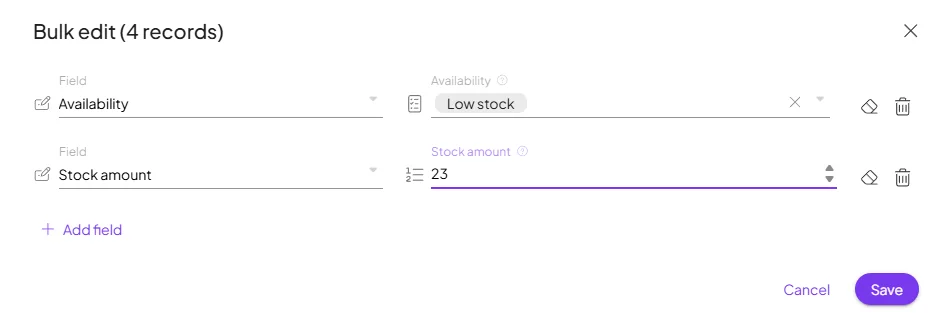
- When searching for records or fields within the Bulk Actions and Exporting interface, you no longer need to scroll through the list manually. Simply start typing what you are looking for, and the system will automatically filter and display matching results as you type.
Exporting
Boost.space offers a straightforward way to export your data. Once you've selected your data, you can export it directly to an Excel file. The exported file will include the columns you currently have visible in your viewport, and the order of the columns will be the same as it appears on the screen. This ensures that the exported data matches the layout you're working with.