Runs & troubleshooting
Every run is recorded: when it started, how long it took, and what came out. When something fails, you see the exact error and the line that caused it, and the agent can explain it for you.
Ask the agent
You don't need to read a traceback. Ask:
Why did the last run of "Weekly rates to Slack" fail? Explain it, don't change anything yet.
The agent reads the run history, finds the failing line and tells you what happened in plain words.
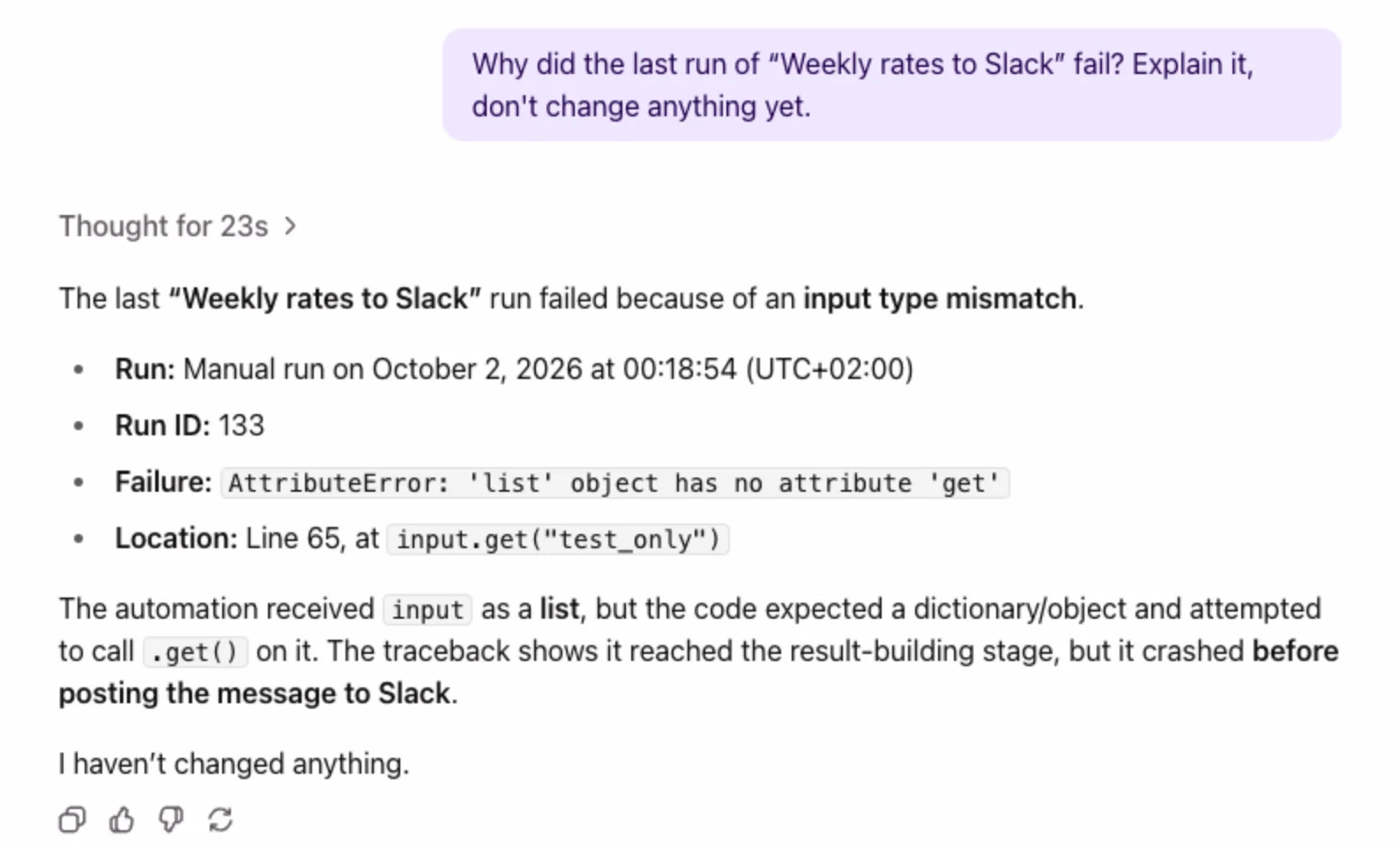
Then ask it to fix the code. It tests the change before it saves it. Asking for the explanation first is a good habit: you see the cause before anything changes.
The Runs tab
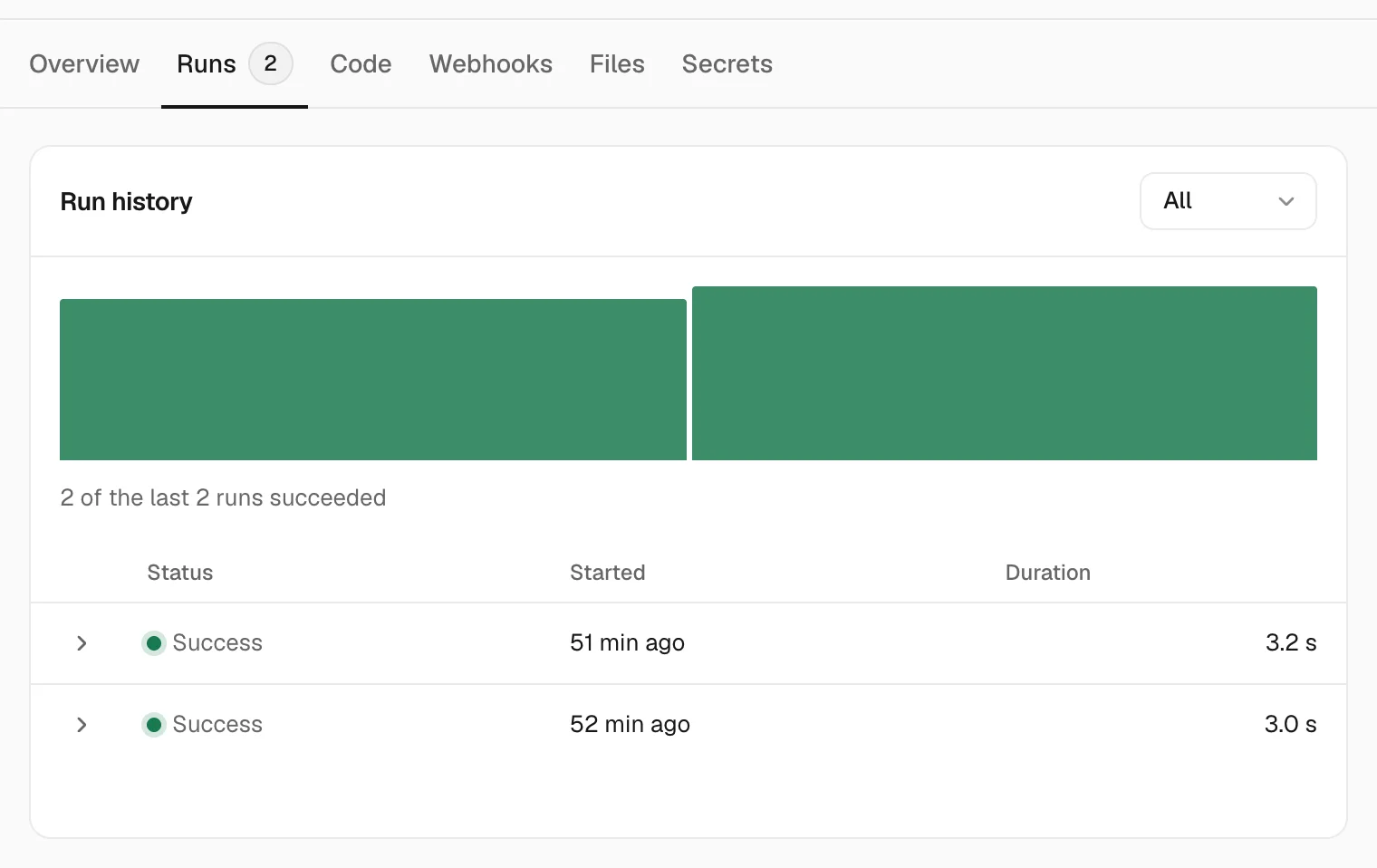
- The bar chart shows recent runs at a glance: green succeeded, red failed.
- Filter by running, successful or failed runs.
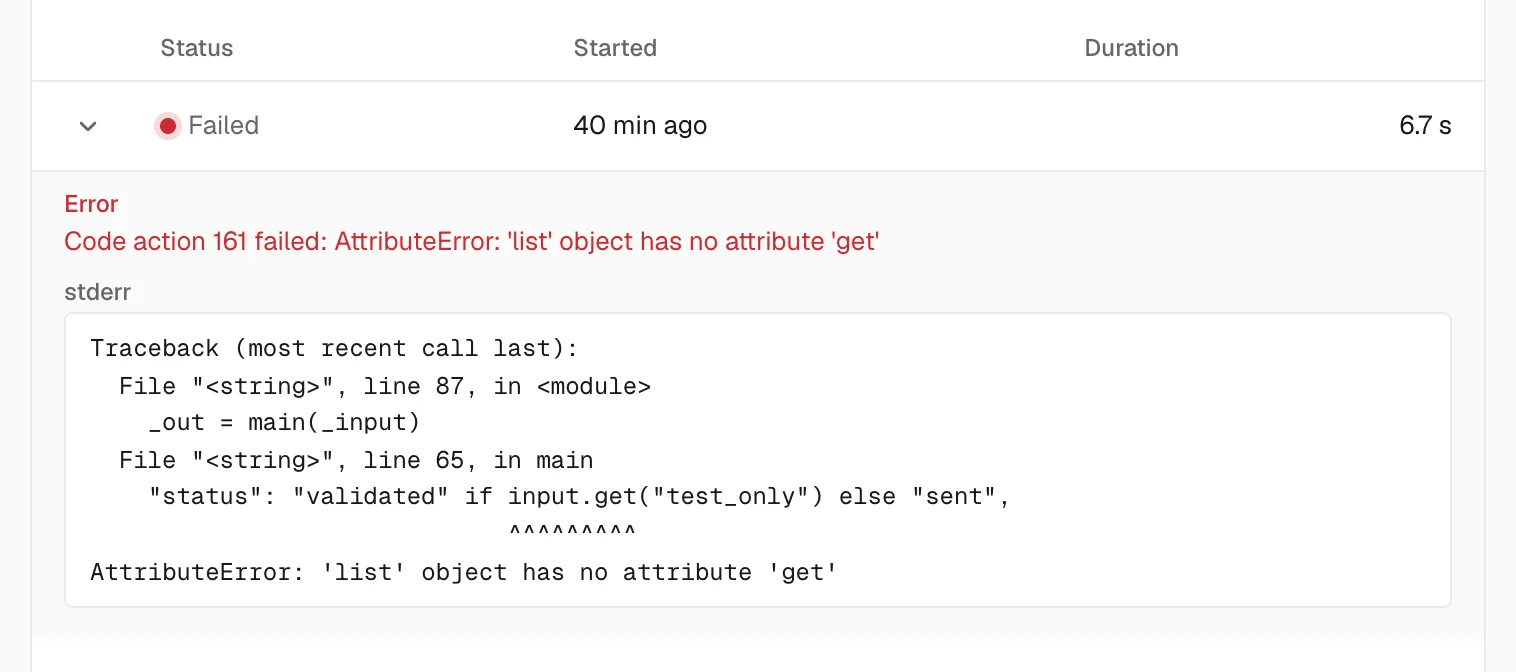
- Expand a run to see its result, or for a failed run the error and the full traceback, down to the line that broke.
Run history and manual runs are for administrators. See Team & account.
Quick checks
| You see | Check |
|---|---|
| Next run passed, no new run | Is the automation Paused? Paused automations skip scheduled runs. |
| A schedule fires at the wrong hour | The time zone in the trigger. |
A webhook call came back accepted, no result |
The Runs tab, not the HTTP response. The result is recorded there. |
| A run stops before finishing | The timeout under Settings on the Overview tab. |
| A run fails at a service's sign-in | The secret behind it. Replace the value if the key changed. |
