Boost.space – System settings
Boost.spaceA platform that centralizes and synchronizes company data from internal and external sources, offering a suite of modules and addons for project management, CRM, data visualization, and more. Has many features to optimize your workflow! Settings: UserCan use the system on a limited basis based on the rights assigned by the admin. and AdminA user role in Boost.space with comprehensive system access, including the ability to add, remove, and manage all system levels. Admins can oversee all users, configure system settings, create custom fields, and manage modules and addons. Admin can also access Integrator and manage automations. Configurations
Boost.space offers flexible settings that both usersCan use the system on a limited basis based on the rights assigned by the admin. and adminsA user role in Boost.space with comprehensive system access, including the ability to add, remove, and manage all system levels. Admins can oversee all users, configure system settings, create custom fields, and manage modules and addons. Admin can also access Integrator and manage automations. can adjust to personalize their experience. Whether you want to update personal information or change system settingsMain settings of the Boost.space system that is accessible only by admins. You can change a variety of things here (custom fields, actions and triggers, design, etc.), the process is simple and intuitive. Below is an overview of the available options based on your role.
User Settings
As a user, you can easily edit your personal information and customize your profile. Here’s what you can update:
- Name
- Phone number
- Password
- Profile picture
- System language
Access the user settings
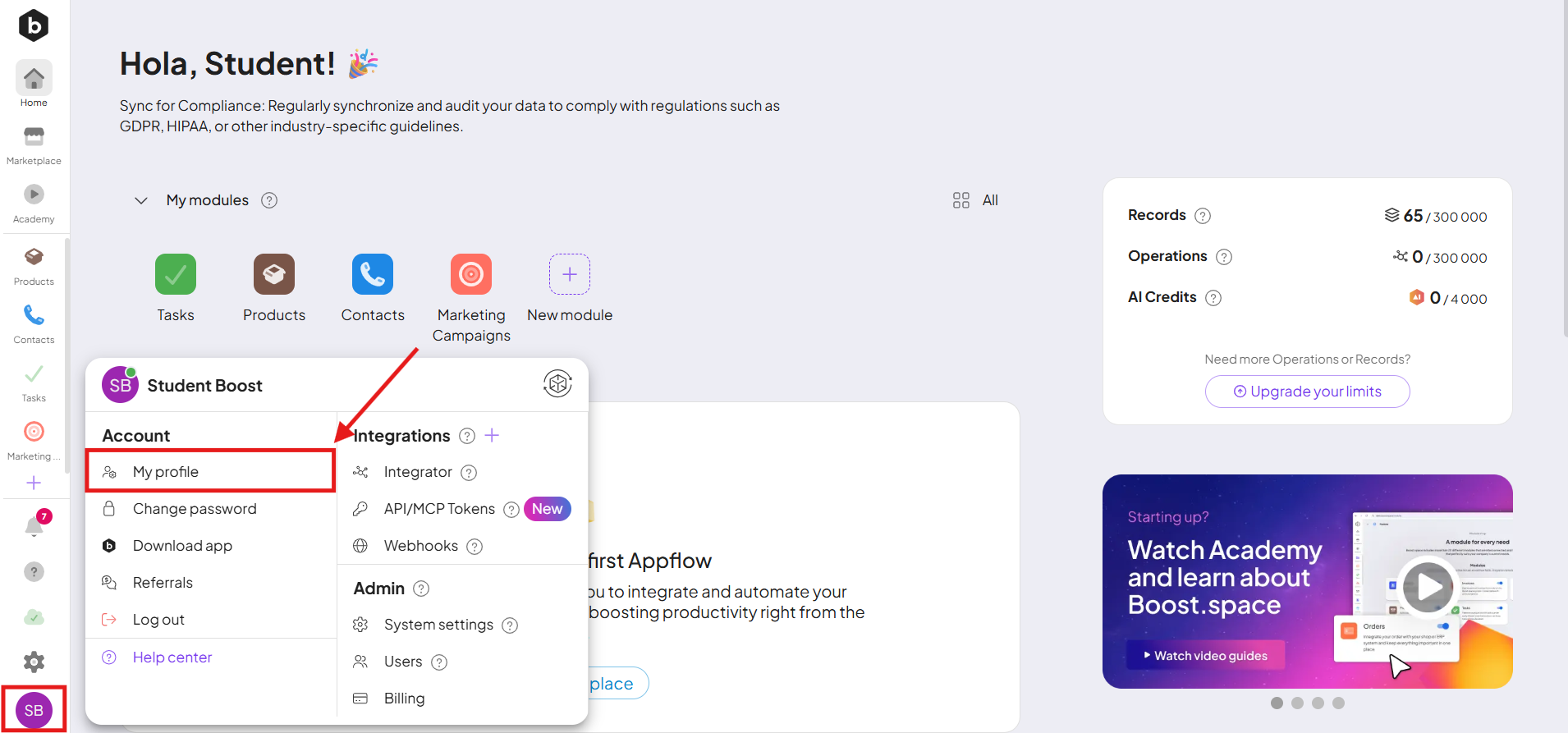
Once you’re logged in, navigate to your profile settings. This can be accessed by clicking on your avatar, located in the bottom left corner of the dashboard. Profile information can be edited on the My Profile page.
Edit Personal Information
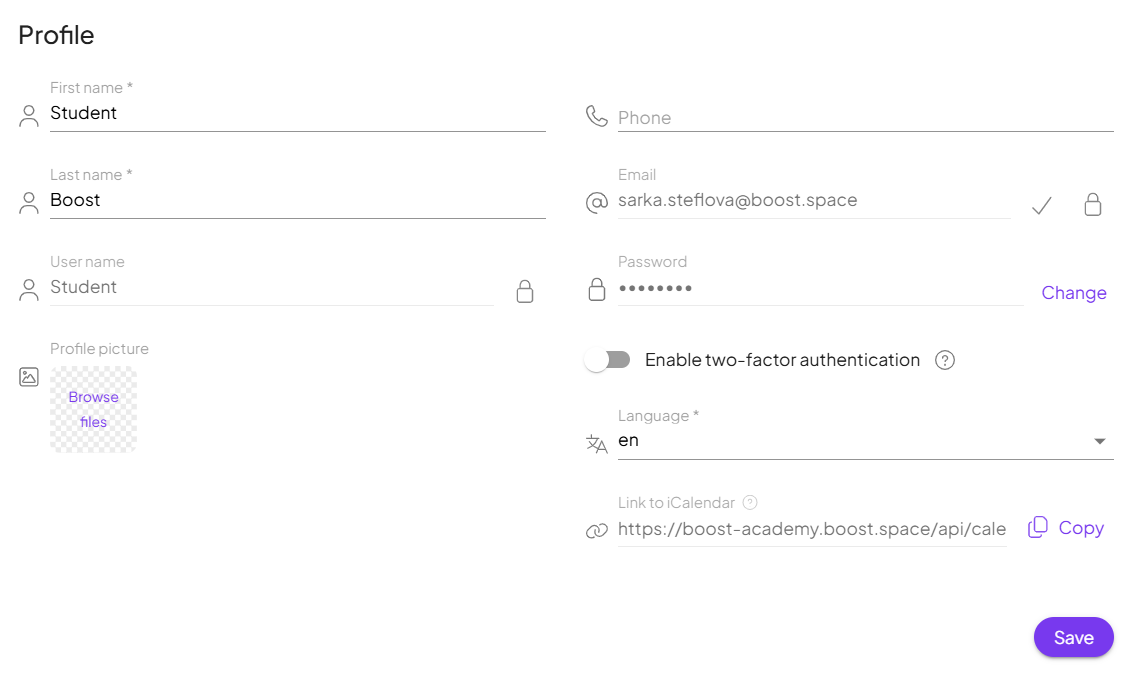
Here you will find various fields containing your personal information such as name and phone number. Click on the field you wish to update.
Update Your Profile picture
Users can easily personalize their accounts by changing their profile picture. To update your profile picture, select the option to edit your profile picture, upload a new image from your device, and save the changes. This allows you to customize your profile and make it more recognizable to other users within the Boost.Space platform.
System language
Users have the flexibility to change the system language to suit their preferences. The platform supports both Czech and English language, allowing users to switch between them as needed. To change the system language, simply select either Czech or English from the language options.
You can also change Your Password on this page. You can find more information about password reset/change in this article.
Edit E-mail Adress
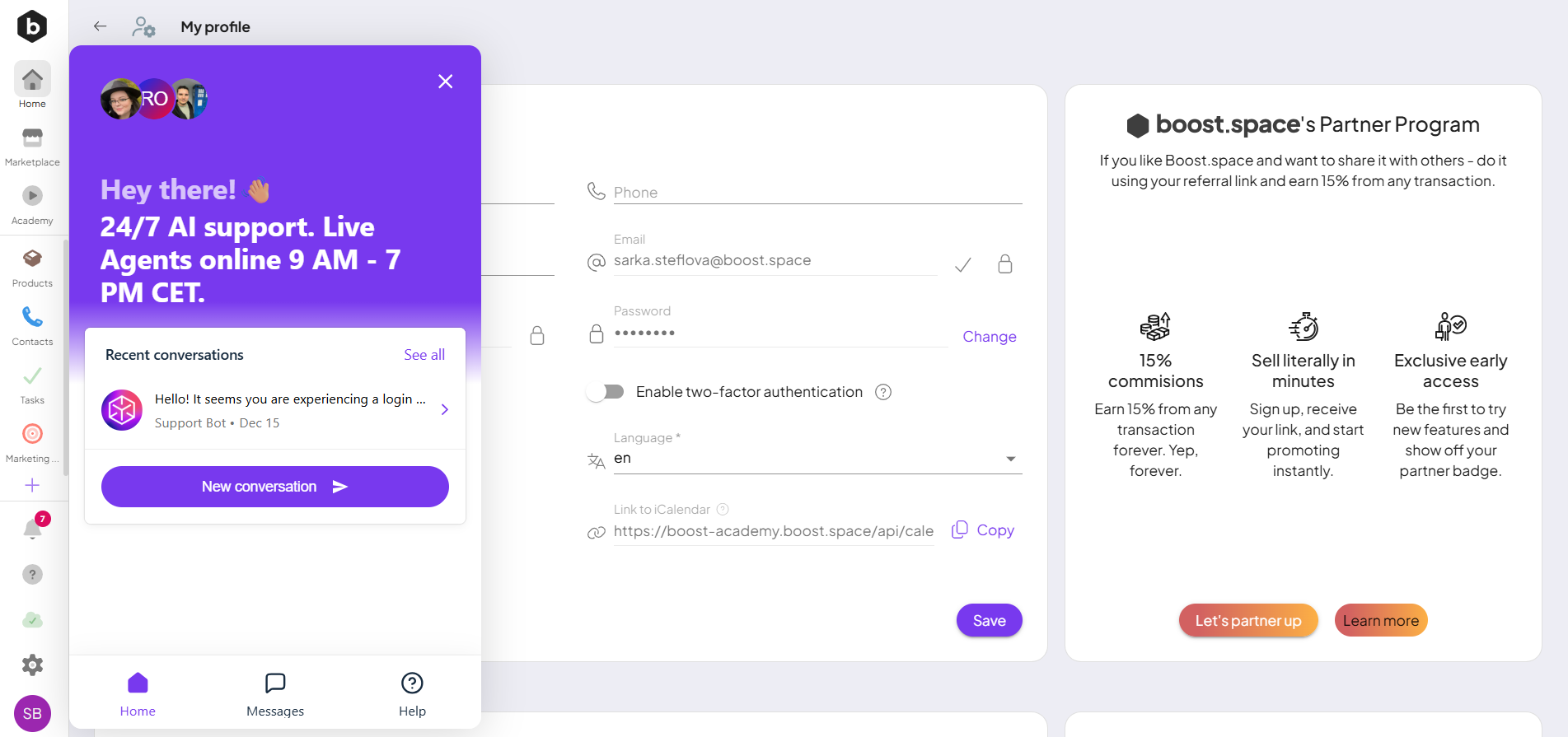
The e-mail address associated with your account cannot be changed directly right now. If you wish to update your e-mail, please contact us at [email protected]. Click on the “Change” button, and a chat with our support team will open. To help speed up the process, please let us know:
- The name of the system where you want to update the e-mail
- Your old e-mail address
- The new e-mail address you want to use
This change must currently be handled manually and typically takes up to one business day to complete.
Admin Settings
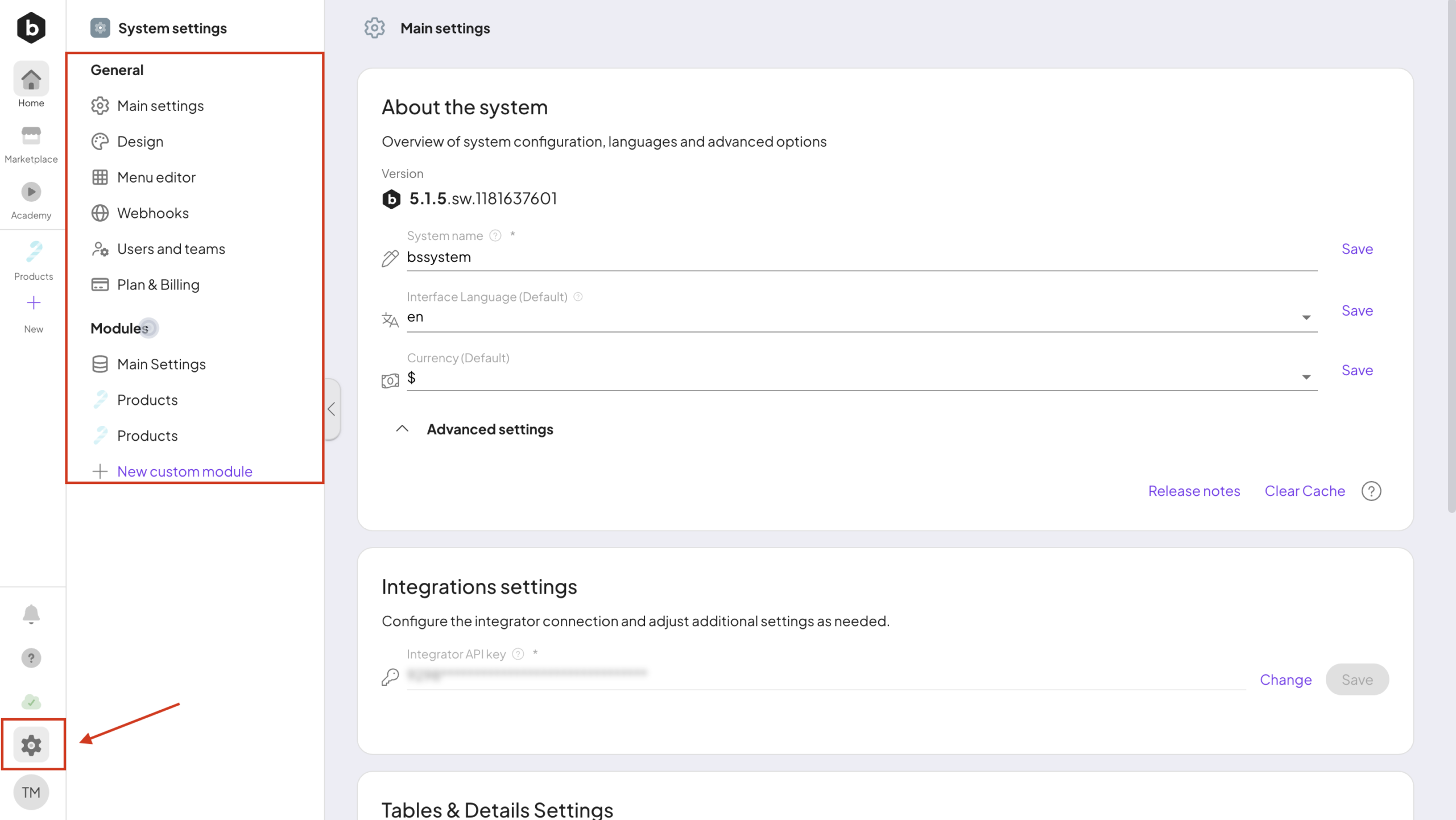
Admins have additional capabilities in the system, including System Settings that allow for customization across various aspects of Boost.space. These settings help align the system with your brand identity and operational needs.
Tables and Details Setting
You can find this section under Main Settings. These are advanced system settings where you can enable or disable individual extensions depending on how you want your system to behave and operate.
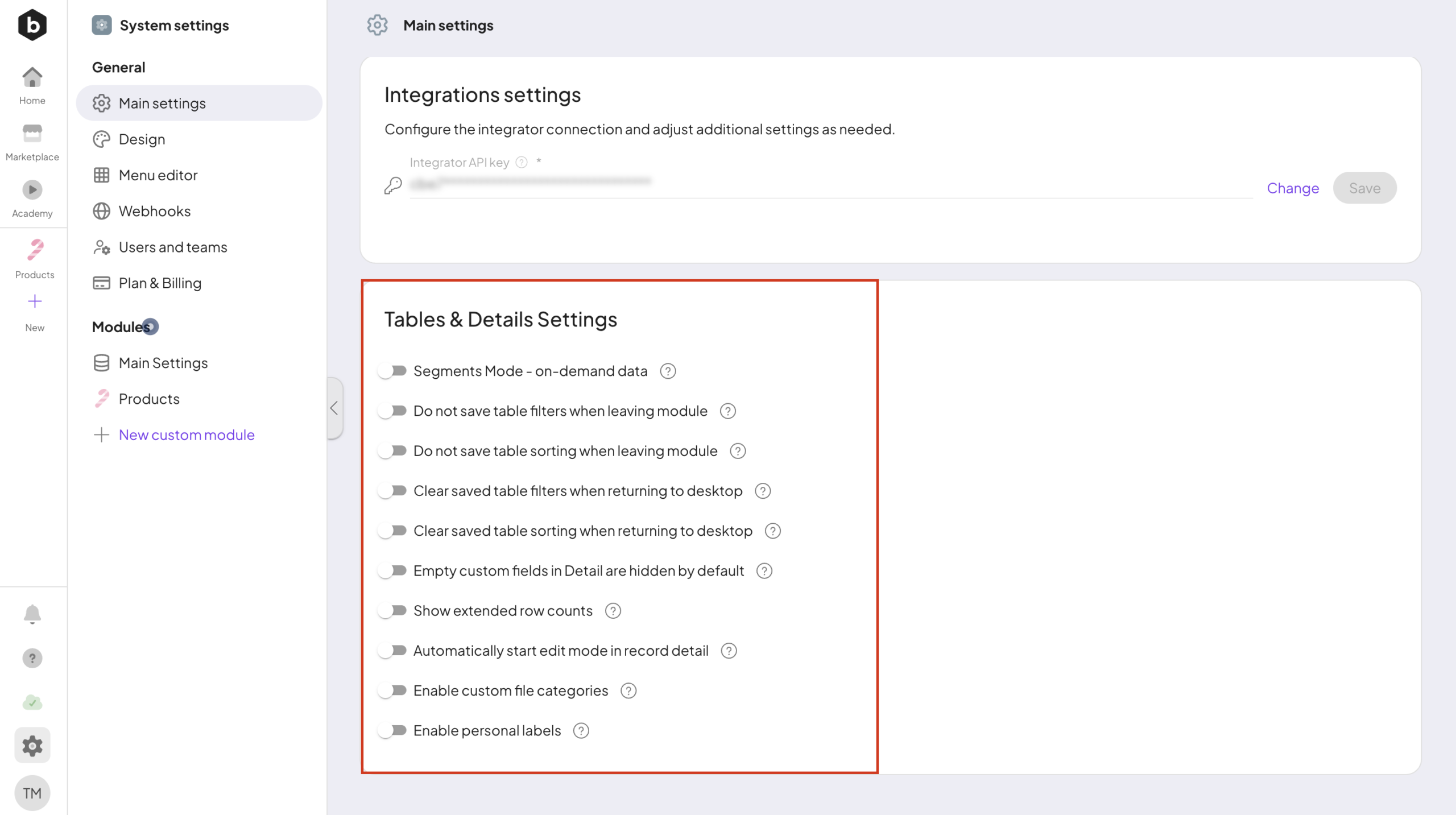
- Segments Mode – on-demand data
Loads segment data only when needed instead of loading everything at once, helping improve performance with larger datasets.
- Do not save table filters when leaving modulea module is an application or tool designed to handle specific business functions, such as CRM, project management, or inventory. The system's modular architecture allows you to activate only the modules you need, enabling customization and scalability as your business requirements evolve.
Applied filters will not be saved after leaving the module. The table resets to default when you return.
- Do not save table sorting when leaving module
Sorting will not be remembered after leaving the module and will reset to default.
- Clear saved table filters when returning to desktop
Previously saved filters are cleared when returning to the desktop.
- Clear saved table sorting when returning to desktop
Previously saved sorting is cleared when returning to the desktop.
- Empty custom fieldsA feature in Boost.space that allows administrators to define and manage additional data fields within each module, tailoring the system to specific organizational needs. in Detail are hidden by default
When enabled, empty custom fields are hidden to improve performance and keep the view clean. They can be shown again using the toggle.
- Show extended row counts
Displays more detailed row count information.
Note: Showing a large number of recordsIn Boost.space, a record is a single data entry within a module, like a row in a database. For example, a contact in the Contacts module or a task in the Tasks module. on one page may slow down system performance depending on your device.
- Automatically start edit mode in recordIn Boost.space, a record is a single data entry within a module, like a row in a database. For example, a contact in the Contacts module or a task in the Tasks module. detail
Opens record detail directly in edit mode for quicker editing.
- Enable custom file categories
When enabled, this option adds a section in Main Settings where you can create and manage categories for uploaded files (e.g., design, final, contract).
- Enable personal labelsIn Boost.space, a label is a tag that can be added to items within a module. It's a flexible tool used to categorize and organize data, making it easier to customize workflows and processes.
Allows users to create personal labels that are visible only to them.
Design Settings
Admins can fully personalize the system’s design. Here’s what can be adjusted:
- Large logo – Displayed when the system loads and on the login screen
- Small logo – Displayed in the main menu
- Login screen background – Displayed when first logging in
- Favicon – Appears in the browser tab
- System colors – Adjusted throughout the system
For more details on how to configure the design of your system, check out this article.
Menu EditorIn Boost.space, the Menu Editor is a feature that allows administrators to customize the system's navigation interface. It enables the creation and management of menus by adding modules, folders, shortcuts, and embedded content. Administrators can tailor menus for individual users, controlling their access to specific modules and enhancing overall user navigation.
Boost.space allows you to manage modulesa module is an application or tool designed to handle specific business functions, such as CRM, project management, or inventory. The system's modular architecture allows you to activate only the modules you need, enabling customization and scalability as your business requirements evolve. directly from the System Settings. Here you can control whether a specific module is visible on the homepage, as well as edit or delete existing modules.
Webhooks
Users can create new webhooksA webhook is a way for an app to send real-time information to a specific URL in response to certain events or triggers. here.
Plan and Billing
Admins can manage billing and account limits. In this section, you can find out what plans are available and how to upgrade your system. For more information, check our article.
Users and Teams
Admins can also manage users and teams. To learn how to add users and set up teams, refer to this article.
Modules
Boost.space offers the ability to manage modules directly from the system settings.
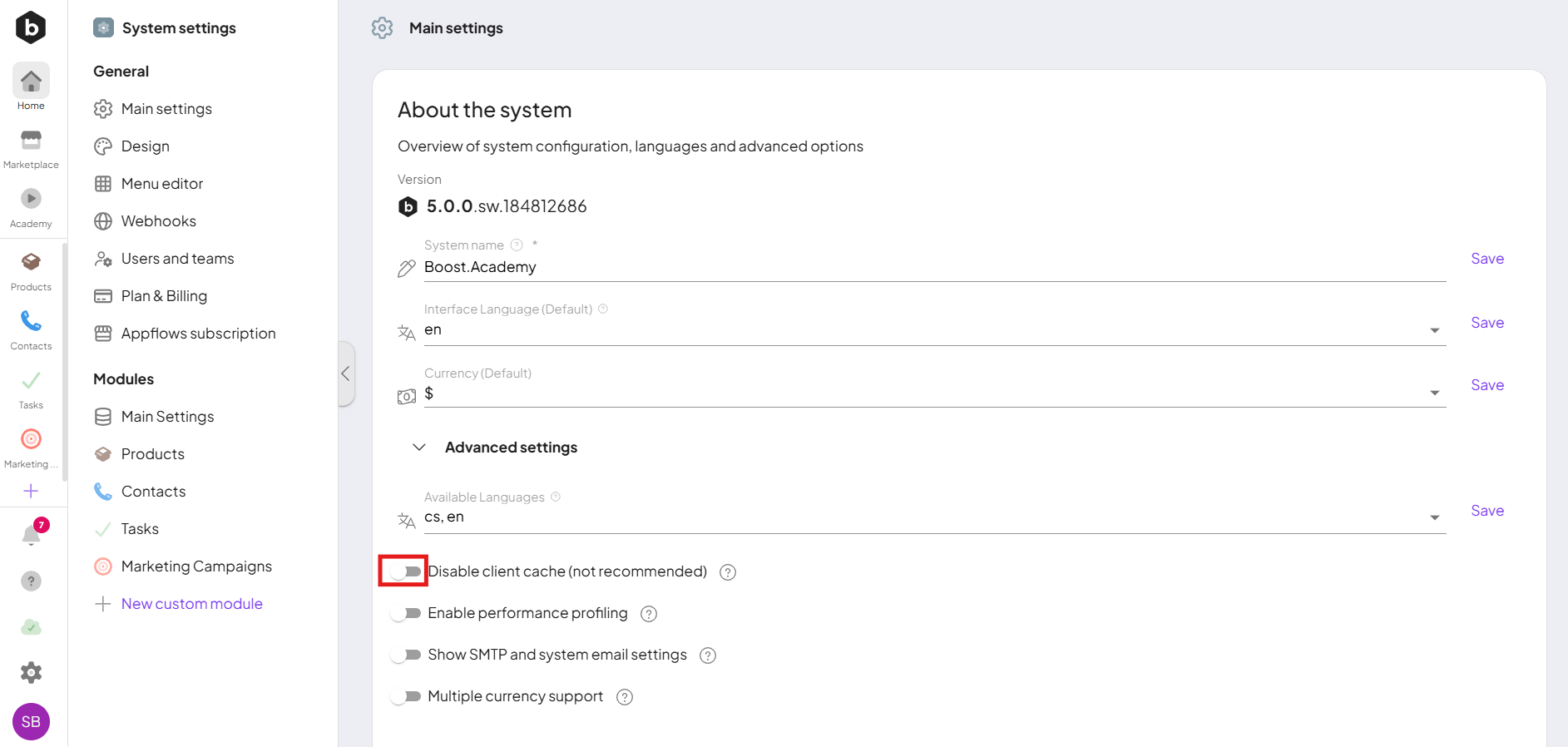
Disable Client Cache
Disable Client Cache prevents data from being stored in the cache, which can lead to faster system performance. However, this setting is not generally recommended, as caching serves an important purpose—it helps streamline your experience by keeping you logged in and ensuring that previously loaded data is readily available without repeated loading.
Conclusion
Boost.space offers flexible settings for both users and admins to customize their experience. Users can update personal information, change their profile picture, set their system language, and manage passwords. Admins have access to additional options, such as customizing system design, managing billing and limits, overseeing users and teams, and configuring modules. By dividing settings based on roles, Boost.space ensures a tailored experience for individual users and system administrators alike.