Creating custom fields in Boost.space
Custom fieldsA feature in Boost.space that allows administrators to define and manage additional data fields within each module, tailoring the system to specific organizational needs. allow you to store additional information in your modulesa module is an application or tool designed to handle specific business functions, such as CRM, project management, or inventory. The system's modular architecture allows you to activate only the modules you need, enabling customization and scalability as your business requirements evolve.. These fields can only be created by an administrator, but they can be connected to specific spacesIn Boost.space, a space is a subunit within a module that helps organize and categorize data, ensuring clarity even with large volumes. For example, within the Contacts module, you might have spaces like "Client Database" or "Supplier Database." Access to each space is restricted to users who have created it or have been granted access. by other usersCan use the system on a limited basis based on the rights assigned by the admin.. In this article, you will learn how to create a custom fieldA feature in Boost.space that allows administrators to define and manage additional data fields within each module, tailoring the system to specific organizational needs. group, how to create a custom field manually, and how to generate multiple custom fields using AI.
Video guide
Creating a Custom field Group
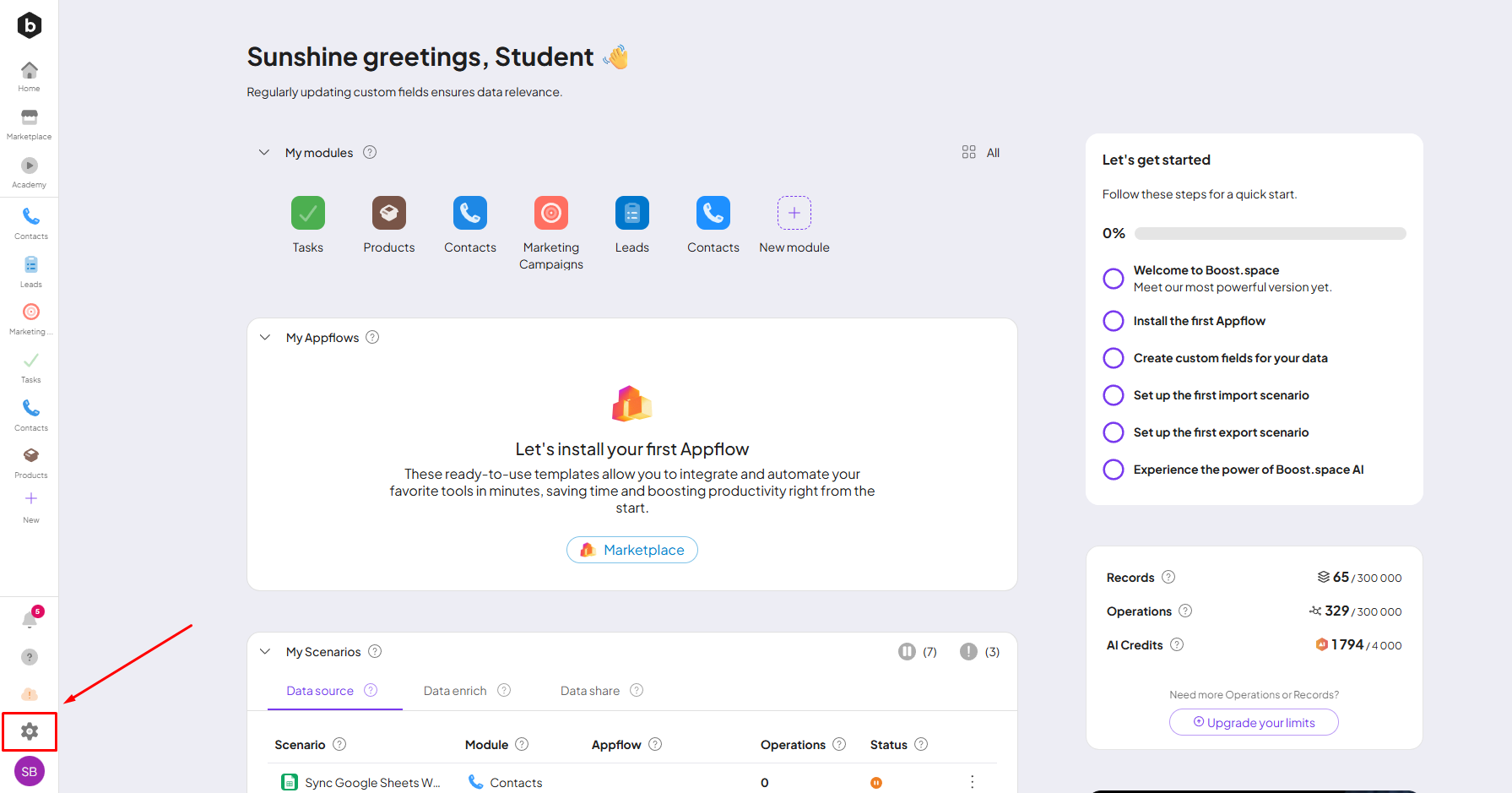
1. On your home screen, click System SettingsMain settings of the Boost.space system that is accessible only by admins. You can change a variety of things here (custom fields, actions and triggers, design, etc.) in the bottom left corner.
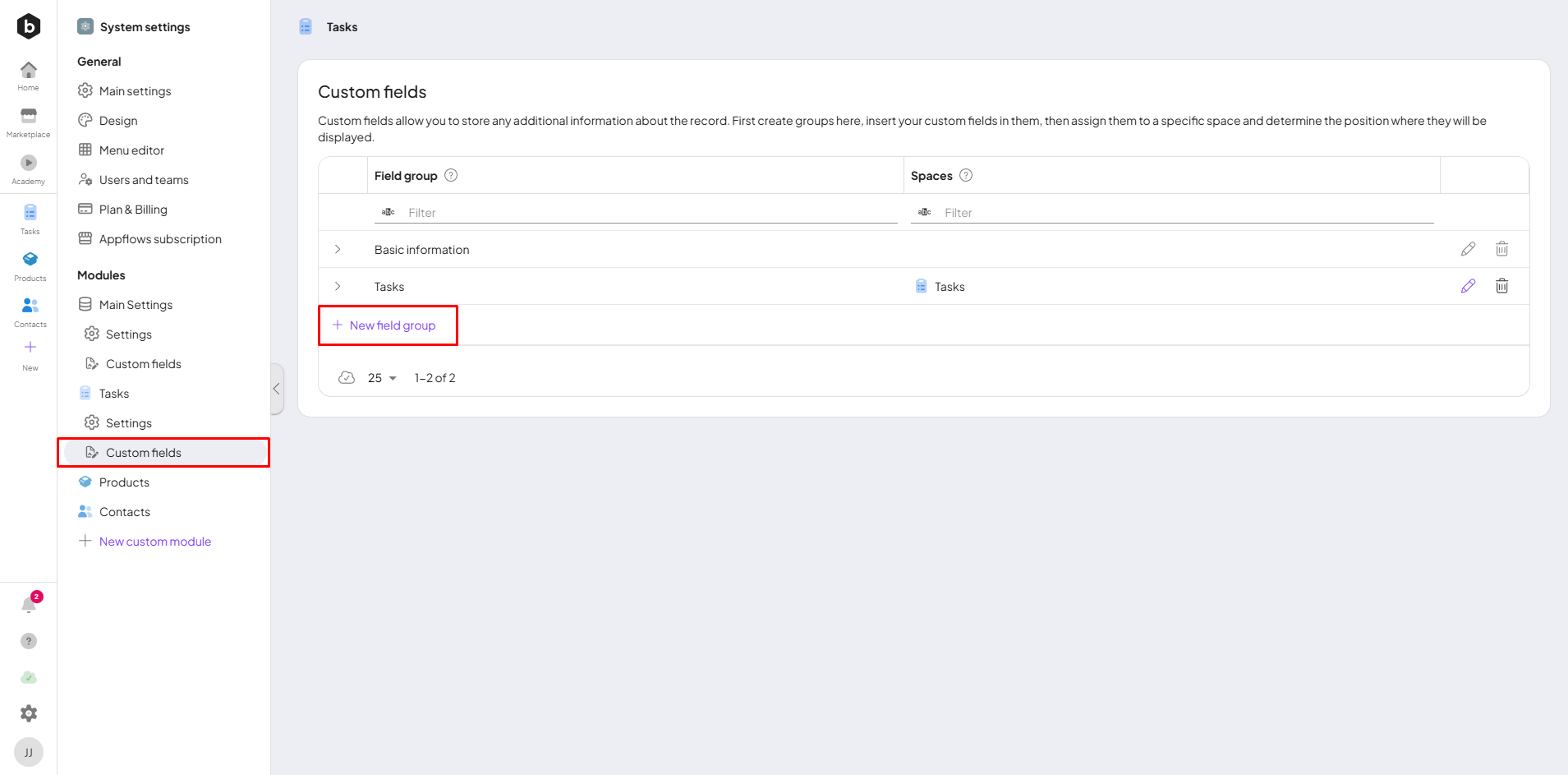
2. Select the modulea module is an application or tool designed to handle specific business functions, such as CRM, project management, or inventory. The system's modular architecture allows you to activate only the modules you need, enabling customization and scalability as your business requirements evolve. you want to use in the navigation bar on the left side and then click on Custom Fields and click New field group.
Note: Every custom field needs to belong to the field group!
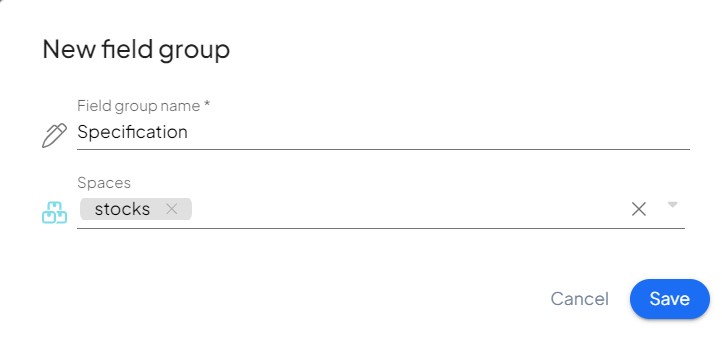
3. Name your new group you can choose a spaceIn Boost.space, a space is a subunit within a module that helps organize and categorize data, ensuring clarity even with large volumes. For example, within the Contacts module, you might have spaces like "Client Database" or "Supplier Database." Access to each space is restricted to users who have created it or have been granted access. and then click save.
4. When the group is created, click on New custom field button.
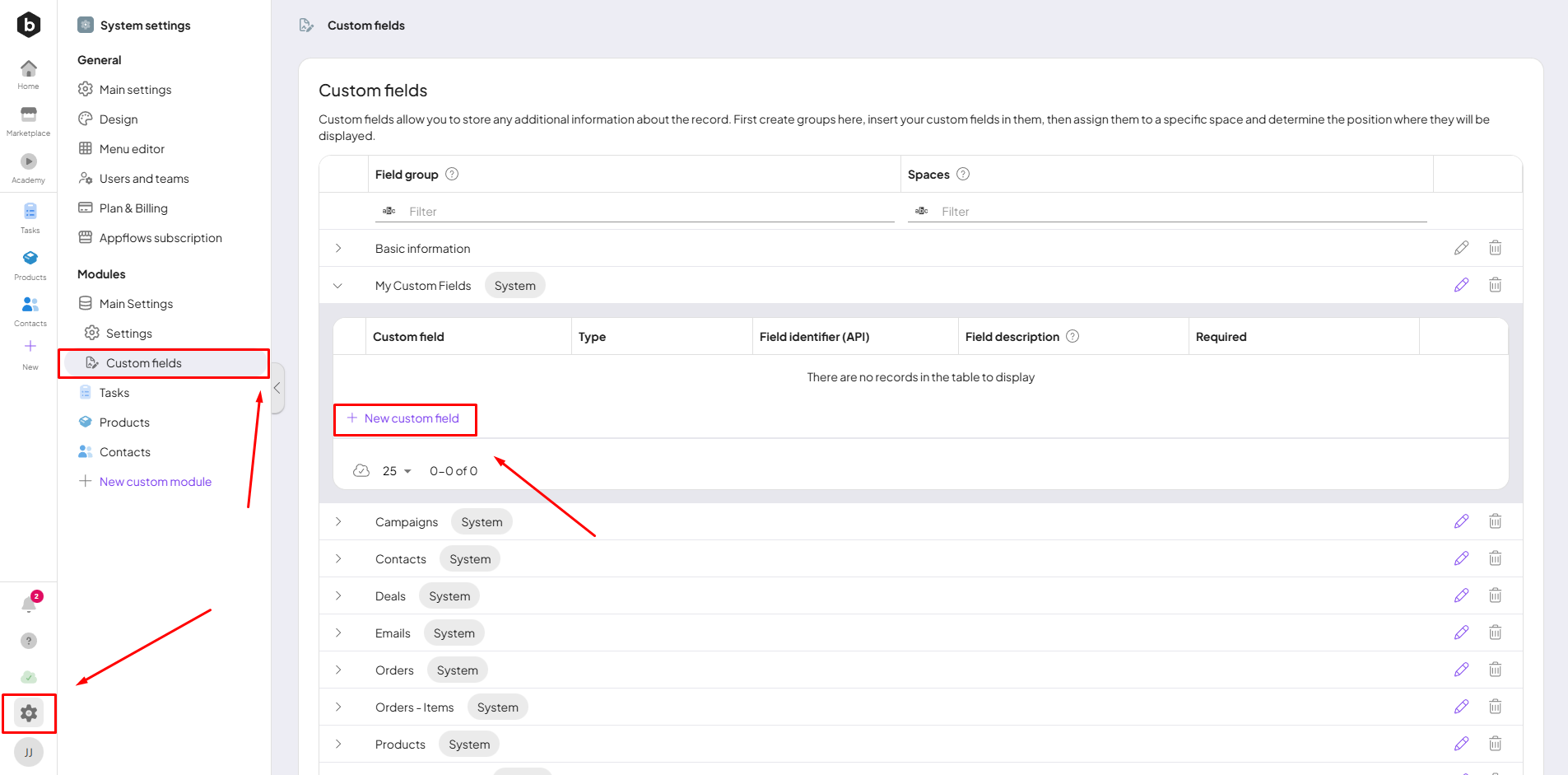
Custom Fields Creation
Custom fields can be created in two ways.
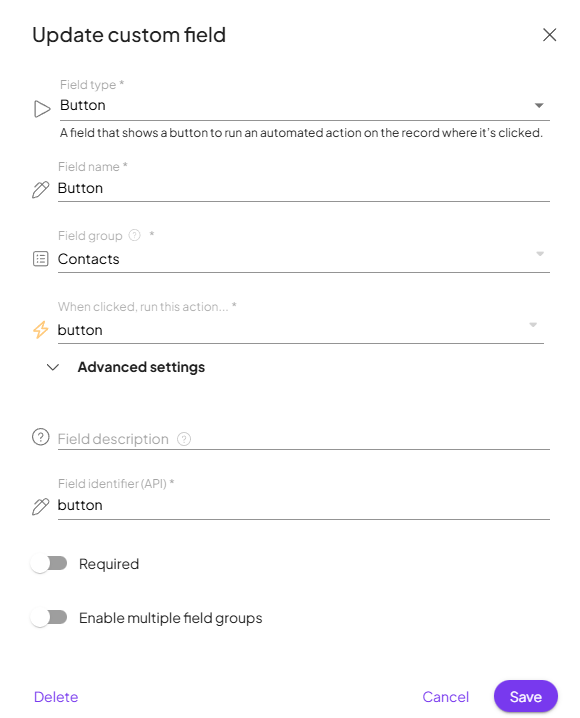
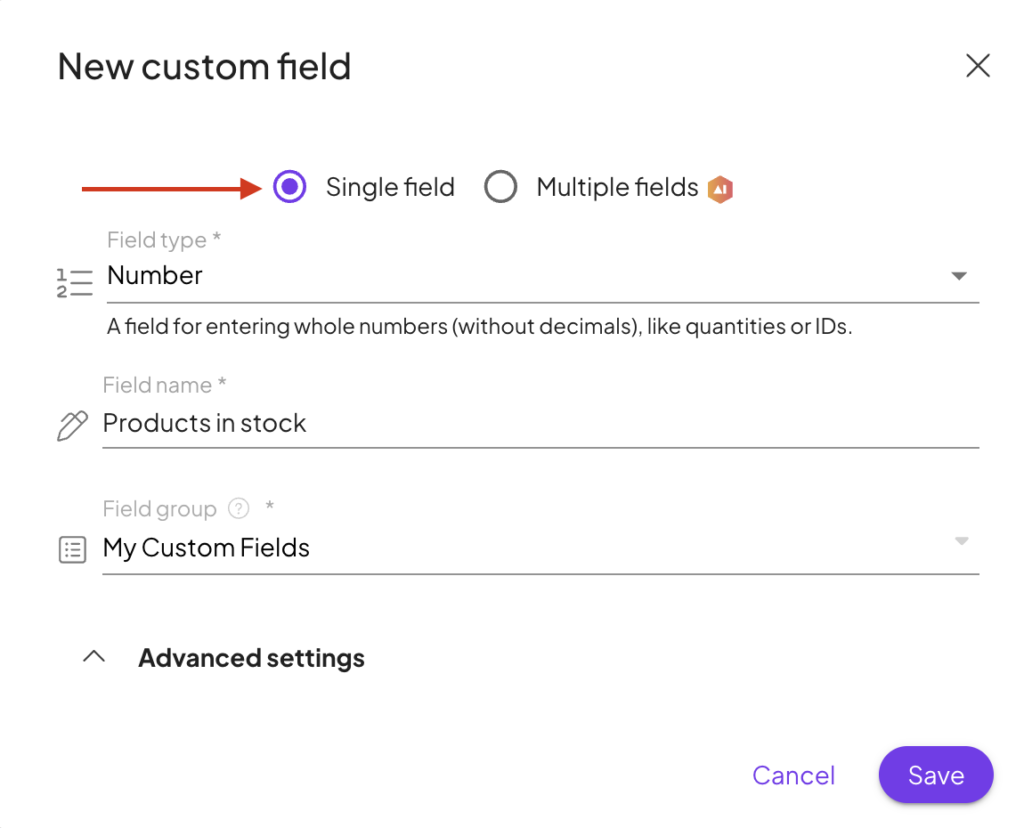
- You can either manually create a single field by defining its name, type, and advanced settings (including whether it is required),
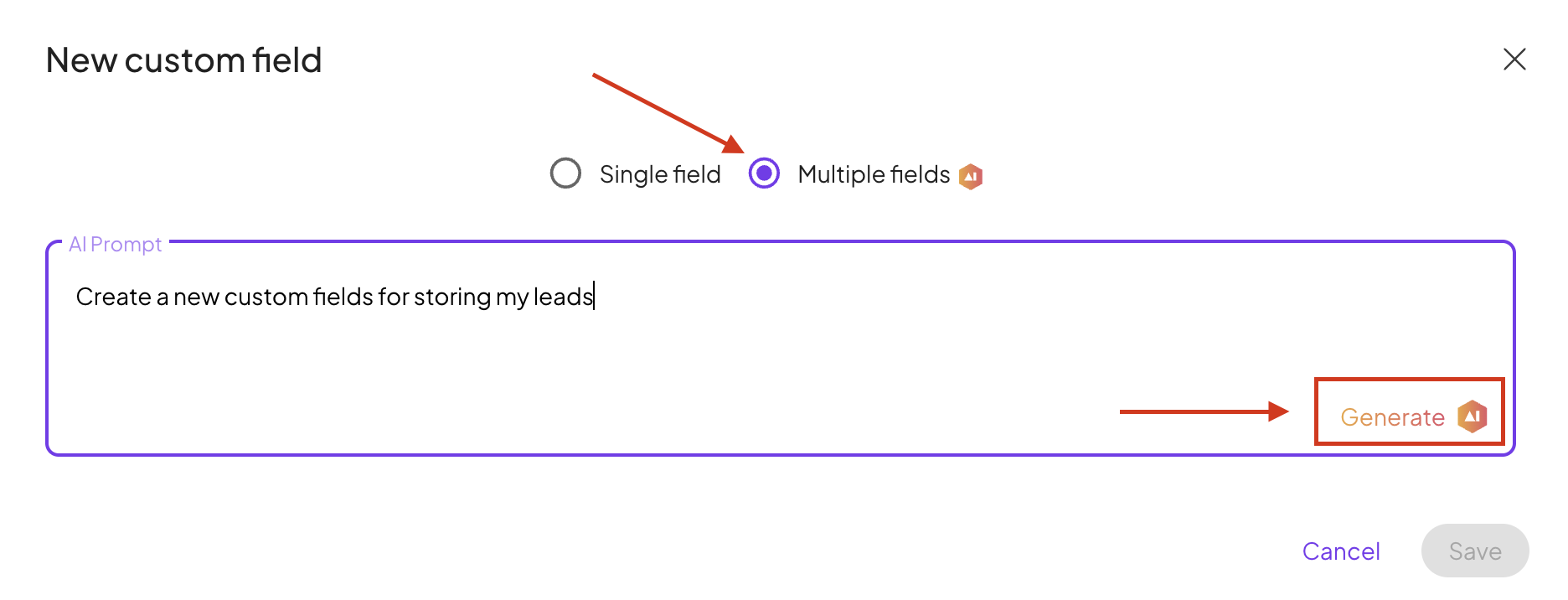
2. or use AI to generate multiple custom fields at once by simply describing what you need/parsing JSON file. Then click Generate.
In a few minutes, AI generates multiple custom fields based on your requirements. You can review the generated fields and edit or delete any that you do not need. If necessary, you can also provide another prompt, and AI will generate additional custom fields based on your input.
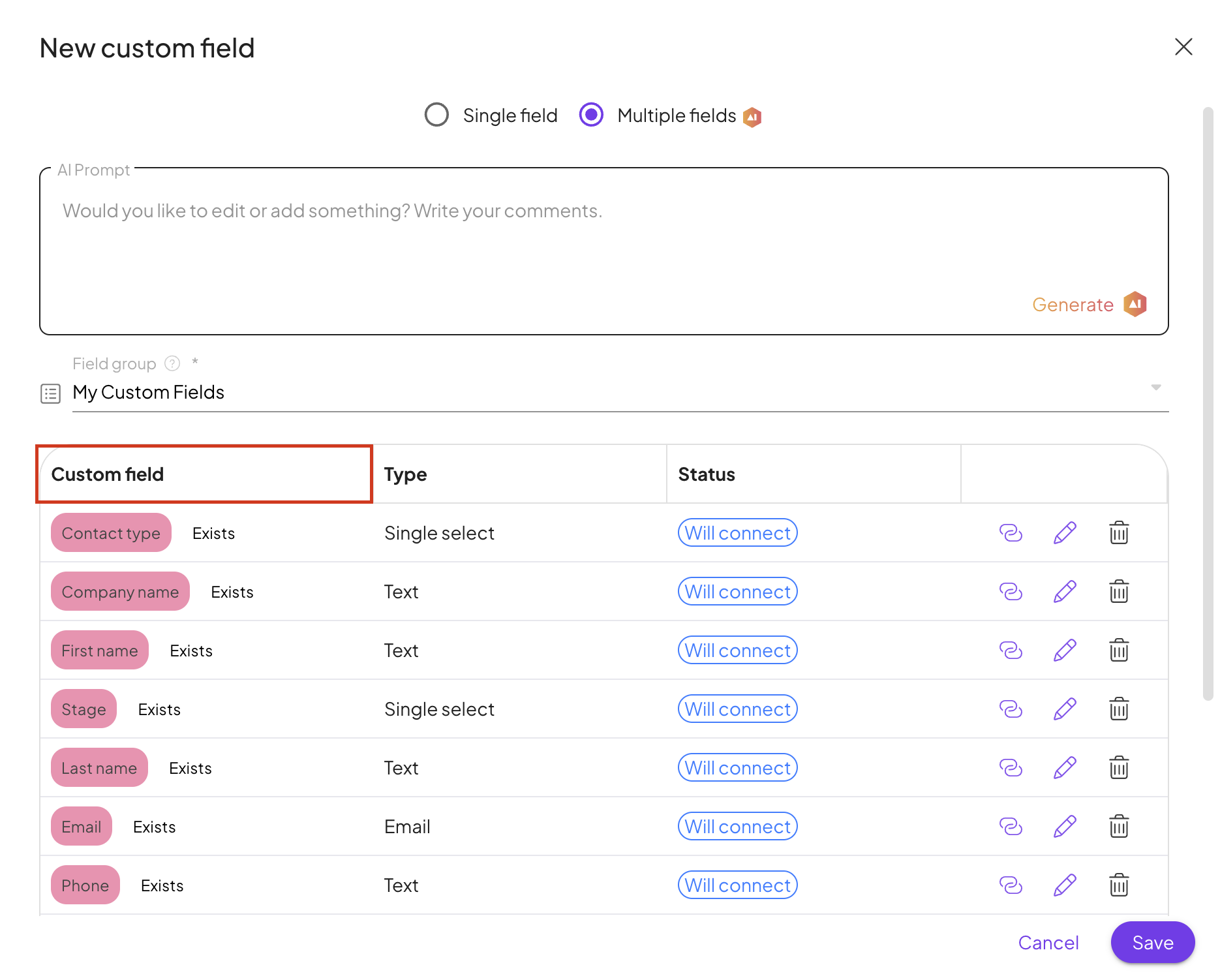
Congratulations, you have now created your new custom fields.
Updating Custom Fields
Users can fully manage custom fields and update them by modifying their associated field groups and managing their availability across different spaces. Also, the userCan use the system on a limited basis based on the rights assigned by the admin. can delete the custom field by clicking on the “Delete” button.