Create and manage fields
Fields hold the data on your records. They were formerly called custom fields, and the term still appears in a few places, but the concept is the same: a typed column you define. Fields are part of your system's structure, so only admins create them; every user can then fill them in.
Each field belongs to at least one field group — the container that organizes fields within a module.
Two ways to create fields
Open System settings → [your module] — its fields are managed on that page. Pick or create a field group, then either:
-
Add one field — click New field and define it in the field editor (below).
-
Generate many with AI — describe what you need in plain language (or paste JSON) and let AI propose a set of fields. Review, edit, or delete the suggestions, and prompt again to refine.
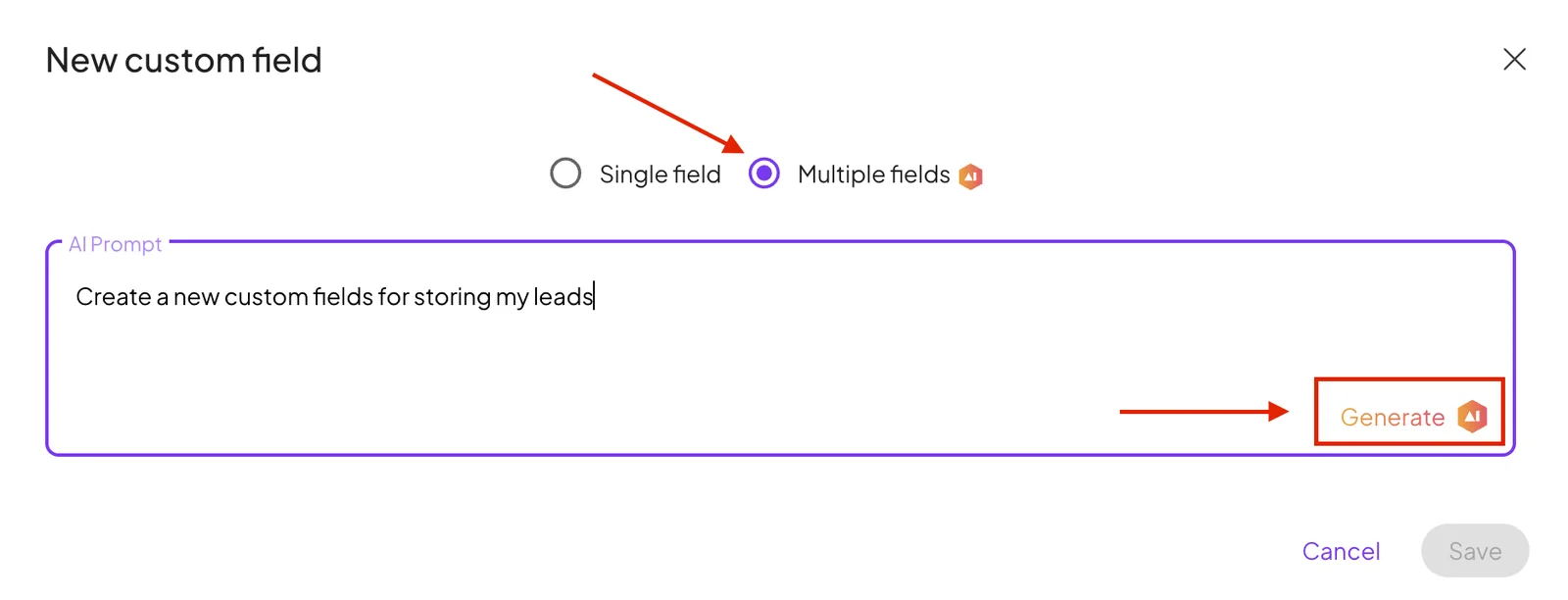
The field editor
Every field has a type and a name; the rest depends on the type.
- Type — what the field stores. See Field types.
- Name — the label users see. Boost.space derives a stable API name from it (editable under Advanced settings → API values).
- Field group(s) — the group the field belongs to.
Type-specific options appear as you choose a type — for example:
- Select / Multi select / Radio — the list of options (color, label, stored value).
- Money — the currency; Percent — an optional 0–100 limit.
- Link a single/multiple record — the target module and spaces, and an optional counterpart field created on the other side of the relation.
- Lookup / Rollup — the relation to follow and the value or aggregation to pull.
- Formula — the expression.
- AI field — the prompt, execution mode (automatic or manual), and tone/length/formatting/creativity.
- Button — the action to trigger.
Advanced settings
- Help text — a tooltip shown next to the field.
- API values — the field's system name for the API and imports.
- Required — the field must be filled before a record can be saved.
- Enable multiple field groups — lets the field belong to more than one field group. With it off, the field lives in a single group.
- Primary label — use this field as the record's title (the label shown wherever the record is referenced). Available for text-like and select fields on supported modules.
Update or delete a field
Reopen a field from its group to change its settings, move it between groups, or adjust which spaces it appears in. To remove it, open it and choose Delete.
Basic fields (ID, Space, Status, Labels, Created time, Created by user, Remote ID) are system fields — you can't edit or delete them. See Field types.
