Import Data from file
Boost.spaceA platform that centralizes and synchronizes company data from internal and external sources, offering a suite of modules and addons for project management, CRM, data visualization, and more. Has many features to optimize your workflow! allows you to import your own data into any SpaceIn Boost.space, a space is a subunit within a module that helps organize and categorize data, ensuring clarity even with large volumes. For example, within the Contacts module, you might have spaces like "Client Database" or "Supplier Database." Access to each space is restricted to users who have created it or have been granted access. using a file. You can upload structured data and map it directly to your existing fields or create new ones automatically.
This feature is designed for flexibility — whether you’re migrating data or syncing from external tools.
Supported file formats
You can upload the following file types:
- CSV
- XLSX
- XML
These formats allow you to import structured datasets from most external systems.
How it works
The import process consists of a few simple steps:
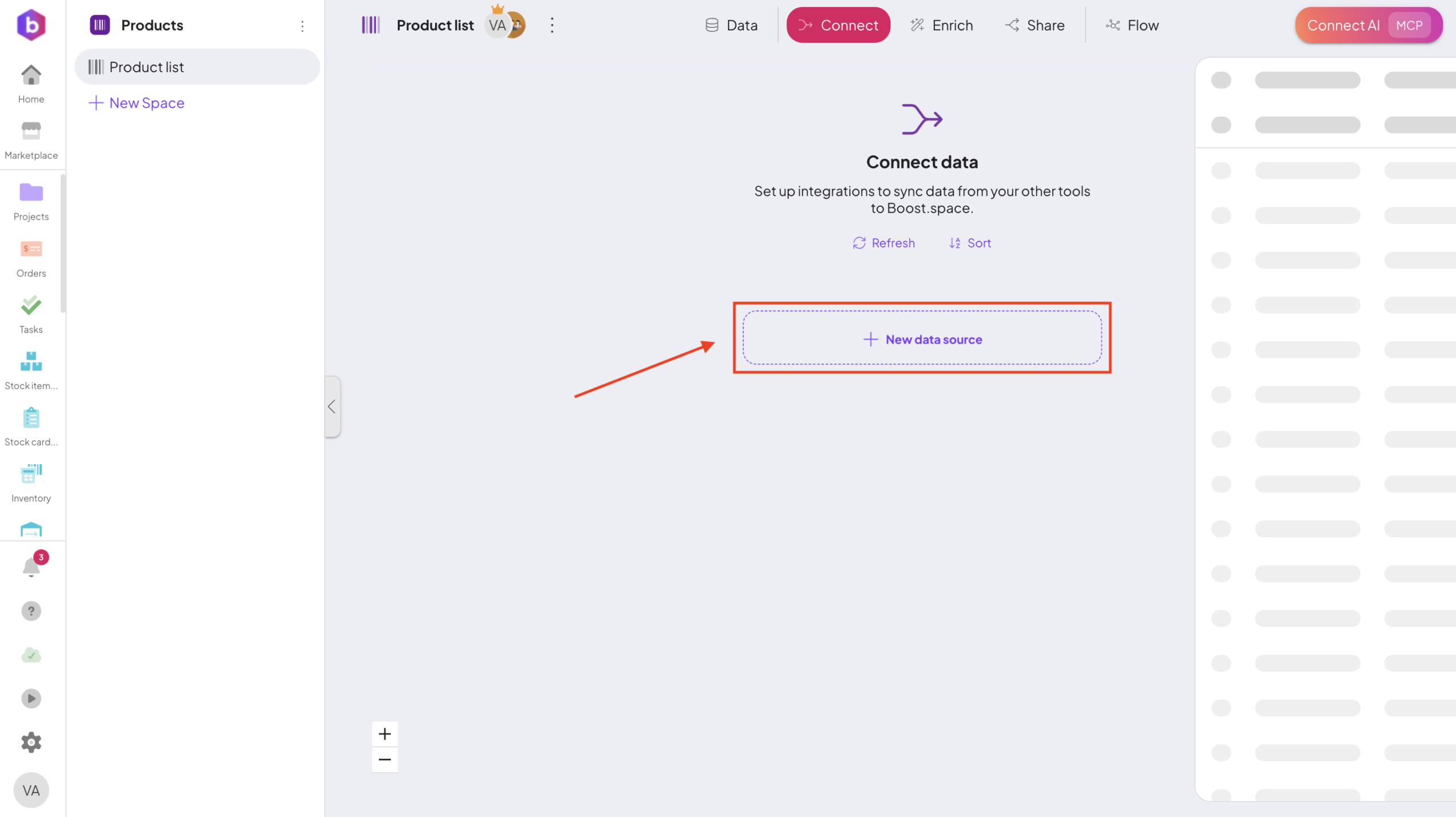
- Select Data destination. Open the desired Modulea module is an application or tool designed to handle specific business functions, such as CRM, project management, or inventory. The system's modular architecture allows you to activate only the modules you need, enabling customization and scalability as your business requirements evolve. and choose the Space where your data will be imported. Then click + New Data source.
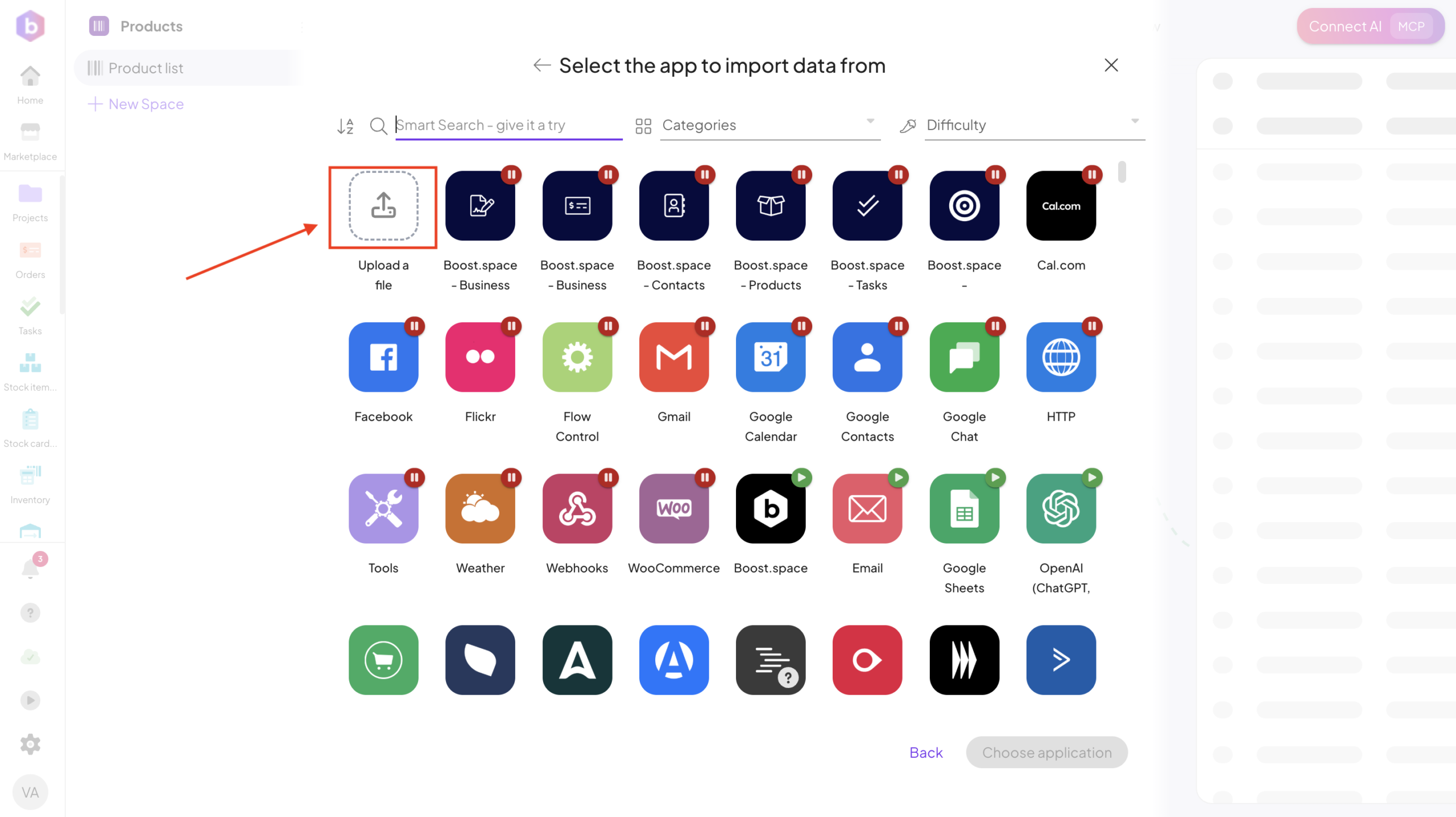
2. Choose source type.
Select the Upload a file option.
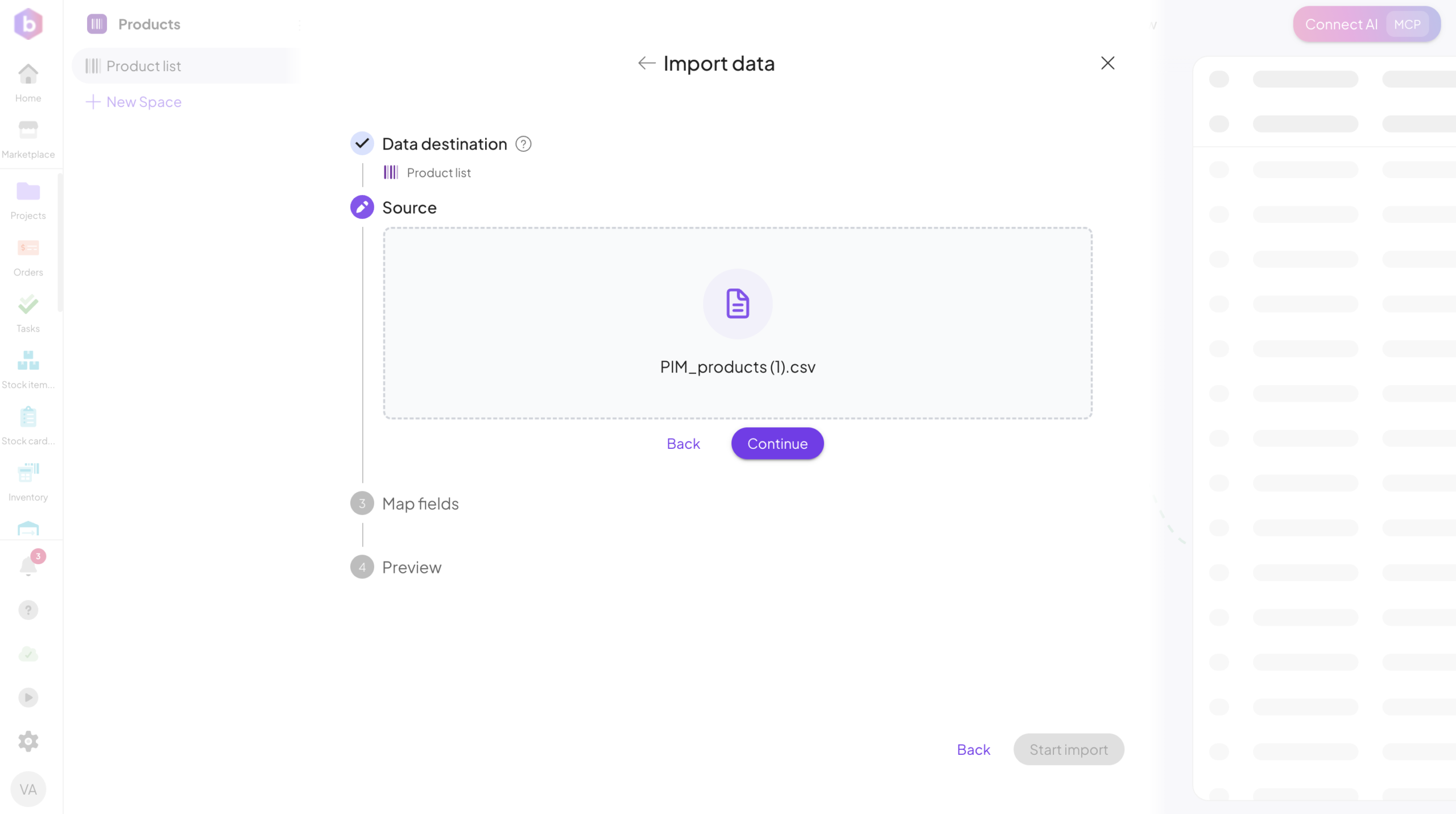
3. Upload your data file (e.g. CSV, XML, XLSX) and click Continue.
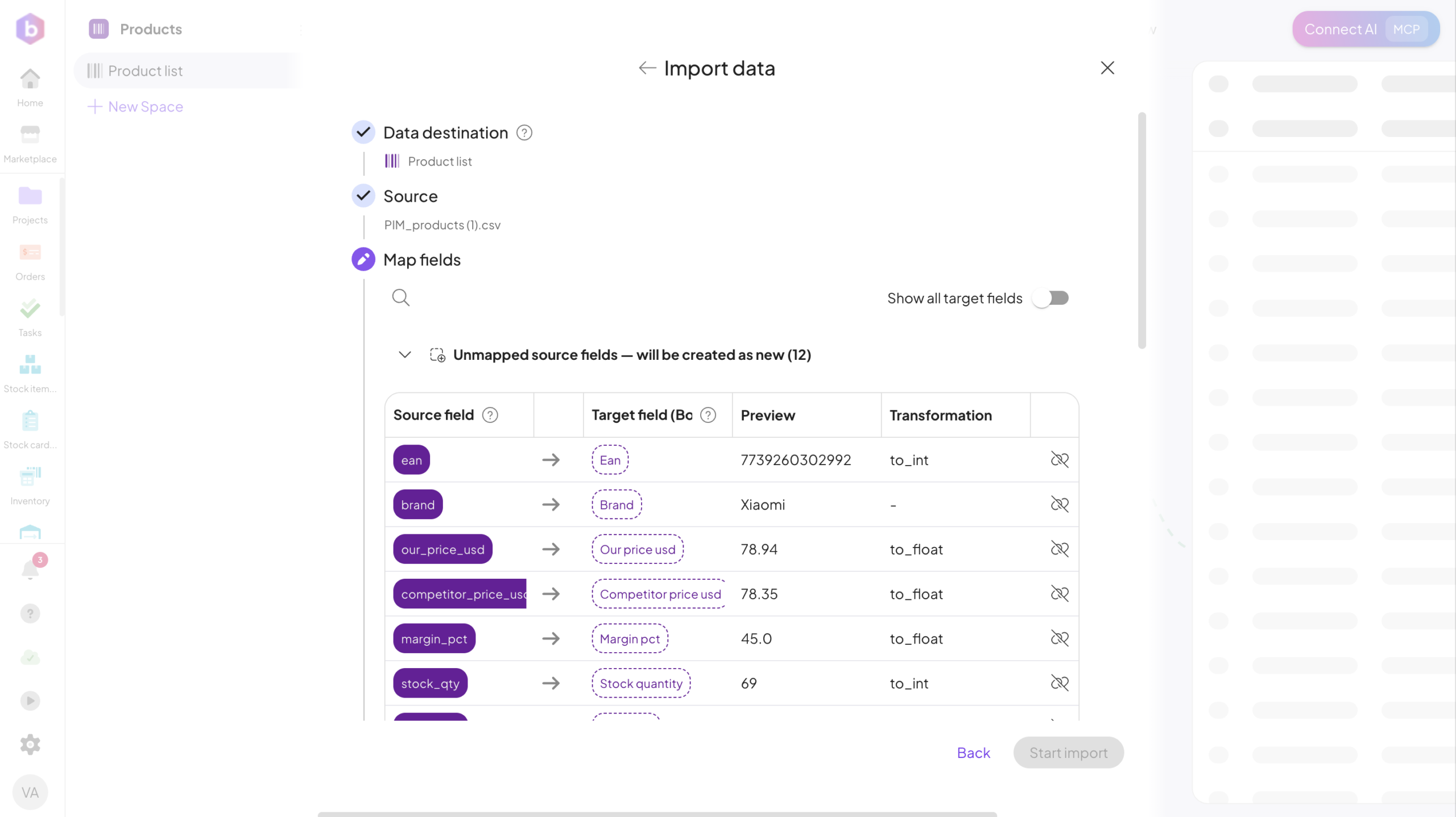
4. Map Fields
Boost.space uses AI to analyze your data structureWhen you create a data store, you need to create a data structure that formats your data store in Boost.space Integrator. Think of the data store as a spreadsheet and the data structure as the headers. The data structure defines the kind of data (i.e. text, numeric, etc.) that the data store records. You can view and manage your data... and suggest the most suitable field setup.
During the import process, you define how data from your file is mapped to fields in Boost.space.
- Your uploaded data (e.g. CSV) is analyzed automatically
- AI proposes matching custom fieldA feature in Boost.space that allows administrators to define and manage additional data fields within each module, tailoring the system to specific organizational needs. types
- Each source field (from your file) is matched to a target field (in Boost.space)
- You can map data to existing fields or create new ones
- Unmapped fields can be created as new custom fieldsA feature in Boost.space that allows administrators to define and manage additional data fields within each module, tailoring the system to specific organizational needs..
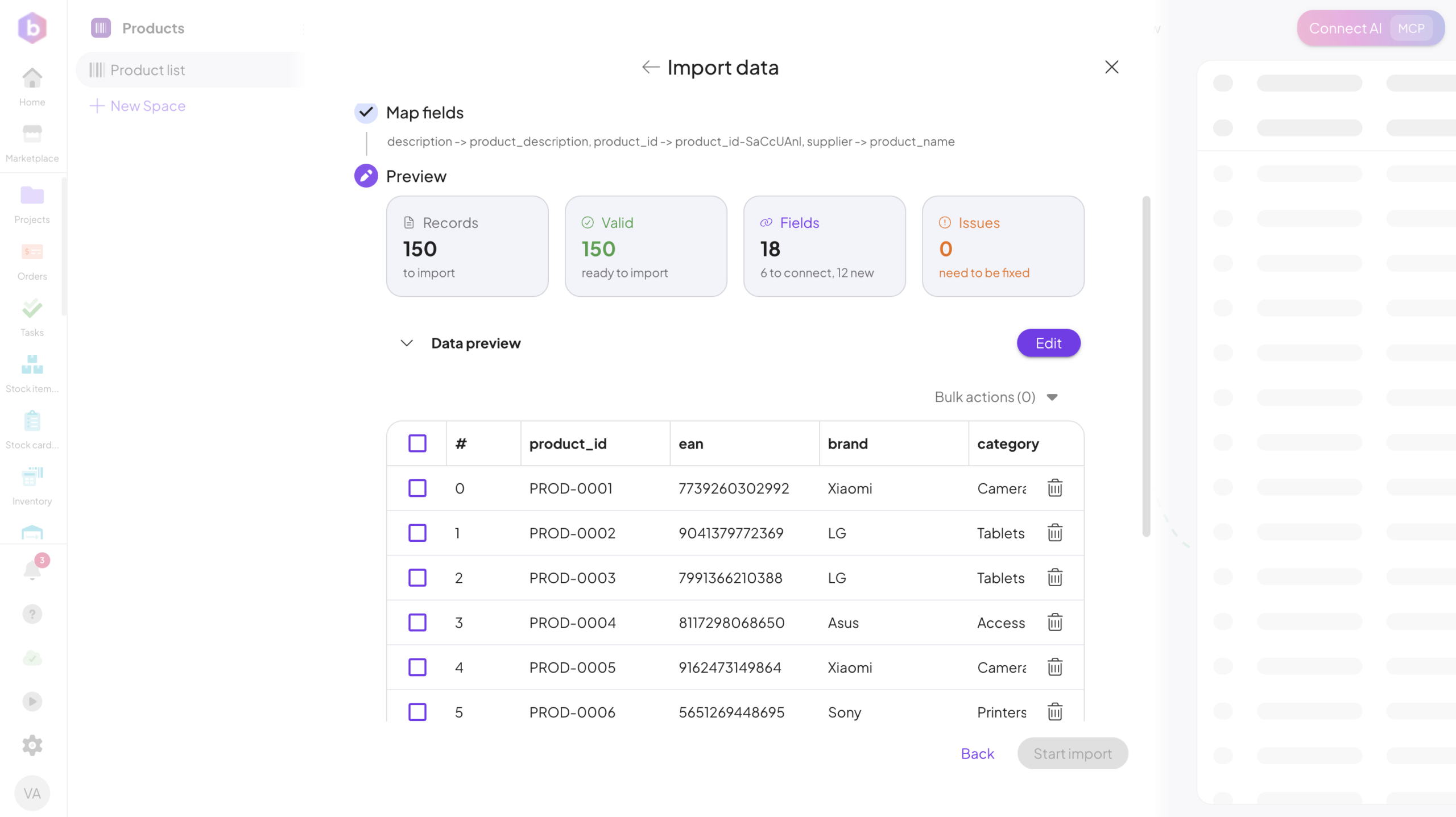
5. Data preview
Before importing, you can review your data:
- See how fields are mapped
- Validate values and formats
- Identify missing or incorrect mappings
Only valid data will be imported, helping you avoid errorsService is unavailable due to a failure, a service responds with unexpected data or the validation of input data fails.. Click Continue to proceed.
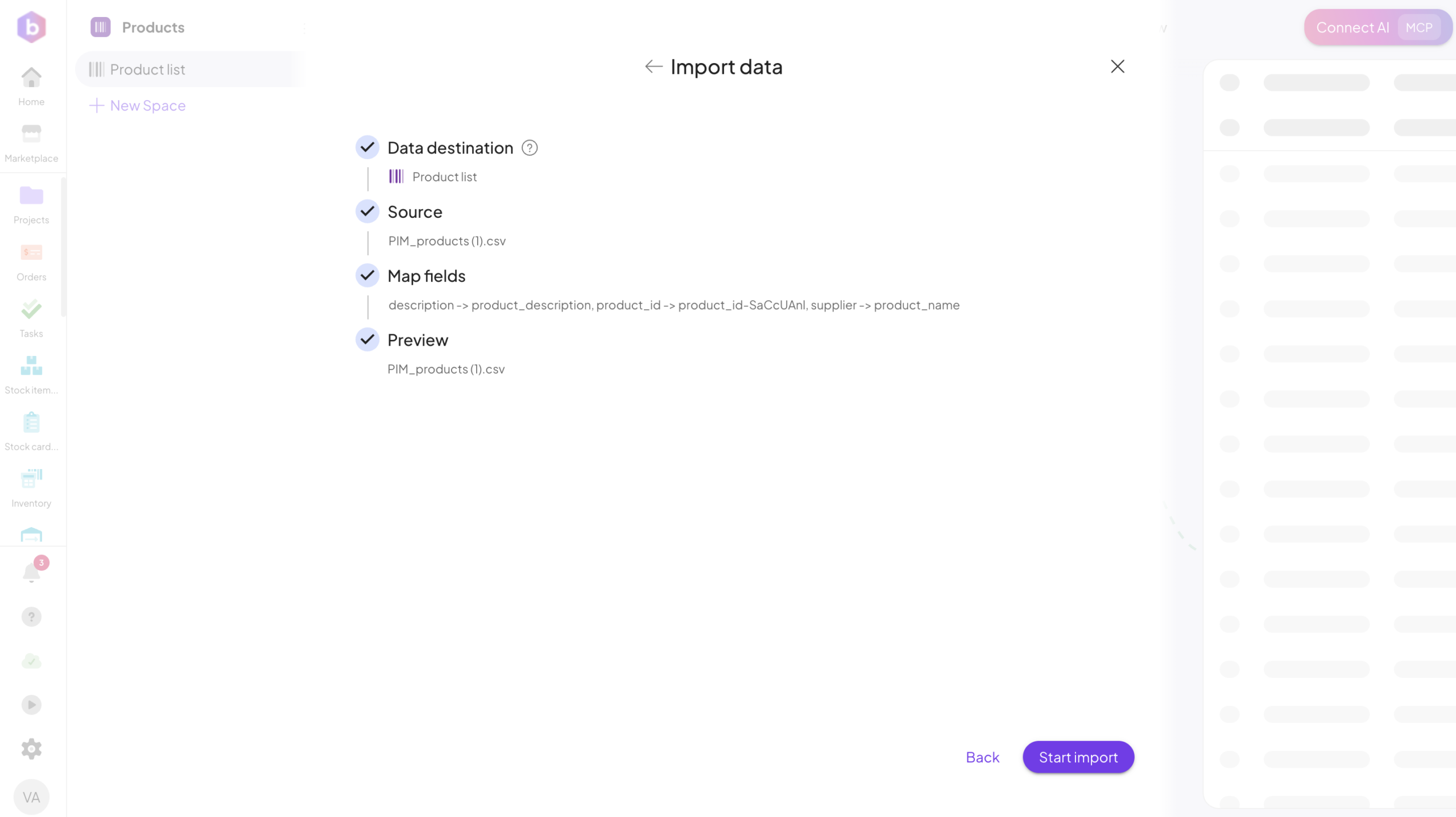
6. Start import
Confirm and start the import process.
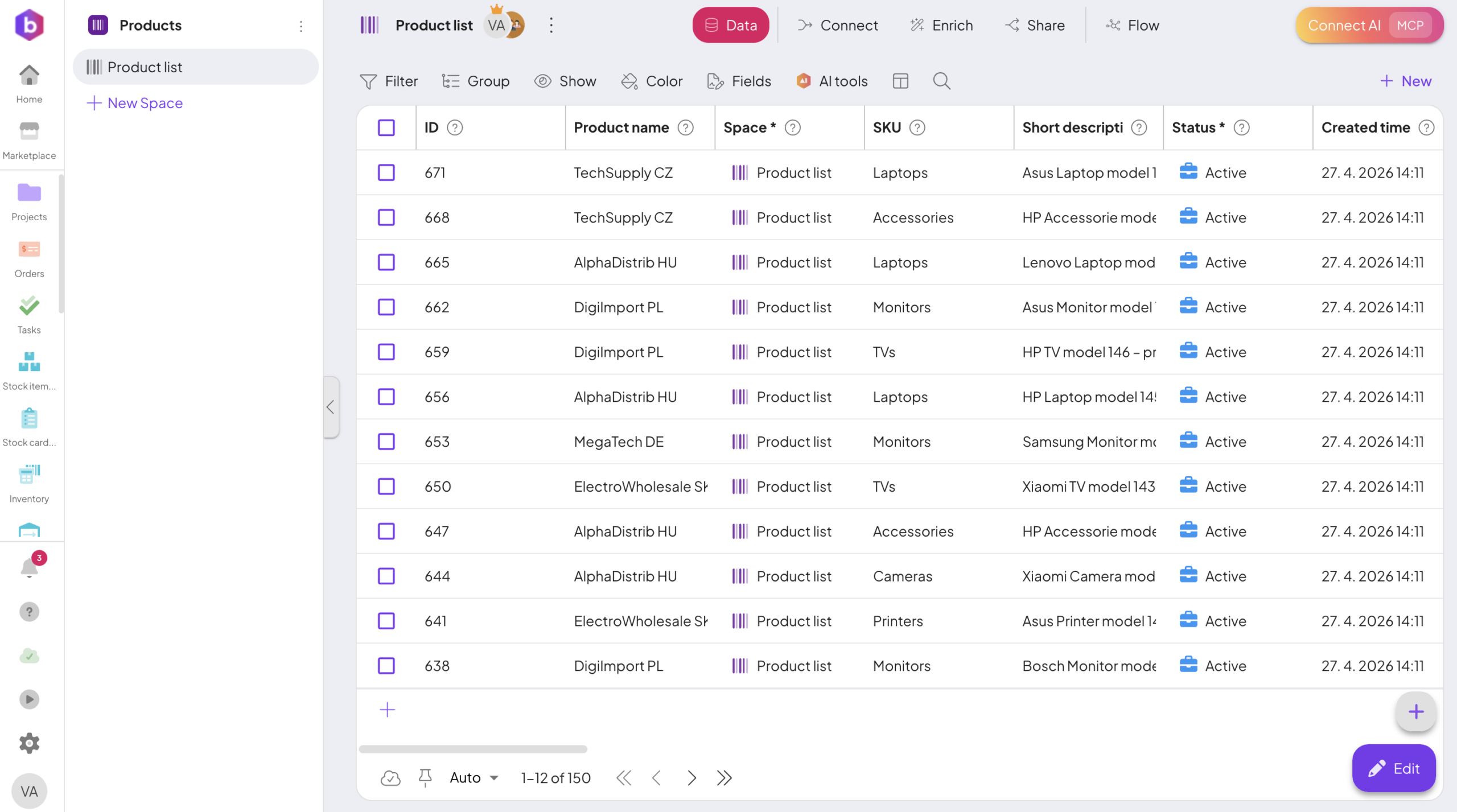
7. View your Data.
Once the import is complete, your data will appear in the selected Space and is immediately ready to use.
Importing data into Boost.space is designed to be fast, flexible, and reliable.
With support for multiple file formats, AI-powered field mappingMapping links the modules in your scenario. When you map an item, you connected the data retrieved by one module to another module to perform the desired action. For example, you can map the email address and subject lines from the Email > Watch emails module to Google Sheets > Add a row and create a spreadsheet of email addresses..., and automatic field creation, you can easily bring your existing data into the system without manual setup. This allows you to quickly build your data structure, maintain consistency, and start working with your data right away.